Zapier Review 2026: Is It Legit, Easy, and Worth the Price?
Lindy reviewed Zapier hands-on, testing Zap creation, the Copilot AI builder, and multi-step logic paths while weighing pricing tiers against 7,000+ integrations.


My early Zapier workflows were almost boring in the best way. An email arrived, a record updated, and I stopped thinking about the task. Then I started building longer Zaps, and small setup choices began deciding whether the whole workflow held together.
Ease of use turned out to be much more interesting than the usual “no-code” label suggests. In this Zapier review, I test real workflows, score five parts of the product, and look at whether the trust concerns showing up in search results match what users report after months of use.
What is Zapier?
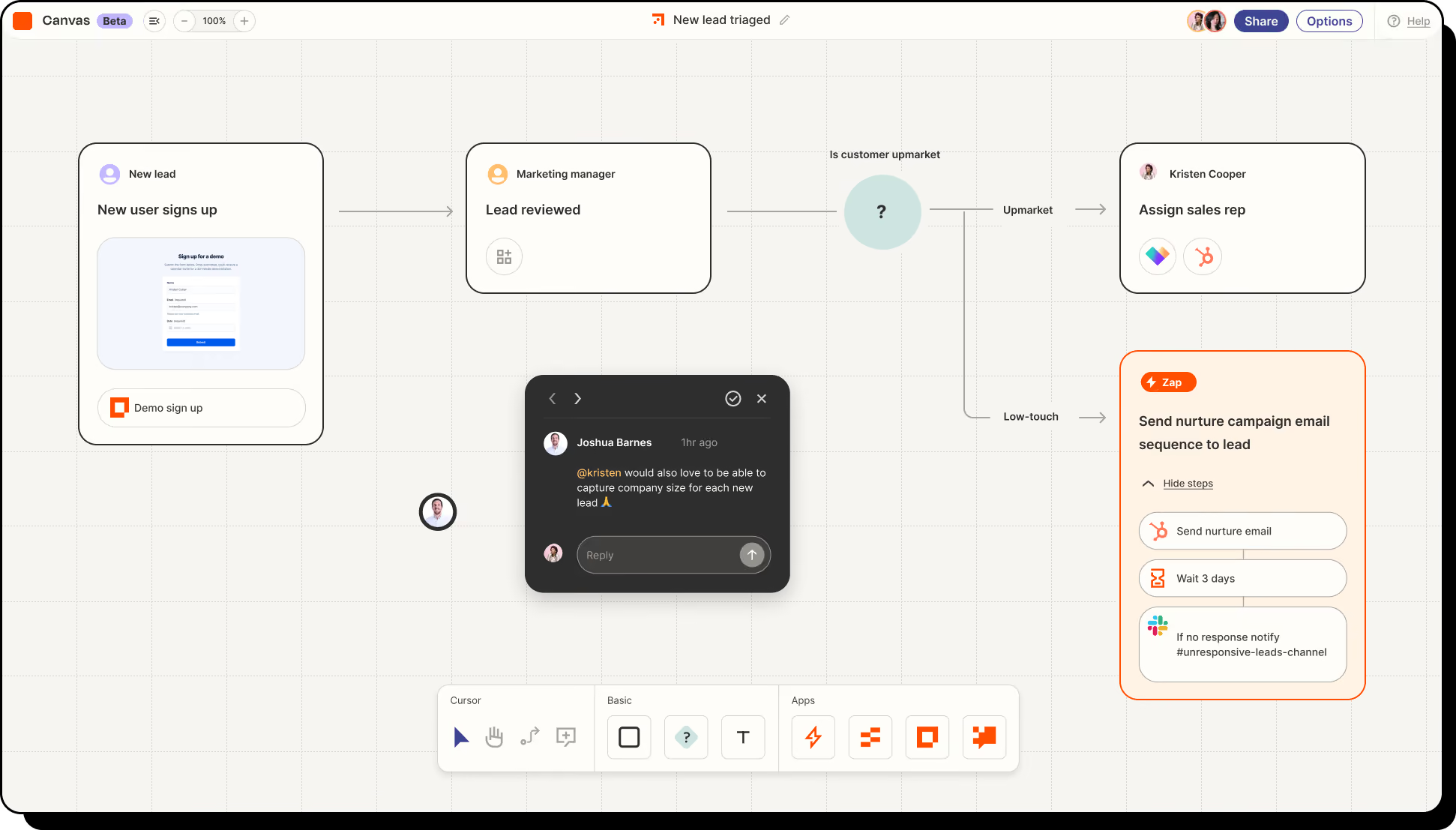
Zapier is an automation platform that connects apps, data, and AI tools. A Zap is one automation you set up. You pick the event that starts it, then the steps Zapier runs when that event happens.
It works with 9,000+ apps and 450+ AI tools, covering everything from Gmail, Slack, and ChatGPT to niche industry software. Where two tools have no native connection of their own, it's usually the fastest way to link them without writing code.
Still choosing a tool? Our Zapier alternatives roundup compares the main options side by side.
How I scored Zapier
I scored Zapier on five things that kept coming up during testing: ease of use, value for money, feature depth, support, and integrations.
Each score came from using Zapier on real workflows, including email alerts, CRM syncs, and multi-step lead routing. Zapier's scores:
Is Zapier easy to use?
Yes. Zapier was easy to get started with, which is where I think it earns its reputation. The visual builder follows simple “when this happens, do that” logic, and my first Zap took under five minutes to build, using a pre-built template.
The learning curve showed up once I started using Filters, Paths, and Formatter steps, which require a better grasp of conditional logic. When a Zap failed, the error rarely told me which step broke.
For a Slack alert or a CRM sync, I found Zapier close to plug-and-play. Once a workflow added branching and ran past five or six steps, I needed more time to build and troubleshoot it properly.
Zapier pricing: Is it worth the cost?
Pricing is where Zapier's score dropped fastest. The free plan gives you 100 tasks a month, which covered a few test workflows and then ran out within days of putting them to real use.
On monthly billing, Professional starts at $29.99/month with 750 tasks, while Team starts at $103.50/month with 2,000 tasks. Enterprise uses custom pricing. Annual billing brings those starting prices down to $19.99 and $69 per month, respectively.
At $29.99, 750 tasks is not much volume. You're paying for how easy Zapier is to set up, not for scale.
Our Zapier pricing guide goes further into each tier and how task billing works.
The part I had to watch was how quickly billable actions add up. Every action Zapier completes for you costs one task. A Zap with five actions costs five tasks each time it runs. The trigger is free, and so are Filters, Paths, and Formatter. AI steps cost more than one task per run, and the rate climbs with the model you pick.
For my simpler automations, the price was fair. Once I moved to high-volume lead routing, the task count rose fast enough that I worked out the monthly cost before upgrading.
Features and depth
Zapier is no longer just triggers and actions. Tables stores your data inside Zapier, Forms handles lead capture, intake requests, and approvals, plus dashboards and portals, and Copilot builds a workflow from a plain-English description.
I pushed Zapier with a 12-step lead qualification workflow involving CRM updates, Slack alerts, and follow-up emails. Getting all the pieces lined up took some work, but once configured, it ran cleanly.
I started feeling the edges when the logic got more technical. Zapier can repeat a step over a list of items (Looping) and roll a Zap back to an earlier version. Looping is still in beta, stops at 500 repeats, and cannot be nested inside another loop.
A 500-repeat cap gets in the way once a workflow processes larger or more complicated datasets.
Customer support
Support was one of the harder categories to score because what you get depends entirely on which plan you're on. I tested on the entry Professional plan, so email was my only support channel.
Professional gets email support with an eight-hour first reply. Live chat only opens up on the 2,000-task Professional tier or higher, or on Team or Enterprise. Team gets a one-hour first reply, and Enterprise gets 30 minutes.
I spent more time in Zapier's Help Center than in support tickets, and most of my setup questions got answered there first. The help articles and Zapier Academy cover individual apps and common workflow problems well.
Email-only support feels thin when something breaks, and you want a person. An eight-hour first reply is a long wait when a live workflow has stopped.
{{templates}}
How good are Zapier's integrations?
Zapier's integrations are very good, and they earned it the highest score, 4.8/5. The 9,000+ app library means the tool you need is almost always already there, and connecting it was the easiest part of testing. Most of the time, I just logged in and approved access without touching API keys or developer settings.
What real users say
G2: 4.5 out of 5 stars across 2,087 reviews. Reviewers mainly praise ease of integration and time saved on repetitive tasks, and complain most about cost as usage grows and a learning curve on advanced features.
Trustpilot: 1.3 out of 5, with 74% of reviews at one star, from 321 reviews. Recent complaints focus heavily on refund refusals, task limits being used faster than expected, unclear billing, and slow or unhelpful support. A few reviewers also describe automations or AI-assisted setups failing after they had already upgraded.
Gartner Peer Insights: 4.6 out of 5 across 193 ratings, with strong marks for integration and deployment.
Understanding how task billing and renewals work before you subscribe can prevent most of those expensive surprises.
Is Zapier legit, safe, and trustworthy?
Yes. Zapier is a legitimate company that has operated for more than a decade, and its press page says more than 3.4 million businesses use its automation platform.
On security, Zapier holds SOC 2 Type II and SOC 3 certifications and supports GDPR compliance. Zapier says web traffic uses TLS 1.2 or higher and data at rest is encrypted with AES-256.
Zapier vs Lindy: Which one fits your work?
I’d reach for Zapier when the process is already clear. If every new lead should trigger the same CRM update, Slack message, and follow-up task, Zapier is built for exactly that kind of repeatable automation.
Lindy is closer to having an AI teammate sitting inside Slack. Once your company sources are connected, it can answer questions from meetings, email, Drive, Notion, and other tools, then carry that context into the next action.
In practice, you might ask Lindy what a customer said about pricing, then have it draft the follow-up or turn the discussion into a recurring report.
Our Make vs Zapier vs Lindy and n8n vs Zapier vs Lindy comparisons cover the workflow-builder side in more detail.
Who should use Zapier (and who should look elsewhere)?
Zapier is a good fit if you want to connect a lot of apps, your workflows stay fairly predictable, and you’re comfortable keeping an eye on task usage as volume grows.
I’d look elsewhere if your automations run at high volume, rely on lots of branching, or need deeper controls around retries, versioning, and error handling. The same goes if you’d rather describe the work in plain English and let an AI handle more of the setup.
If pricing at higher volume is the sticking point, our Gumloop vs Zapier vs Lindy comparison shows how the options differ on cost, setup, and complexity.
Final verdict
My Zapier review comes down to this: it's still the easiest automation tool to start with, and it connects to more apps than anything else. I found the simple workflows quick to build.
The tradeoff shows up once those workflows get longer or run more often. Task usage climbs quickly, and on the cheaper plans you're waiting on email when something important breaks.
Between the easy start and the climbing task bill, Zapier lands at 4/5 overall.
Try Lindy for work that starts in Slack
Lindy is an AI teammate that lives in your company's Slack. Once your company sources are connected, you can ask about a customer, pull context from meetings or email, create a report, or kick off follow-up work from the same place your team is already talking.
Here are a few ways Lindy can handle that work in practice:
- Ask questions across company knowledge: Search meetings, Gmail, Notion, Drive, and Slack with sources attached.
- Turn meetings into useful follow-up: Capture summaries and action items, then reuse that context in later work.
- Handle personal work in DMs: Work with your email, calendar, and private context without putting it into a shared channel.
- Create finished work: Work with company data, run code, and produce reports, models, or other files.
- Run recurring routines: Set up jobs in plain English, such as a weekly pipeline brief or account summary.
- Keep sensitive actions controlled: Add approvals and permissions around actions, with activity available for audit.
One admin can connect the company sources, then the team can work with Lindy by mentioning it in Slack or sending it a DM.
{{cta}}
FAQs
1. Is Zapier free?
Yes, Zapier has a permanent Free plan with 100 tasks per month. It supports unlimited Zap workflows, but each workflow is limited to one trigger and one action, which makes it best for testing and simple automations.
2. Is Zapier easy to use?
Yes, Zapier is easy to use for basic workflows. I could get simple two-app automations running within minutes, while Paths, Filters, Formatter steps, and longer workflows took more time to build and troubleshoot.
3. Is Zapier legit and safe to use?
Yes, Zapier is a legitimate automation platform with SOC 2 Type II and SOC 3 certifications, GDPR compliance, encryption in transit, and AES-256 encryption at rest. The recent Trustpilot complaints I reviewed centered mainly on billing, refunds, task usage, and support rather than security incidents.
4. How much does Zapier cost per month?
Zapier is free to start with 100 monthly tasks. On monthly billing, Professional starts at $29.99/month for 750 tasks and Team at $103.50/month for 2,000 tasks, while Enterprise uses custom pricing.
5. What’s a good alternative to Zapier?
A good Zapier alternative depends on what you want to change. Make and n8n both cost less per run and give you more control over how a workflow is built, while Lindy fits teams that want AI to take action across existing tools using the company context.









