LinkedIn Profile Enrichment Automation w/ Lindy & Bright Data


Manually enriching LinkedIn profiles – a process often called lead enrichment – is a bottleneck for most sales and recruiting teams. You have a spreadsheet of promising URLs, but turning them into actionable leads means hours of copying job titles, company info, contact details, and summaries.
This tutorial introduces a fully automated alternative. We'll build a system using Lindy and Bright Data that monitors a Google Sheet and automatically enriches any new LinkedIn URL with the data you need.
What you'll build
By the end of this guide, you'll have set up a complete system that automatically enriches your LinkedIn profiles.
Your new workflow will:
- Monitor your Google Sheet for new LinkedIn profile URLs.
- Check new entries to make sure they're valid.
- Start the data collection process using Bright Data.
- Keep checking until the data is ready.
- Use AI to pull out and clean the profile information.
- Add the new information right back into your spreadsheet.
The best part? This entire setup is done in Lindy's visual workflow builder. You'll connect it all with Bright Data's API without writing a single line of code.
Real-World use cases for LinkedIn Profile Enrichment
The LinkedIn Profile Enrichment Automation we'll build in this article works across multiple business scenarios:
- Sales teams can enrich prospect lists, a key component of AI-powered sales prospecting.
- Recruiters can build candidate databases, showcasing one of the many ways to use AI in business to automate workflows.
- Market researchers can analyze professional demographics to inform their B2B go-to-market strategy.
- Investors can track talent movement between companies to gain valuable market insights.
- Business development teams can identify key decision-makers to support AI-powered B2B lead generation.
Our Automation Tech Stack
Before we dive into building, let's understand the two platforms we'll be using and why they're perfect for this task.
Lindy: The no-code automation platform
Lindy is a no-code platform that lets you create AI-powered automations, or "AI agents". These agents can act as a personal assistant or handle complex tasks without any programming. It gives you a visual way to build workflows that can understand context, make decisions, and adapt, using natural language processing and machine learning.
Key capabilities for our project:
- Visual workflow builder with drag-and-drop nodes
- AI-powered data processing for extracting and cleaning information
- Native integrations with Google Sheets, HTTP APIs, and 5,000+ other apps
- Conditions for conditional branching and decision-making
- HTTP Request actions for API integration
Bright Data: The web data collection engine
Bright Data provides the engine for our agent. It handles all the complex parts of scraping public LinkedIn data – including proxy management, CAPTCHA bypassing, and anti-blocking technology – and delivers it as clean, structured data through an API.
Why Bright Data is perfect for this task:
- Structured JSON output. It returns clean JSON that Lindy's AI can easily read and parse.
- Asynchronous Web Scraping API. Its API is built for long-running jobs, which is exactly what we need for Lindy's polling loop.
- Compliance-focused. The platform is fully compliant with GDPR and CCPA, making it a safe, enterprise-ready solution.
- Comprehensive data access. It provides comprehensive public data, going beyond the limitations of the official LinkedIn API.
How they work together
Lindy orchestrates the entire workflow while Bright Data handles the technical complexity of data extraction. Think of Lindy as the conductor and Bright Data as the orchestra.
This division of labor is powerful because:
- You get visual workflow management without writing code.
- You leverage proven scraping infrastructure without maintaining servers.
- You can customize all the logic, giving you full control over timing, validation, and data transformation.
Prerequisites
Before we start building, make sure you have all the required accounts set up:
- Lindy account. Sign up at lindy.ai. Free plan available, no credit card required.
- Bright Data account. Register at brightdata.com. Free trial included.
- Google account. For Google Sheets integration.
Step 1: Setting up your Google Sheet
Your Google Sheet serves as both the input and output for this automation. Let's structure it properly.
Creating the spreadsheet
- Open Google Sheets and create a new spreadsheet
- Name it something memorable like "New Lead Enrichment"
- Create the following column headers in Row 1:
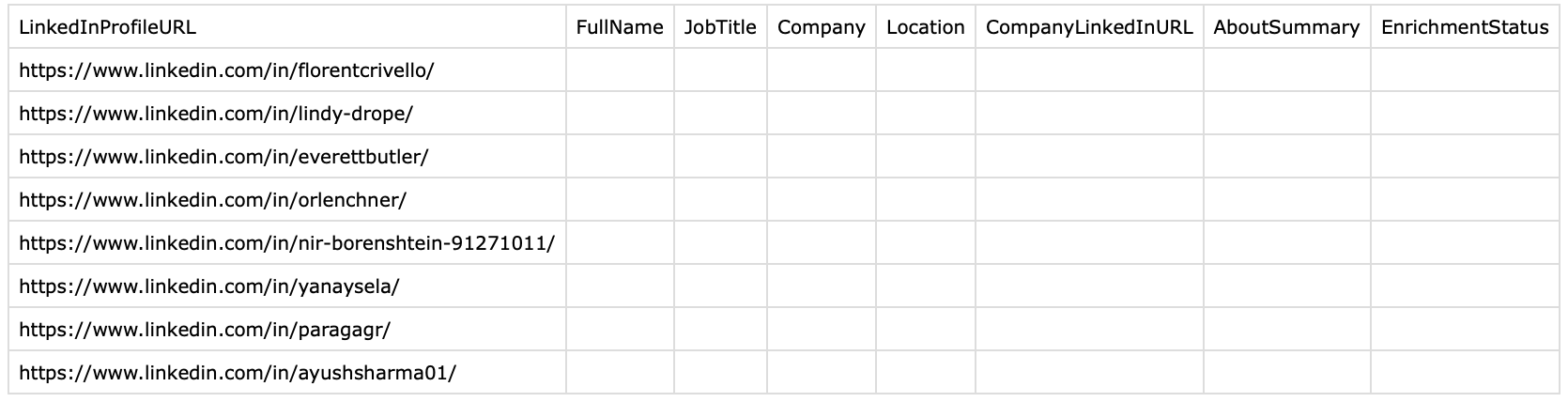
| LinkedInProfileURL | FullName | JobTitle | Company | Location | CompanyLinkedInUrl | AboutSummary | EnrichmentStatus |
|---|
A quick note on how this works:
- LinkedInProfileURL is your input. You'll paste URLs here.
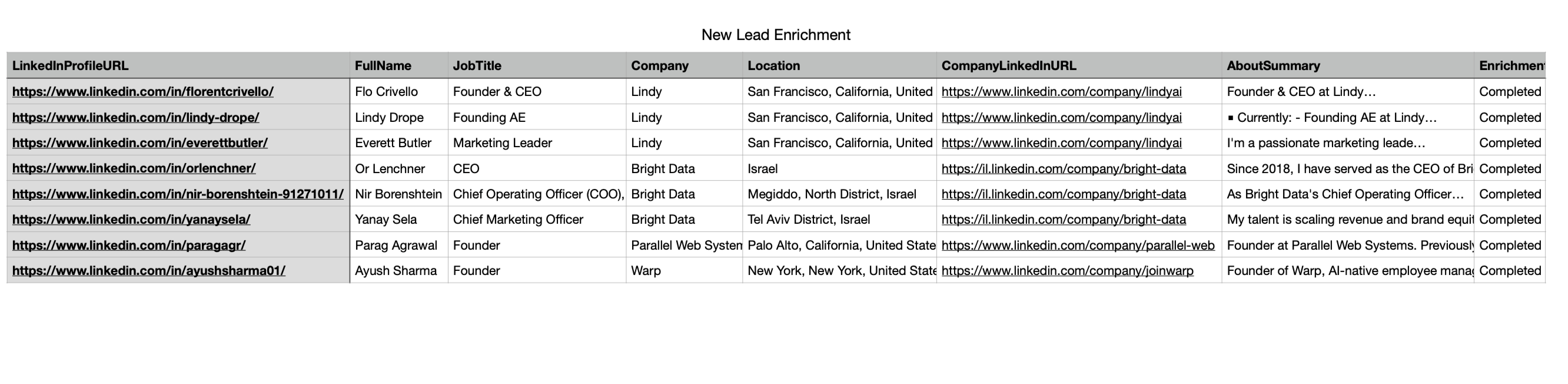
- EnrichmentStatus is our tracker. The agent will write "Completed" here. This is the key to preventing the agent from re-processing a row that's already finished.
- All other columns are your output. Leave them blank.
Sample data structure
Here's what your sheet should look like before processing:
And after processing:
Now that your sheet is ready, let's move to setting up Bright Data.
Step 2: Get your Bright Data credentials
To connect Lindy to Bright Data, you only need 2 pieces of information: your API token and the dataset ID for the LinkedIn profile scraper.
1. Get your API token
- Log in to your Bright Data account.
- Navigate to Account Settings (often found in the bottom-left).
- Inside Account Settings, find and click the User management tab.
- Copy your existing API token or click "Add key" to generate a new one. Save it in a notepad.
2. Get the dataset ID
Bright Data's Web Scraper API uses a unique dataset ID to identify which pre-built scraper to run. The ID for the "LinkedIn People Profile" scraper is static.
While you can find this ID in the "API request builder" tab for the scraper in the Bright Data dashboard, we're providing it directly to save you time: gd_l1viktl72bvl7bjuj0
Just copy this ID. That's it.
You now have your 2 essential items:
- Your API token
- Your dataset ID
Now that Bright Data is configured, let's build the Lindy workflow.
Step 3: Build the agent (two ways)
This is where everything comes together. We've made this easy for you, so you have 2 options to get your agent running.
Option 1: Use the template
If you're in a hurry, just use our pre-built template. Click the link below to clone the complete, pre-built agent. Lindy will then ask you to connect your Google account and paste in your Bright Data API key. Clone the LinkedIn Enrichment Agent template.
Option 2: The "learn-by-doing" method (build it manually)
We highly recommend this! We'll walk you through, node-by-node, how to build this agent from scratch. This is the best way to learn how this agent's logic works, so you can customize it for your own projects later.
Workflow architecture overview
Before we build, let's look at the map. This is what our final agent will look like in the Lindy workflow builder.
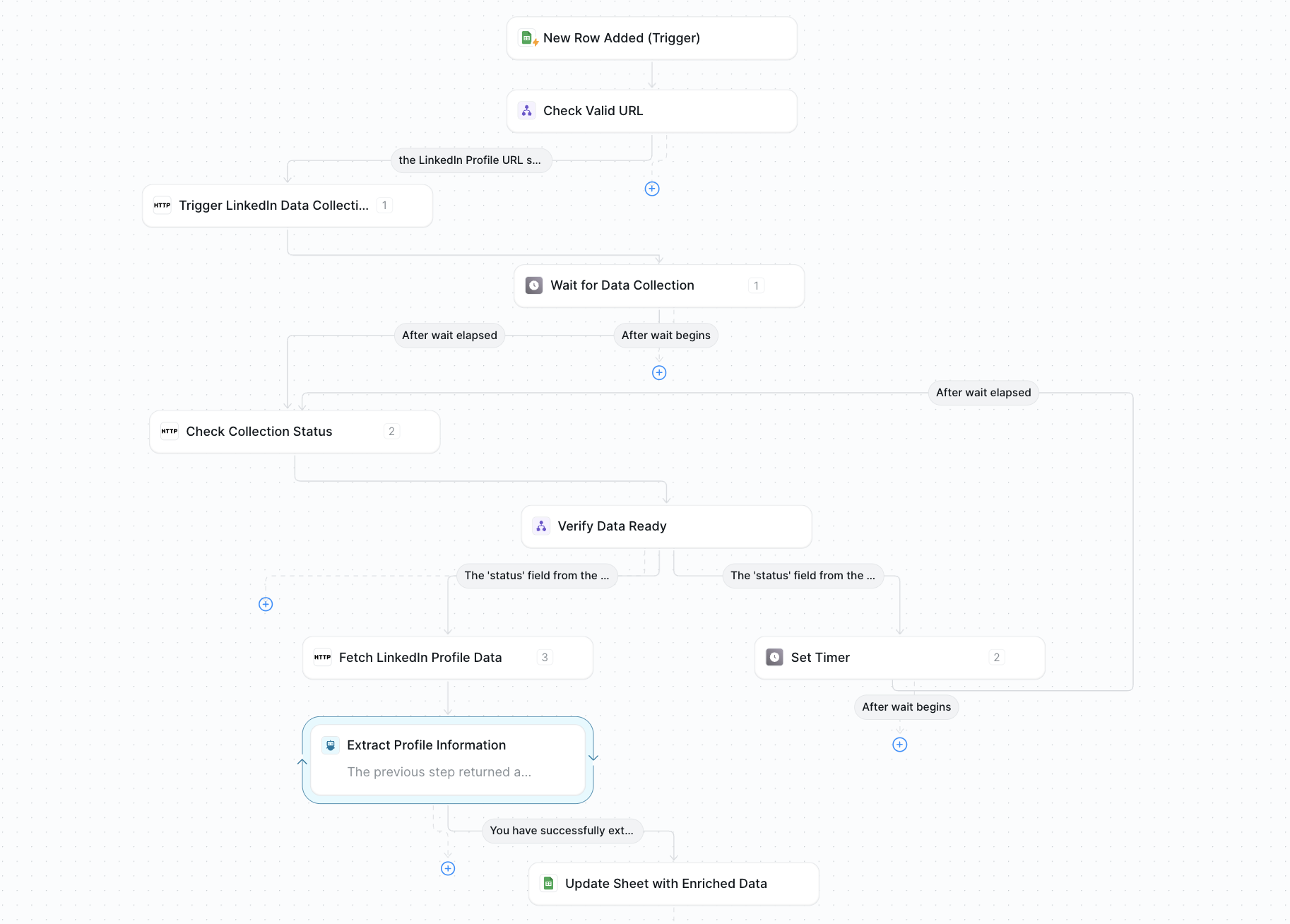
Logically, the workflow follows this 9-step process:
Now, let's build it, node by node.
Accessing the workflow builder
- Log in to your Lindy account.
- Click New Agent.
- Select Start from Scratch.
- Name your agent something clear, like "New Lead Enrichment Agent".
{{templates}}
Node 1: Entry point - Google Sheets trigger
What it does: Monitors your Google Sheet and fires the workflow when a new row is added.
Configuration:
- Click "Select Trigger" in the workflow builder
- Select "Google Sheets" from the integration list
- Choose "New Row Added" as the trigger type
- Connect your Google account and authorize Lindy to access your Google account
- Paste your Google Sheet URL
- Leave "Sheet Title" empty if you only have one sheet
Settings to note (this is important):
- Trigger delay. The trigger is not instant. It can take up to 2 minutes to detect a new row. When you test, be patient!
- Data passed. The entire row is captured and becomes available to all following nodes, giving us direct access to the LinkedInProfileURL and EnrichmentStatus columns.
Node 2: Check valid URL (logic node)
What it does: Validates the URL and checks if the row has already been processed.
Why it matters: This gate is critical. It prevents wasting Bright Data credits on invalid URLs or re-processing profiles you've already completed.
Configuration:
- Add a "Condition" node after the trigger
- Name it "Check Valid URL"
- In the "Go down this path if" text area, you'll write the full condition:
Node 3: Trigger LinkedIn data collection (HTTP request)
What it does: Initiates the scraping job with Bright Data's API.
Configuration:
- Add an "HTTP Request" node
- Name it "Trigger LinkedIn Data Collection"
- Method: POST
- URL: https://api.brightdata.com/datasets/v3/trigger?dataset_id=gd_l1viktl72bvl7bjuj0
- Headers: In the Headers section, click Add Item twice to add 2 rows:
- Row 1: Name: Authorization, Value: Bearer YOUR_API_TOKEN (Remember to replace YOUR_API_TOKEN with your key from Step 2.)
- Row 2: Name: Content-Type, Value: application/json
- Body (Prompt AI): Select the "Prompt AI" option for the body.
- Prompt: Create a JSON array with a single object. The object should have a "url" field containing the LinkedIn Profile URL from the Google Sheets row.
This tells Lindy's AI to extract the LinkedIn URL from the trigger data and format it as:
Response handling: This API call will return a JSON response containing a snapshot_id. Lindy automatically captures this output, which we'll use in the next steps.
Node 4: Wait for data collection (timer)
What it does: Pauses the workflow for 1 minute to give Bright Data time to scrape the profile.
Why it's necessary: LinkedIn scraping isn't instantaneous. This 1-minute buffer is crucial because the scraper must:
- Navigate to the profile page
- Bypass anti-bot measures
- Extract all data fields
- Parse and structure the information
While the actual scraping might only take a few seconds, the total time can vary. A 1-minute buffer is a safe and reliable choice to ensure the data is ready.
Configuration:
- Add a Set Timer node
- Name it Wait for Data Collection
- Set wait duration: 1 minute
- Wait type: For
Node 5: Check collection status (HTTP request)
What it does: Polls Bright Data's API to see if the scraping job is complete.
Configuration:
- Add another HTTP Request node
- Name it Check Collection Status
- Method: GET
- URL (Prompt AI): Select Prompt AI for the URL
- Prompt: Construct the URL: https://api.brightdata.com/datasets/v3/progress/ and append the snapshot_id from the "Trigger LinkedIn Data Collection" node's output.
- Example result: https://api.brightdata.com/datasets/v3/progress/s_abc123xyz789
- Headers: Click Add Item to add 1 row
- Row 1: Name: Authorization, Value: Bearer YOUR_API_TOKEN
Response structure (this is important for the next step):
This node will return a JSON response with a status. We only care about 2 possible responses:
- {"status": "running"} (This means the job is still working)
- {"status": "ready"} (This means the job is done, and we can get the data)
Node 6: Verify data ready (logic node with branching)
What it does: This is the most critical decision point in the workflow. It reads the status from Node 5 and decides whether to fetch the data (if "ready") or to wait and check again (if "running").
This node is what creates our powerful polling loop.
Configuration:
- Add a Condition node
- Name it Verify Data Ready
- This node will have 2 paths. You'll add 2 separate conditions:
- Path A (Ready): In the "Go down this path if" box, write: The "status" field from the output of the previous step is "ready"
- Path B (Still Running): Add a second path and in its "Go down this path if" box, write: The "status" field from the output of the previous step is "running"
- Connect Path A (Ready) to the next node in your workflow (which will be Node 7)
- Connect Path B (Still Running) to a new Set Timer node (name it "Wait 1 Min Before Retry") set for 1 minute
- Connect the output of this new timer back to the input of Node 5 (Check Collection Status). This officially creates the loop.
Node 7: Fetch LinkedIn profile data (HTTP request)
What it does: Retrieves the complete JSON profile data now that the job is "ready".
Configuration:
- Connect this node to Path A (Ready) from Node 6
- Add an HTTP Request node
- Name it Fetch LinkedIn Profile Data
- Method: GET
- URL (Prompt AI):
- Prompt: Construct the URL: https://api.brightdata.com/datasets/v3/snapshot/ followed by the snapshot_id from the "Trigger LinkedIn Data Collection" node's output, then add ?format=json at the end.
- Example result: https://api.brightdata.com/datasets/v3/snapshot/s_abc123xyz789?format=json
- Headers: Click Add Item to add 1 row
- Row 1: Name: Authorization, Value: Bearer YOUR_API_TOKEN
Response data (this is important for the next step):
The output of this node will be a large, comprehensive JSON object. It will look something like this:
Note the current_company.link field – this contains the company's LinkedIn URL, but often with tracking parameters that we'll need to clean.
Node 8: Extract profile information (AI agent)
What it does: Uses Lindy's AI capabilities to intelligently parse the massive JSON response from Node 7 and extract only the 6 clean fields we want.
Why AI is needed:
- JSON structure can vary between profiles
- Need to handle missing fields gracefully
- Must clean URLs (remove tracking parameters)
- Required to map nested fields correctly
Configuration:
- Add an Agent Step node
- Name it Extract Profile Information
- Provide these Agent Guidelines:
- Model selection: You can leave this as the default. Lindy is optimized for these tasks, and its default reasoning model will handle this perfectly.
Why these guidelines work:
- Specific field names guide the AI to the right JSON paths
- The URL cleaning instruction prevents messy links with ?trk= parameters
- "N/A" handling ensures the workflow doesn't break on incomplete profiles
- Structured output request makes the next node's job easier
Node 9: Update sheet with enriched data (Google Sheets action)
What it does: Writes the clean, extracted data from our AI Agent (Node 8) back to the original Google Sheet row.
Configuration:
- Add a Google Sheets node and choose action: Update Row
- Spreadsheet: Select your enrichment spreadsheet (same as the trigger)
- Sheet Title: Leave blank (to default to the first sheet)
- Lookup Column: LinkedInProfileURL (This must match your Google Sheet column header exactly.)
- Lookup Value (Prompt AI):
- Prompt: The LinkedInProfileURL from the original Google Sheets trigger that started this workflow
- Upsert: Set to False (we only want to update, not create)
- Fail If Not Found: Set to False
- Row Values Mapping: Map each of your 8 sheet columns using the "Prompt AI" setting:
- LinkedInProfileURL (Prompt): Keep the LinkedIn Profile URL unchanged - use the same URL from the Google Sheets row that triggered this workflow
- FullName (Prompt): Extract the full name from the LinkedIn profile data analyzed in the previous AI Agent step
- JobTitle (Prompt): Extract the job title/position from the LinkedIn profile data analyzed in the previous AI Agent step
- Company (Prompt): Extract the current company name from the LinkedIn profile data analyzed in the previous AI Agent step
- Location (Prompt): Extract the city/location from the LinkedIn profile data analyzed in the previous AI Agent step
- CompanyLinkedInUrl (Prompt): Extract the company LinkedIn URL from the LinkedIn profile data analyzed in the previous AI Agent step
- AboutSummary (Prompt): Extract the about section text from the LinkedIn profile data analyzed in the previous AI Agent step
- EnrichmentStatus (Prompt): Set to "Completed"
Why are we using AI prompts for mapping?
This is the power of Lindy. Instead of a brittle, manual mapping, we're using Lindy's AI to understand the data from the previous step and find the correct value.
Connecting all nodes
Once all nodes are created and configured, double-check your workflow connections. The most important is the polling loop (the connection from the "Verify Data Ready" node's "running" path back to the "Check Collection Status" node).
Step 4: Testing your automation
Before running this on a large dataset, let's test with a few profiles to ensure everything works correctly.
Initial test run
1. Add a test profile
- Open your Google Sheet
- Paste a LinkedIn profile URL in the first data row (Row 2)
- Example: https://www.linkedin.com/in/satyanadella/
- Leave all other columns empty
- Wait 2 minutes for the trigger to detect the new row
2. Monitor workflow execution
- In Lindy, navigate to "Tasks"
- You should see your workflow execution appear
- Click on it to view the step-by-step progress
- Watch as it moves through each node
3. Verify the results
After 2-4 minutes, check your Google Sheet:
- The row should now have all enriched data
- EnrichmentStatus should show "Completed"
- All data fields should be populated (or "N/A" if not available)
Common issues and fixes
If your workflow isn't behaving as expected, don't worry. Here is a checklist of the most common issues and how to solve them in seconds.
Issue: The workflow doesn't trigger at all.
- Check: Did you wait 2 minutes? The Google Sheets trigger has a natural delay. This is the most common "problem"
- Check: Is the sheet URL in your Node 1 (Trigger) configuration correct?
- Check: Did you authorize the correct Google account in Node 1?
Issue: The workflow stops at "Check Valid URL" (Node 2).
- Check: Does your URL in the Google Sheet start with https://?
- Check: Is the EnrichmentStatus column in your sheet completely empty for that row? (Even a single space will cause it to fail).
Issue: The workflow fails at an "HTTP Request" node (Node 3, 5, or 7).
- Check: Is your Bright Data API token pasted correctly in the "Headers" section?
- Check: Did you include the Bearer prefix (with the space) in the Authorization header?
- Check: Is your dataset_id correct? (It should be gd_l1viktl72bvl7bjuj0)
Issue: The workflow is "stuck in a loop" (or "running" for a long time).
- Expected: This might be normal. Some complex profiles can take 5-10 minutes to scrape.
- Action: Give it 5-10 minutes.
- Check: If it's still stuck, open the Lindy "Tasks" log and look at the "Check Collection Status" node. See what response it's getting.
Issue: The spreadsheet updates, but all the new fields just say "N/A".
- Check: Is the LinkedIn profile public? Private profiles cannot be scraped and will return no data.
- Check: In the Lindy "Tasks" log, look at the output of the "Fetch LinkedIn Profile Data" node. Is it returning an empty JSON? If so, the profile is likely private or unavailable.
- Fix: If data is being returned, your AI prompt in Node 8 may need to be adjusted.
Issue: The spreadsheet never updates (the last step fails).
- Check: Are your Google Sheet column names exactly as specified in this guide (e.g., LinkedInProfileURL, FullName)? They are case-sensitive.
- Check: Is the Lookup Column in Node 9 set to LinkedInProfileURL? This is also case-sensitive.
- Check: In the Lindy "Tasks" log, view the "Update Sheet" node and see what error message it's giving you.
Testing multiple profiles
Once a single profile works, you're ready to scale.
- Add 5, 10, or 100 new LinkedIn URLs to your sheet
- You can add them all at once
- Lindy will handle this by triggering an independent workflow instance for each new row, running them in parallel
A quick note on credits: Before you add hundreds of URLs, remember that each new row will trigger one workflow and use credits on both Lindy and Bright Data.
Optional upgrades for your LinkedIn agent
If you're ready to take it to the next level, here are 6 optional upgrades you can add in minutes.
- Draft personalized outreach. Now that you have the AboutSummary for each lead, feed it into a new agent. Use Lindy's LinkedIn Personalized Message Drafter template to automatically write a custom, relevant outreach message for every new lead.
- Add error handling & notifications. In your Verify Data Ready (Node 6), add a third path for a "failed" status. Connect this path to a Slack or Email node for instant alerts. You can also have it update the Google Sheet EnrichmentStatus column to "Error”.
- Create a "priority" queue. Add a Priority column to your Google Sheet. Then, in Node 2 (Check Valid URL), add another condition: AND the Priority column is "High". This way, your real-time agent only handles high-priority leads.
- Run low-priority leads on a schedule. Clone your agent. In the new one, change the Node 1 (Trigger) from "New Row Added" to "Scheduled" (e.g., "run daily at 2 AM"). Set its logic to process all rows where Priority is "Low" and EnrichmentStatus is empty.
- Add AI-powered data quality scoring. After Node 8 (Extract Profile), add a new Agent Step. Give it this prompt: "Review the extracted data. Score its quality from 0-100 based on whether the JobTitle and AboutSummary are 'N/A'. Return only the number". Save this to a new Quality Score column in your sheet.
- Chain your agents with more data. This is the perfect next project. The CompanyLinkedInUrl you extracted can be the trigger for a second agent, creating a system where agents can chain together. The Bright Data LinkedIn Scraper library has endpoints for company info, job postings, and more. You can use the exact same logic you learned today to build new agents that add even more value to your sheet.
{{cta}}
Conclusion
You now have a complete, working solution that combines Lindy's intelligent AI orchestration with Bright Data's reliable, structured web data.
This specific tutorial is a powerful example, but it's just one of many workflows you can automate with Lindy and Bright Data. This pattern – triggering, polling, and parsing – is the key. You can now re-use it to build even more powerful agents.
Further reading
- How to create AI agents (A general guide to building on Lindy)
- Lindy documentation (for advanced agent building)
- Bright Data Web Scraper API docs (for all API endpoints)









