11 Best AI Presentation Makers I Tested for Faster Decks in 2026
Marvin tested 11 AI presentation makers, including Gamma and Canva, comparing design templates, generation speed, and editing controls for building faster decks.


“Deck by end of day” is the kind of request that usually eats up my entire afternoon productivity slot. I create the first draft quickly. That’s easy. Fixing the layout, trimming the copy, checking the charts, and making every slide look like it belongs in the same presentation is where the time goes.
I tested 18 AI presentation makers using a product pitch, a quarterly update with metrics, and a strategy deck. I compared first-draft quality, generation speed, design, and how much cleanup each tool left behind.
Some produced a usable deck in minutes. Others gave me a rough outline in a nice template. These are the 11 AI presentation makers I’d recommend.
11 best AI presentation makers: TL;DR
- Canva: Best for design-first presentations
- Gamma: Best for quick polished decks
- Beautiful.ai: Best for data-driven presentations and smart layouts
- Lindy: Best AI assistant for pre- and post-presentation tasks
- Manus: Best for research-heavy presentations
- Plus AI: Best for PowerPoint and Google Slides users
- Pitch: Best for teams collaborating on presentations
- Prezi: Best for non-linear storytelling
- Chronicle: Best for interactive live presentations
- SlidesAI: Best for budget-friendly Google Slides generation
- STORYD: Best for structured business storytelling
How I tested these AI presentation tools
I tested these AI presentation tools for presentation scenarios, like a short product pitch presentation, a quarterly update presentation with metrics, or a strategy presentation explaining a new idea.
These scenarios helped reveal how each tool handled different presentation styles and levels of complexity. Here are the factors I evaluated while testing:
First-draft quality
I started by asking each tool to generate a presentation from a short prompt. The goal was to see how well the tool turned a rough idea into a usable outline and slide structure. Some tools produced clean drafts with clear sections such as problem, solution, and key points. Others generated slides that needed heavy editing before they made sense. If you need to condense lengthy source notes before drafting slides, using the best ai summarizer can speed up your preparation.
Editing and control
After the first draft, I edited the slides to see how easy it felt to refine the presentation. I tested things like:
- Expanding a slide into more detailed talking points
- Rewriting content to improve clarity
- Rearranging slide sections
- Adjusting layouts or formatting
Some tools made these changes quickly, while others required rebuilding parts of the presentation manually.
Export and sharing
Presentations rarely stay inside one platform. I checked how each tool handled exports and sharing options. I tested:
- Exporting to PowerPoint or Google Slides
- Downloading presentations as PDFs
- Sharing presentations through links
Tools that supported multiple formats made it easier to move the presentation into an existing workflow.
Presentation workflow support
Most tools focus only on generating slides. I also looked at how well each tool supported the work that happens around a presentation. It included: If you want to capture raw meeting ideas before converting them into slides, exploring the best note taking apps can streamline your process.
- organizing research or notes
- structuring ideas before building slides
- preparing talking points
- sending follow-ups after meetings
Tools that supported more of this workflow offered more value than simple slide generators. If you need deeper research and drafting capabilities, comparing top manus ai alternatives can reveal other options built for complex workflows.
Now let’s take a closer look at each tool and see where it fits best.
1. Canva: Best for design-first presentations
What it does: Canva helps create visually polished presentations with AI-assisted layouts, templates, and design tools. It focuses on making slides look clean and professional with minimal design effort.
Who it’s for: Canva works best for marketers, freelancers, students, and small teams that care about presentation design. If you want slides that look polished without learning complex design software, Canva fits that use case well.
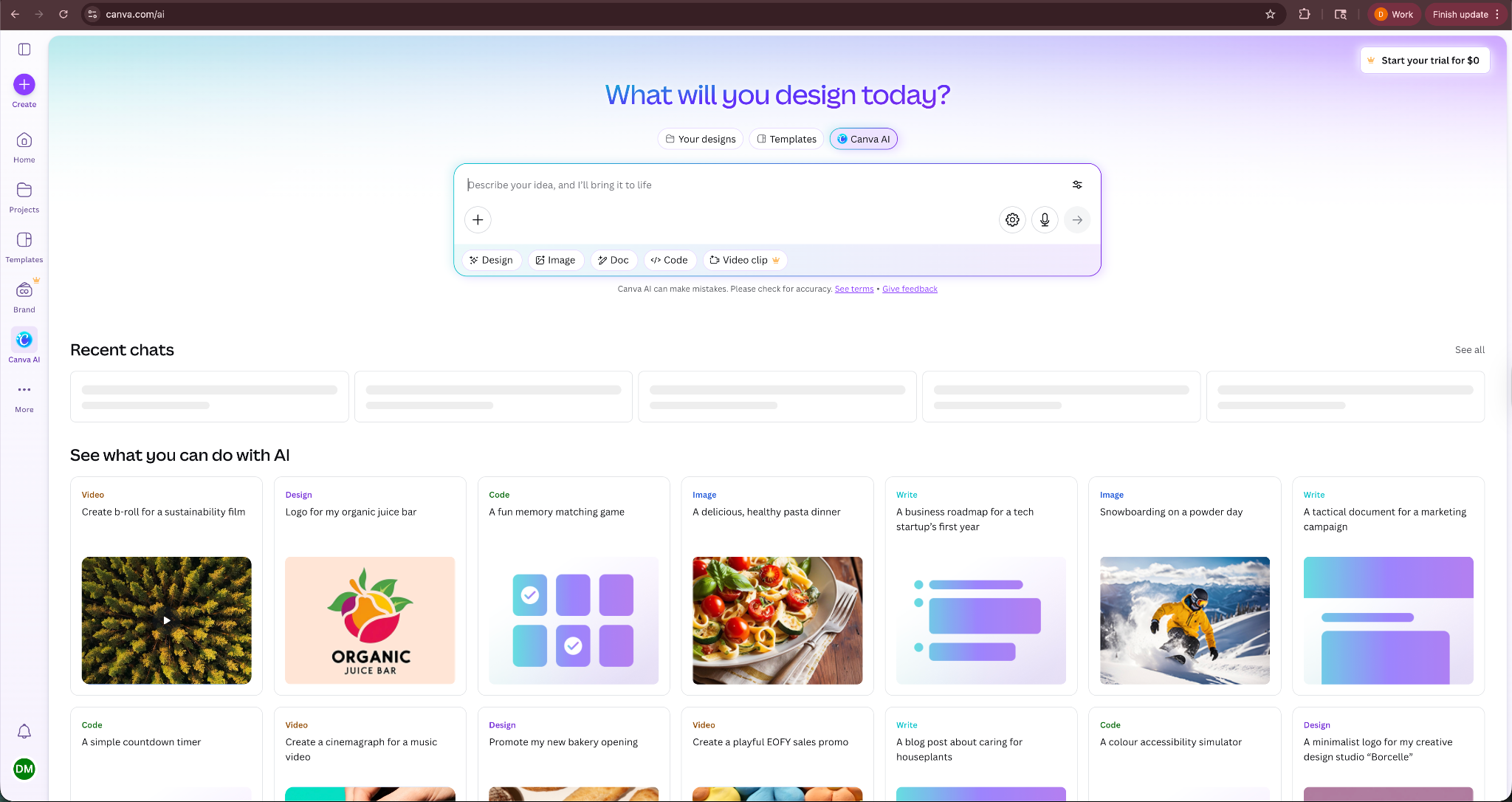
I tested Canva by creating a short marketing presentation about launching a new product feature. I started with the AI presentation generator and entered a prompt describing the feature, the target audience, and the goal of the presentation.
Canva produced a structured draft with several slides that included headings, short paragraphs, and suggested visuals. The layouts looked clean right away, which meant I did not need to adjust spacing or alignment.
Next, I tested how easy it felt to edit the slides. I swapped images, changed colors to match a simple brand palette, and replaced the placeholder text with my own content. Canva handled these changes quickly, and the design stayed consistent across the slides.
I also tried converting a simple outline into a presentation. After pasting the text into Canva, the AI suggested layouts and visuals that matched each section. The process felt closer to editing a design template than building slides from scratch.
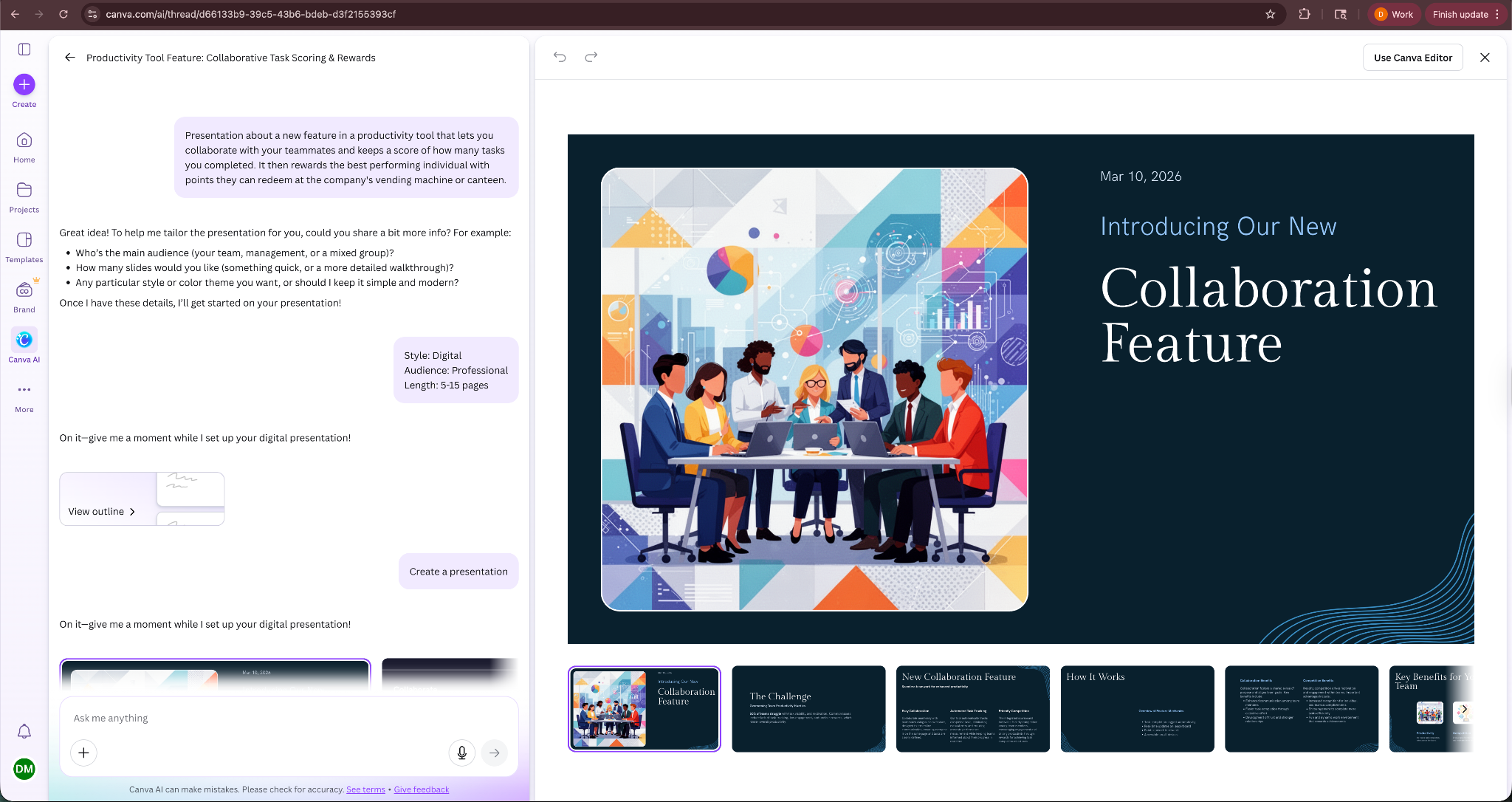
Canva made it easy to turn basic content into a visually polished presentation. The design tools handled most formatting automatically, which saved time compared with traditional slide editors.
Key features
- AI-powered presentation generator that creates slides from prompts
- Large library of templates, images, icons, and design elements
- Drag-and-drop editor for quick layout changes
- Brand kits that store fonts, logos, and color palettes
- Export presentations as PDF, PowerPoint, or video formats
Pros
- Easy to create visually polished slides
- Large selection of templates and design assets
- Beginner-friendly interface that requires no design experience
- Quick edits without breaking slide layouts
Cons
- AI content generation is weaker than some AI-first tools
- Advanced customization can feel limited for complex presentations
Pricing
- Free plan with basic templates, design tools, and limited AI capabilities
- Paid plans start from $18/person/month for additional assets and advanced features
Bottom line
Canva works best when visual quality matters most. If you want attractive slides without spending hours adjusting layouts or design elements, Canva provides one of the easiest ways to build polished presentations.
2. Gamma: Best for fast AI-generated slide decks
What it does: Gamma turns prompts, documents, or rough notes into complete presentations within minutes. Instead of traditional slides, it organizes content into card-style sections that feel closer to a web page than a PowerPoint deck.
Who it’s for: Gamma works best for founders, marketers, and teams who want a polished presentation quickly without spending time on formatting. If you often start with a rough idea and need a usable deck fast, Gamma fits that workflow well.
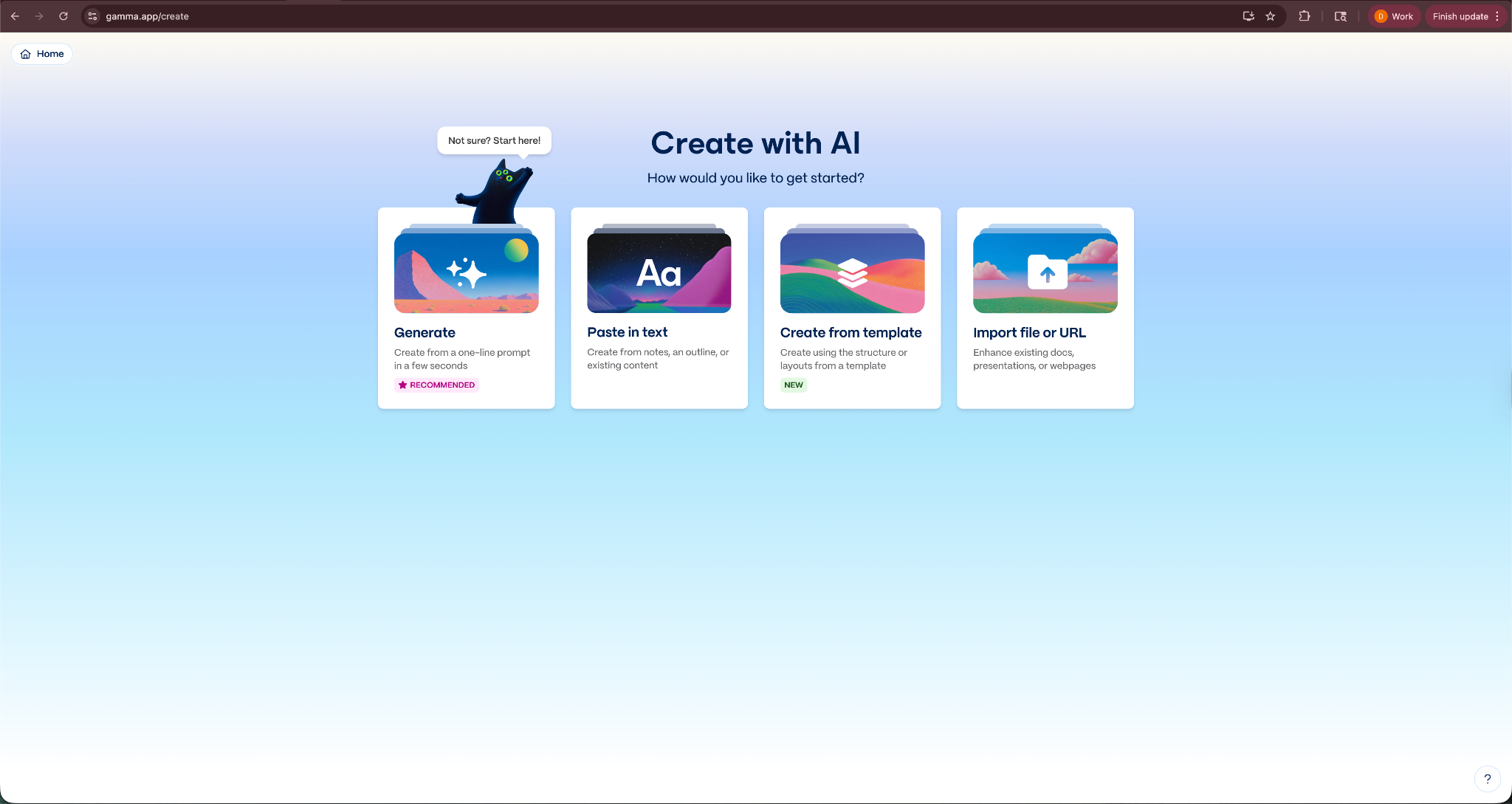
I tested Gamma by asking it to generate a short product launch presentation from a simple prompt. I typed “launch presentation for a new productivity app” and added a few bullet points about the target audience and features.
Within seconds, Gamma created a structured deck with sections for the problem, product overview, key features, and pricing. Each card contained short paragraphs, visuals, and layout suggestions.
Next, I tested editing. I asked Gamma to expand the market opportunity section and simplify the tone of another slide. The tool rewrote the content directly inside the presentation without breaking the layout.
I also tried importing an existing document. I uploaded a short Google Docs outline and asked Gamma to convert it into a presentation. It rearranged the content into cards and added visuals automatically, which saved a lot of manual formatting work.
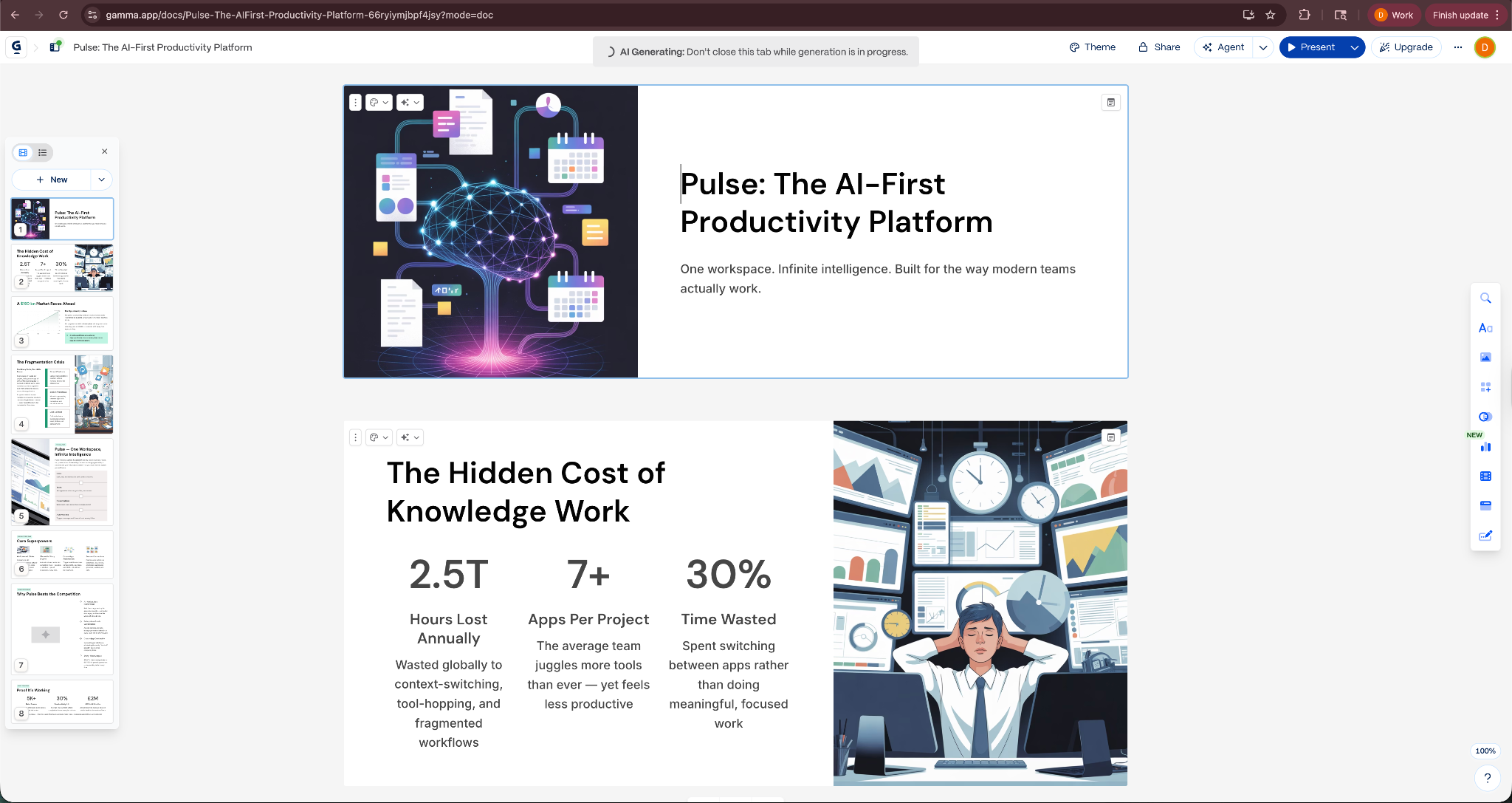
Gamma handled the early stages of presentation building well. The first draft looked clean and modern. I still needed to adjust some wording, but the structure and layout already worked.
Key features
- Generate complete presentations from prompts or outlines
- Convert documents or notes into structured slide decks
- Card-based presentation layout for flexible editing
- AI tools that rewrite or expand slide content
- Export presentations to PowerPoint, PDF, or shareable links
Pros
- Quick way to produce a polished first draft
- Clean layouts without manual formatting
- Helpful editing tools that update slide content quickly
- Works well with rough prompts or imported documents
Cons
- Less control over traditional slide-by-slide formatting
- Some decks need manual edits to match a specific brand style
Pricing
- Free plan with limited AI generation
- Paid plans start from $12/seat/month, billed monthly
Bottom line
Gamma works best when you need speed. If you want to turn a rough idea or document into a polished presentation quickly, it provides one of the fastest ways to generate a usable deck.
3. Beautiful.ai: Best for data-driven presentations
What it does: Beautiful.ai helps create structured presentations with AI-assisted layouts that automatically adjust as you add content. It focuses on keeping slides organized, especially for charts, metrics, and recurring business reports.
Who it’s for: Managers, analysts, and teams that build presentations around data will find Beautiful.ai useful. If you often prepare quarterly updates, financial summaries, or performance reports, the tool helps keep slides clean without manual formatting.
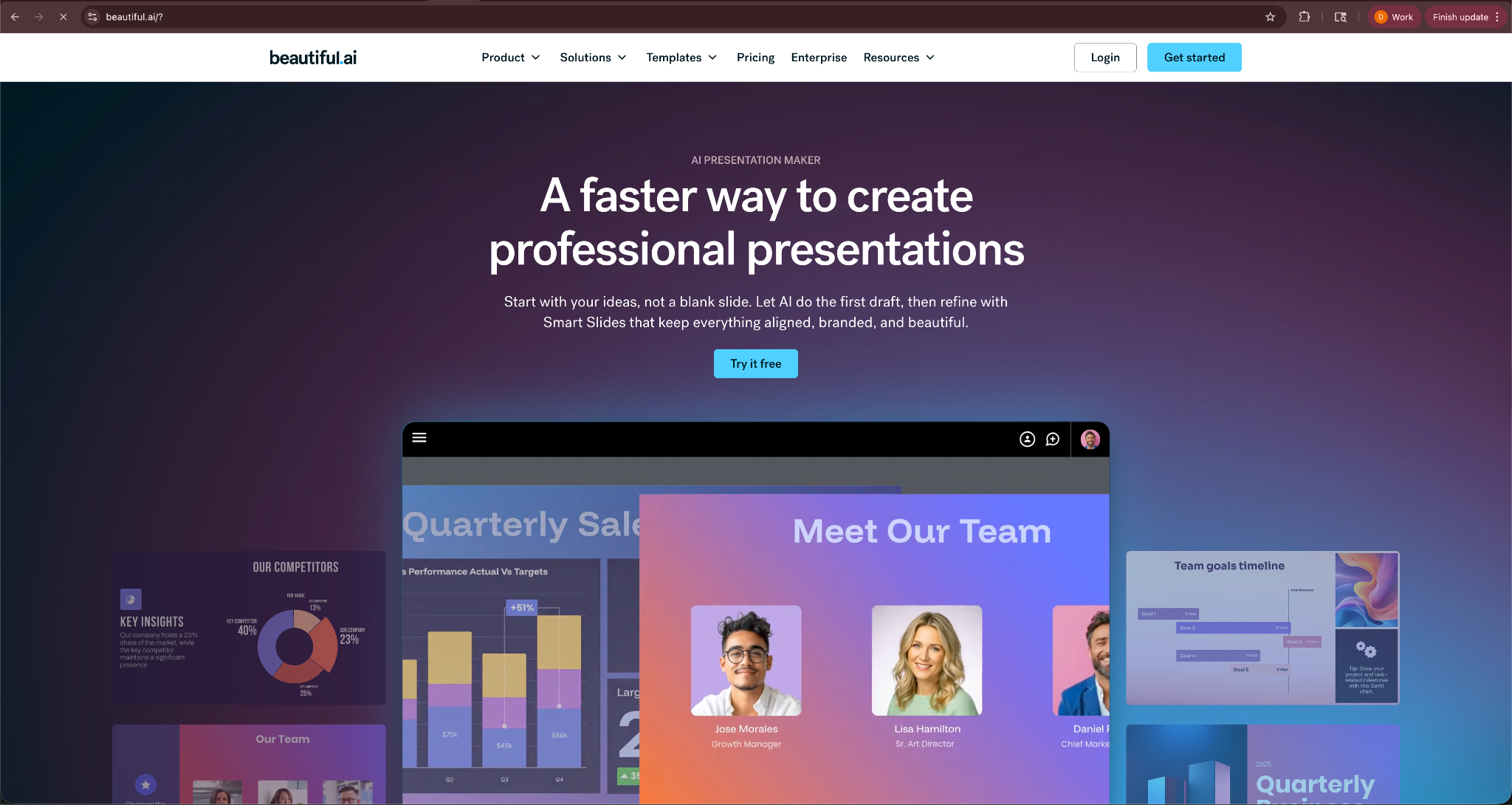
I tested Beautiful.ai by building a short quarterly marketing update. I entered a few bullet points about campaign performance and added some example numbers for leads, conversions, and revenue.
Instead of starting with blank slides, Beautiful.ai suggested layouts designed for data. I added a chart and a few metrics, and the layout adjusted automatically to keep the slide balanced. When I added another data point, the chart resized without breaking the design.
I switched one slide from a list layout to a timeline layout, and the content rearranged itself without needing manual adjustments. It made it easier to experiment with different ways of presenting the same information.
I also tried creating a short report-style presentation. Beautiful.ai handled charts and structured sections well, which helped keep the slides focused on the data instead of design tweaks.
The tool worked best for presentations where the message comes from numbers and trends rather than visuals or storytelling.
Key features
- AI-assisted slide layouts that adjust automatically
- Built-in templates for charts, timelines, and reports
- Tools for creating data visualizations inside slides
- Collaboration features for teams working on shared presentations
- PowerPoint import and export options
Pros
- Keeps slides organized without manual layout adjustments
- Helpful for presentations built around metrics and reports
- Makes it easy to experiment with different slide formats
- Clean interface that focuses on content rather than design tools
Cons
- Design flexibility feels limited compared with template-heavy tools
- Not ideal for creative presentations or marketing visuals
Pricing
- No free plan, only a 14-day free trial
- Paid plans start from $12/month, billed yearly, with no monthly billing
- For ad hoc projects, you can pay $45/month and cancel anytime
Bottom line
Beautiful.ai works best for presentations that rely on charts, metrics, and structured reporting. If you create recurring updates or performance reviews, the tool helps keep your slides organized without spending time on layout adjustments.
4. Lindy: Best AI assistant to handle pre- and post-presentation tasks
What it does: Lindy is an AI assistant you can text to help plan, prepare, create, and follow up on presentations. Instead of only generating slides, Lindy helps organize ideas, summarize research, draft talking points, and handle follow-ups after a presentation or meeting.
Who it’s for: Lindy works best for founders, operators, consultants, and sales teams who spend time preparing presentations and communicating results afterward.

I tested Lindy’s Presentation Generator while preparing a short product pitch and a mock internal update presentation. I started with messy notes in a document and asked Lindy to turn them into a presentation outline. It organized the topic into sections, suggested slide ideas, and drafted short talking points I could convert into slides.
Next, I asked Lindy to summarize a few articles related to the topic. It pulled the key points into a short summary that I could quickly add to the presentation. This saved time compared with reading each source and extracting the main ideas manually.
I also tested how Lindy handled follow-ups after the presentation. Instead of writing recap emails myself, I asked Lindy to summarize the discussion and draft a message for the team. It created a short recap with action items and next steps that I could send immediately.
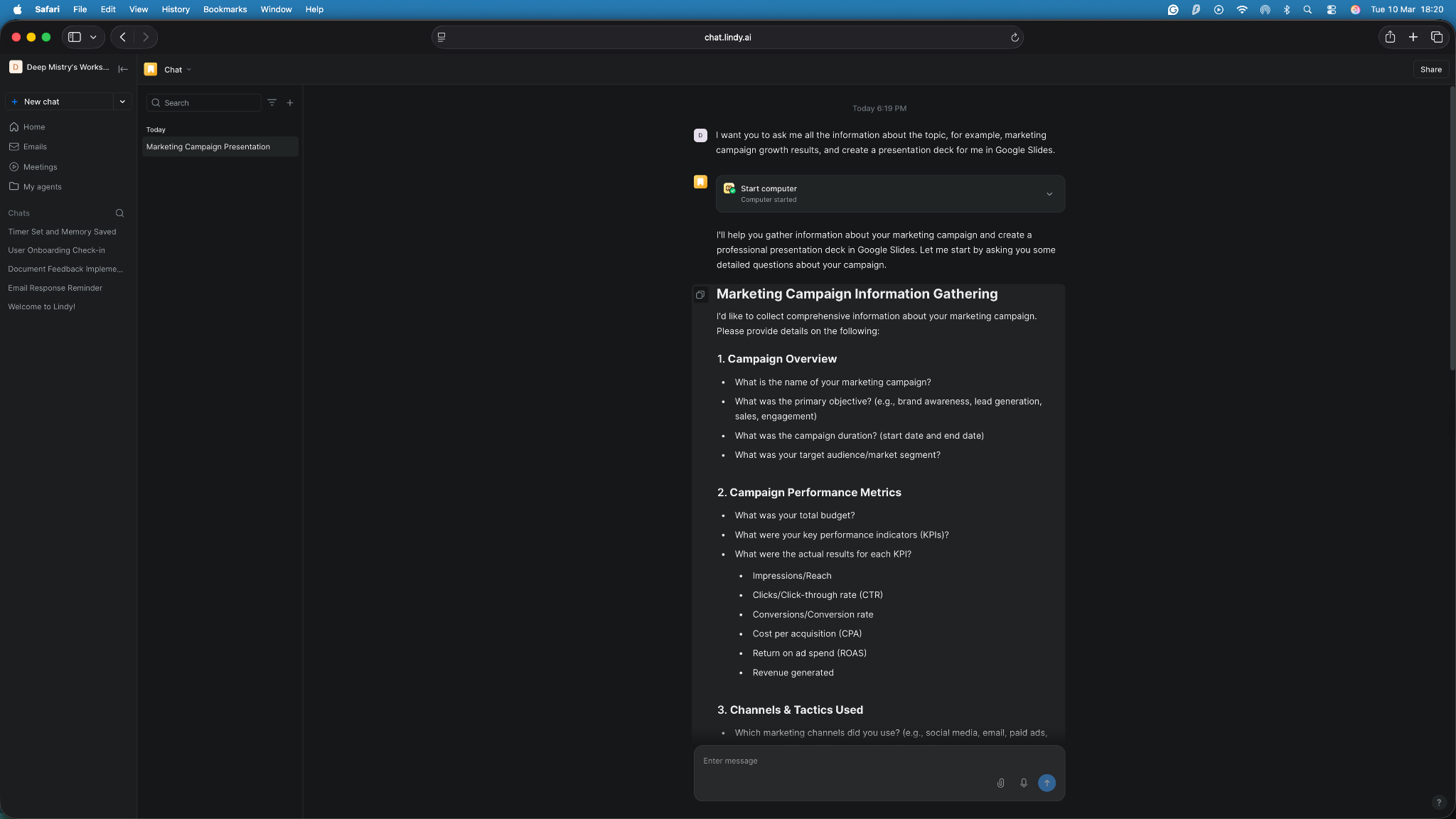
That experience made me realize that Lindy isn’t a slide generator. It’s like texting an assistant that helps you prepare and wrap up presentations. If your workflow includes research, outlining ideas, presenting, and sending follow-ups, Lindy fits naturally into that process.
Key features
- AI assistant that you can text to turn notes, documents, or prompts into structured presentation outlines
- Ready-to-use skills for presentation, research, scheduling, and summarizing materials for slides
- Draft talking points and speaker notes for presentations
- Automated follow-up emails and Slack updates
- Hundreds of integrations with business tools
- Human control over the final output for edge cases and low-confidence scenarios
- SOC 2, HIPAA, GDPR, and PIPEDA compliant for privacy-focused teams
- Generate meeting recaps and follow-up messages after presentations
Pros
- Helps organize ideas before you build slides
- Simple assistant-style interface that responds to plain English instructions
- Useful for professionals who present often and need help preparing content
- Works across different tasks instead of focusing only on slide design
Cons
- Not ideal if you only want a visual slide editor
- Fewer design templates compared with presentation-first tools
Pricing
- No free plan, only a 7-day free trial
- Paid plans start from $49.99/month, billed monthly
Bottom line
Lindy isn’t a tool that only generates slides. It’s an AI assistant that helps organize ideas, prepare talking points, and handle follow-ups after presentations, and covers more of the presentation workflow than most tools.
{{templates}}
5. Manus AI: Best for research-heavy presentations
What it does: Manus AI helps generate presentation content from research-heavy topics. Instead of focusing on visual design, it builds structured outlines, detailed talking points, and supporting explanations you can turn into slides.
Who it’s for: Manus AI works best for consultants, analysts, founders, and teams who create presentations that rely on research or detailed explanations. If you often build strategy decks, reports, or investor presentations, Manus focuses on content depth rather than visual polish.

I tested Manus AI while preparing a short market overview presentation. I asked it to create a presentation outline about SEO campaign growth for a marketing team and included a few sources for context.
Manus produced a detailed outline with clear sections such as market trends, adoption drivers, challenges, and future outlook. Each section included bullet points and short explanations that I could quickly convert into slides.
Next, I tested how it handled content. I asked it to expand one section into talking points for a five-minute presentation segment. Manus produced a longer explanation that felt more like structured notes than slide copy.

That approach worked well for presentations where the message matters more than design. I still needed to modify the content into the slides it generated, but the core structure and ideas came together in less than 10 minutes.
Key features
- Generate structured presentation outlines from prompts
- Expand topics into detailed talking points and explanations
- Summarize research sources and turn them into presentation content
- Create supporting notes that help guide the presentation narrative
- Organize complex topics into logical presentation sections
Pros
- Strong content depth for research-heavy presentations
- Produces structured outlines that translate well into slides
- Helpful when preparing analytical or strategy-focused decks
Cons
- Less focus on visual design and slide layout
- Requires manual modifications to the slide content
Pricing
- Free plan with 1,000 credits/month
- Paid plans start from $20/month, billed monthly
Bottom line
Manus AI works best when the content behind the presentation matters more than visual design. If you want help researching topics and structuring complex ideas before building slides, it provides a strong starting point.
6. Plus AI: Best for PowerPoint and Google Slides users
What it does: Plus AI adds AI-powered slide generation directly inside Google Slides and PowerPoint. Instead of switching to a new platform, you can generate and edit slides within the presentation tools that many teams already use.
Who it’s for: It suits professionals who already build presentations in Google Slides or PowerPoint and want AI to speed up the process. Consultants, sales teams, and educators who rely on these tools often prefer this approach.

I tested Plus AI inside Google Slides by creating a short sales presentation. I entered a prompt describing a product demo and asked the tool to generate a set of slides.
Plus AI created a draft presentation that included a title slide, problem statement, product overview, and feature slides. The formatting stayed consistent with the Google Slides layout, which made the deck feel familiar right away.
I also experimented with the Slide Remix feature. One slide felt cluttered, so I asked Plus AI to redesign it. The tool rearranged the content and adjusted the layout without changing the text. This made it easy to improve slides without rebuilding them.
I also tested document conversion by uploading a short outline. Plus AI turned the text into slides that matched the existing presentation style. The results needed some editing, but the tool removed much of the manual formatting work.
Plus AI worked best when I already knew the content I wanted and needed help turning it into slides quickly.
Key features
- Generate slides directly inside Google Slides and PowerPoint
- Slide Remix feature that redesigns layouts automatically
- Convert documents, URLs, and notes into presentations
- AI tools for rewriting and expanding slide content
- Theme generation for creating consistent presentation styles
Pros
- Works inside familiar slide tools without switching platforms
- Speeds up slide creation for existing workflows
- Helpful layout redesign tools for improving slides quickly
- Easy to learn for anyone already using Slides or PowerPoint
Cons
- Output design can feel basic compared with design-first tools
- Limited value if you want a fully standalone presentation platform
Pricing
- No free plan, only a 7-day free trial
- Paid plans start from $15/user/month, billed monthly
Bottom line
Plus AI works best for teams that already rely on Google Slides or PowerPoint. If you want AI to help create and improve slides without leaving those tools, Plus AI adds helpful automation to an existing workflow.
7. Pitch: Best for team collaboration
What it does: Pitch helps teams create and share presentations together in one workspace. It combines slide editing, collaboration tools, and presentation analytics so teams can work on decks without passing files back and forth.
Who it’s for: It’s ideal for teams that collaborate on presentations, provide real-time feedback, and present group updates.

I tested Pitch by creating a short team presentation for a mock nutrition program for athletes. I started with a template and added a few slides about goals, foods, and upcoming career opportunities.
The editor felt similar to a modern slide tool, but collaboration stood out right away. I invited a teammate to review the deck and leave comments on a few slides. We both edited the presentation at the same time, and the changes appeared instantly.
I tried Pitch Rooms, which lets teams share presentations through a link instead of sending files. I created a room for the presentation and viewed it from another account. The tool tracked when someone opened the deck and which slides they viewed.
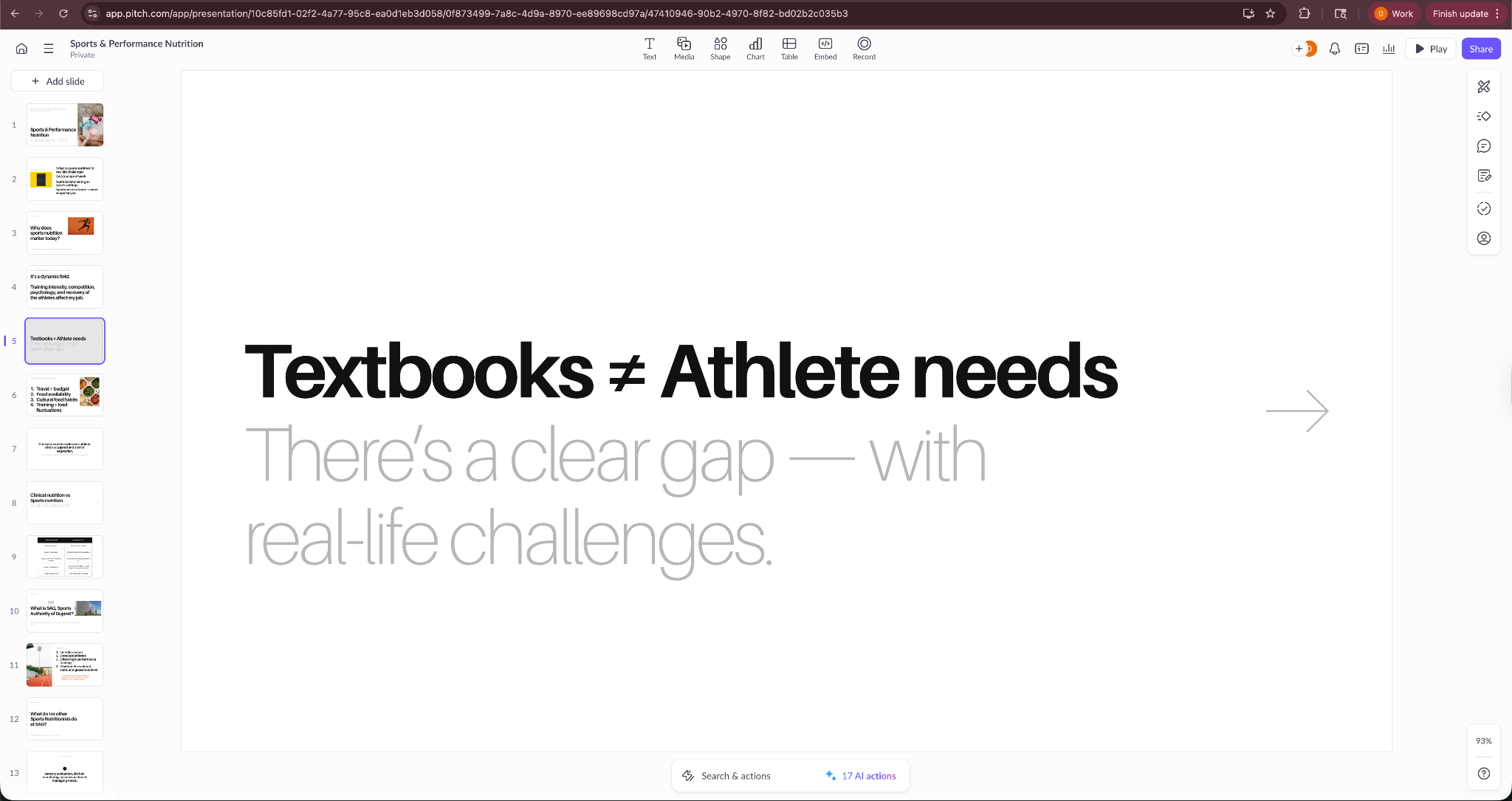
I also experimented with the AI writing assistant to expand a short slide description. The tool rewrote the content into clearer bullet points, which helped tighten the message of the slide.
Pitch worked best when multiple people contributed to the same presentation and needed a shared place to manage updates.
Key features
- Collaborative slide editor with real-time editing
- Pitch Rooms for sharing presentations through a link
- Commenting and feedback tools for team reviews
- Presentation analytics that track viewer engagement
- Templates for product updates, reports, and pitches
Pros
- Strong collaboration for teams working on the same deck
- Easy sharing through links instead of large presentation files
- Helpful analytics that show how people interact with slides
- Clean interface that keeps editing simple
Cons
- AI generation features remain limited compared with AI-first tools
- Smaller template library than some design-focused platforms
Pricing
- Free plan with 100 AI credits and basic collaboration features
- Paid plans start from $15/month, billed monthly
Bottom line
Pitch works best for teams that build presentations together. If your workflow includes collaboration, feedback, and shared presentations, Pitch provides a strong environment for managing decks as a group.
8. Prezi: Best for non-linear storytelling
What it does: Prezi creates presentations on a zoomable canvas instead of traditional slide-by-slide layouts. Instead of moving from one slide to the next, you navigate across a visual map of ideas.
Who it’s for: Prezi works best for educators, trainers, and presenters who want a more visual storytelling style. If your presentations focus on explaining concepts or connecting ideas, the zoomable format can make the narrative easier to follow.
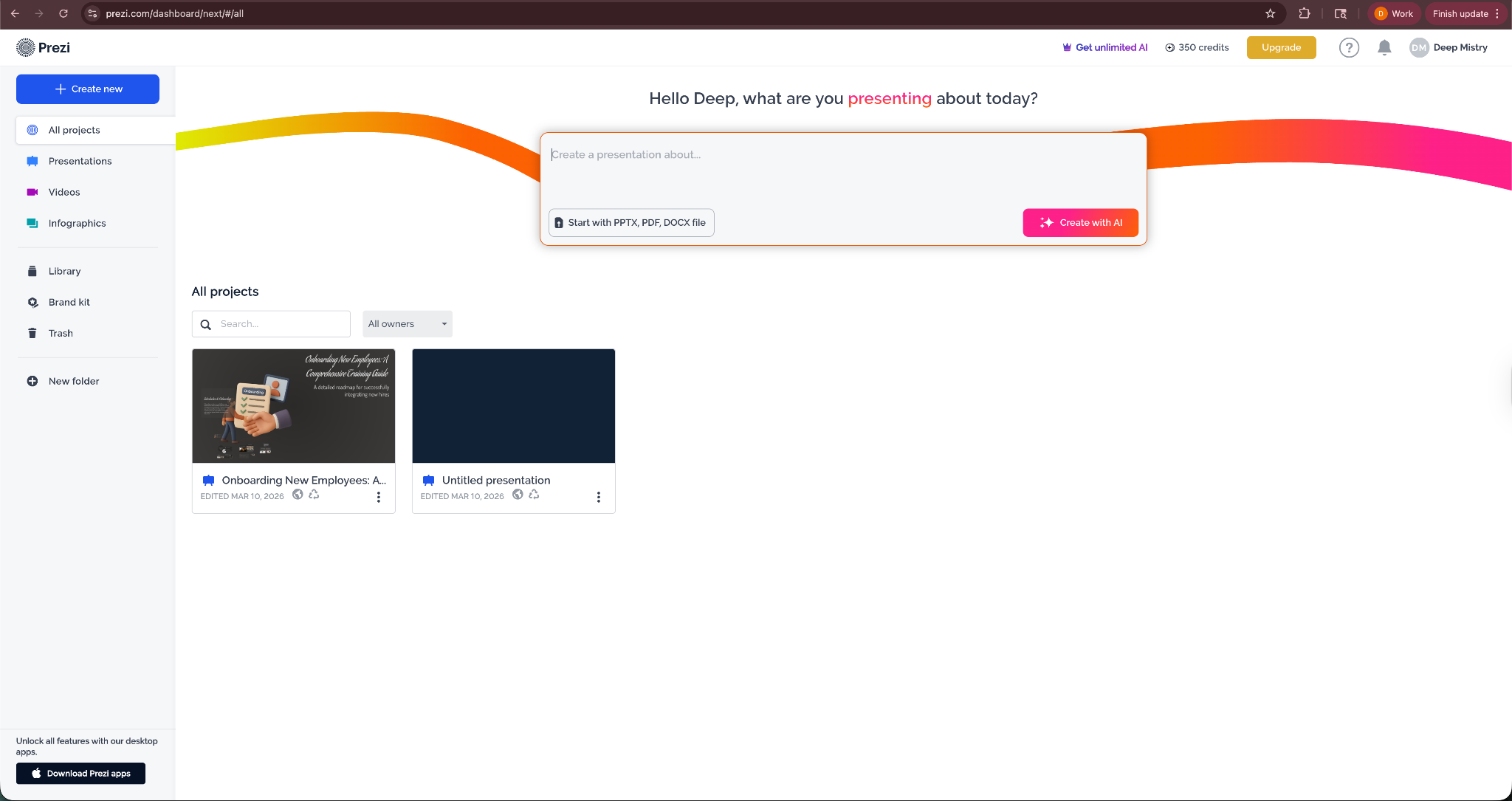
I tested Prezi by creating a short training presentation on onboarding new employees. Instead of building separate slides, I started with a large canvas that represented the entire topic.
I added sections for company background, onboarding steps, and team introductions. Prezi allowed me to zoom into each section while presenting, which created a sense of movement as the presentation progressed.
I also tested how easy it was to reorganize content. I moved a few sections around the canvas and grouped related ideas together. The presentation flow changed immediately without needing to rebuild slides.
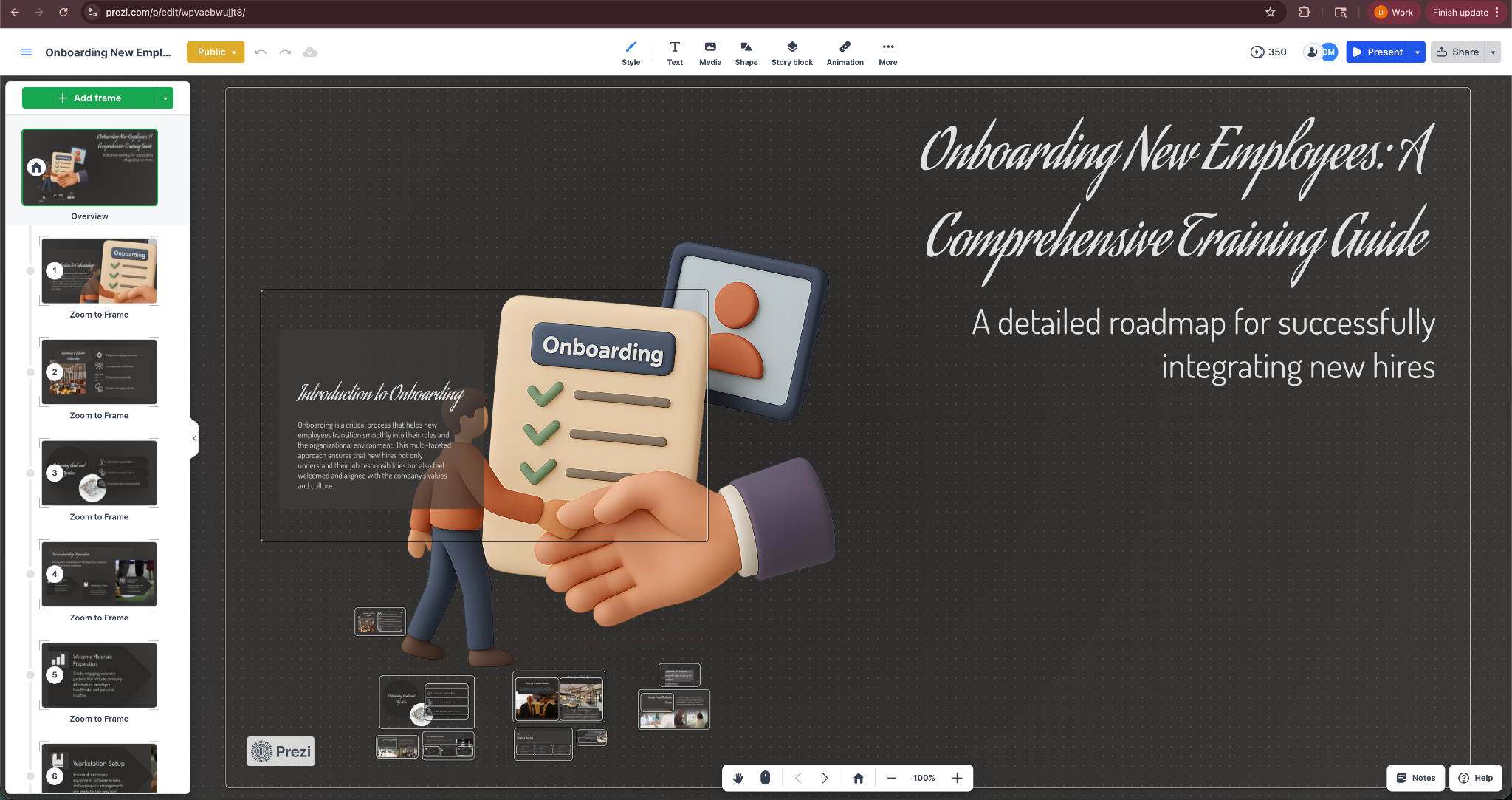
I also experimented with adding visuals and icons. Prezi suggested layouts and transitions that helped guide the viewer through the presentation.
The format felt different from a typical slide deck. It worked well for storytelling and teaching scenarios, but it required some adjustment if you usually present with standard slides.
Key features
- Zoomable canvas that replaces traditional slides
- Visual navigation between presentation sections
- Built-in templates designed for storytelling
- AI-assisted presentation generation
- Cloud-based sharing and presentation tools
Pros
- Unique presentation style that keeps audiences engaged
- Flexible layout for organizing complex topics
- Strong visual storytelling capabilities
- Good option for education and training presentations
Cons
- Unfamiliar format for teams used to traditional slides
- Not always ideal for formal business presentations
Pricing
- Free plan with limited features
- Paid plans start from 7/month, billed yearly
Bottom line
Prezi works best when you want to tell a story visually rather than move through standard slides. If your presentations involve explaining ideas step by step, the zoomable canvas can create a more engaging experience for the audience.
9. Chronicle: Best for interactive live presentations
What it does: Chronicle helps create interactive presentations designed for live demos and storytelling. Instead of static slides, it uses modular content blocks that presenters can move through during a presentation.
Who it’s for: It works best for founders, product teams, and presenters who frequently run live demos or interactive presentations. If you want more flexibility while presenting instead of clicking through fixed slides, Chronicle fits that style well.

I tested Chronicle by creating a short product demo presentation for a fictional SaaS tool. Instead of building standard slides, I added content blocks for product features, screenshots, and short explanations.
The editor allowed me to arrange these blocks into sections that felt more like a narrative flow than a slide deck. During presentation mode, I could reveal elements gradually and move between sections without following a strict slide order.
Next, I tested how the presentation felt from a viewer’s perspective. I opened the presentation from another device and walked through it as if I were presenting live. The content appeared clean and focused, and the interaction made the demo feel more dynamic than a static slide deck.

I also experimented with adding visuals and product screenshots. Chronicle handled these elements well and kept the layout organized without much manual formatting.
Chronicle worked best for demo-style presentations where the presenter guides the audience through a product or idea step by step.
Key features
- Modular presentation blocks instead of traditional slides
- Interactive presentation flow designed for live demos
- Clean layouts for combining text, visuals, and product screenshots
- Presentation sharing through web links
- Tools for controlling how content appears during a presentation
Pros
- Flexible format that works well for product demos
- Clean interface that focuses on storytelling
- Easy to present directly from the browser
Cons
- Smaller ecosystem compared with established presentation tools
- Not ideal for traditional corporate slide decks
Pricing
- Free plan with 100 tokens and one guest editor
- Paid plans start from $15/user/month, billed monthly
Bottom line
Chronicle works best for live presentations and product demos. If you want more flexibility than traditional slides and prefer an interactive presentation style, it offers a unique alternative.
10. SlidesAI: Best budget option for Google Slides
What it does: SlidesAI helps generate presentations directly inside Google Slides. You paste text or a prompt, and the tool converts that content into structured slides.
Who it’s for: SlidesAI works best for students, teachers, and professionals who already use Google Slides and want a simple way to turn text into slides without switching tools.

I tested SlidesAI by pasting a short outline for a marketing presentation into Google Slides. The outline included sections for the problem, product features, and pricing.
SlidesAI turned the text into several slides with headings and bullet points. The structure looked clean and followed the order of the outline, which saved time compared with building slides manually.
To check how it handled longer text, I pasted a short blog-style paragraph and asked SlidesAI to convert it into slides. The tool split the content into smaller sections and created separate slides for each idea.
I also experimented with changing themes. SlidesAI applied a basic design style to the presentation so the slides looked consistent. The layouts remained simple, but the formatting required very little manual work.
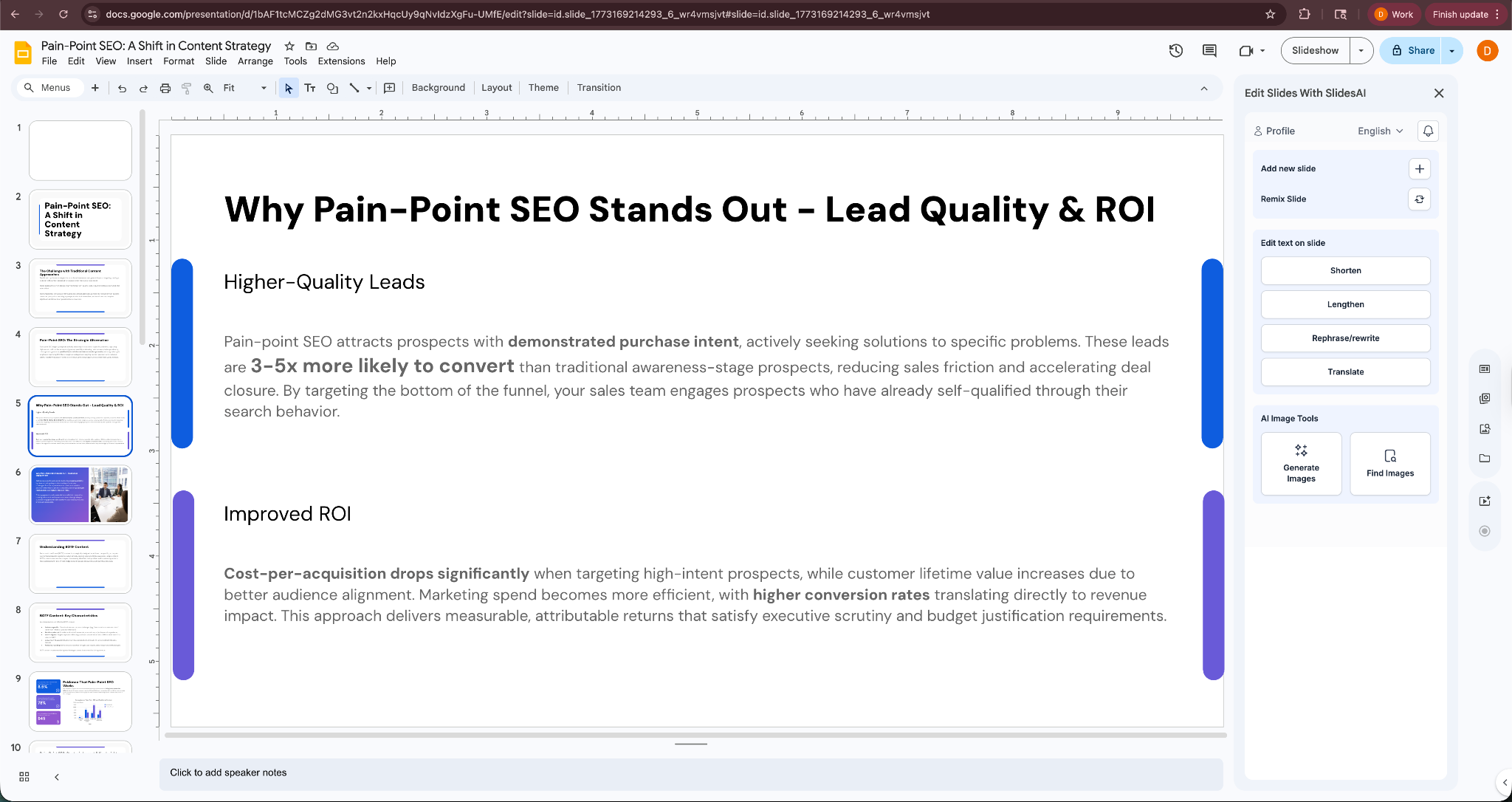
SlidesAI worked best as a quick way to convert text into slides. It helped generate the structure of a presentation, but I still needed to adjust some slides to improve clarity and visuals.
Key features
- Convert text, outlines, or prompts into Google Slides presentations
- Automatic slide structuring from long paragraphs
- Theme and layout suggestions for consistent slides
- Works directly inside Google Slides
- Simple editing tools for adjusting generated slides
Pros
- Affordable option for basic AI slide generation
- Easy to use for anyone familiar with Google Slides
- Quick way to turn text content into presentation slides
- Helpful for students and simple presentations
Cons
- Design options feel limited compared with full presentation platforms
- Generated slides often require manual editing
Pricing
- Free plan with a limit of 12 presentations/year
- Paid plans start from $12/month, billed monthly
Bottom line
SlidesAI works well if you want a simple and affordable way to turn text into slides. It saves time when building basic presentations inside Google Slides, though most decks still need some manual edits.
11. STORYD: Best for structured business storytelling
What it does: STORYD helps turn ideas and prompts into structured business presentations. It focuses on narrative flow, guiding users through frameworks commonly used in strategy and business decks.
Who it’s for: STORYD works best for consultants, managers, and analysts who want help structuring presentations around a clear story. If you struggle with organizing ideas into a logical presentation flow, the tool helps guide that process.

I tested STORYD by asking it to create a short presentation about improving customer retention for a SaaS product. Instead of generating random slides, the tool structured the presentation around a clear narrative.
The first slides introduced the problem and context. The next slides outlined the proposed solution and supporting arguments. The final section focused on expected results and recommendations.
Next, I tested editing the presentation. I adjusted one section and asked STORYD to expand the explanation with supporting points. The tool updated the slide content while keeping the overall structure intact.

I also experimented with a different topic related to internal strategy planning. STORYD again organized the content into a clear sequence of ideas, which made the presentation easier to follow.
STORYD worked best when the goal involved explaining a strategy or argument rather than designing highly visual slides.
Key features
- Generate presentations using structured storytelling frameworks
- AI prompts that guide the narrative of a presentation
- Slide generation focused on business arguments and insights
- Tools for expanding and refining slide content
- Export presentations for further editing
Pros
- Helps organize complex ideas into a clear presentation narrative
- Useful for strategy, consulting, and business presentations
- Encourages structured thinking when building slides
- Simple interface that focuses on content
Cons
- Design flexibility feels limited compared with visual presentation tools
- Less useful for marketing or highly visual presentations
Pricing
- Free plan with only 5 credits
- Paid plans start from $24/month, billed monthly
Bottom line
STORYD works best for presentations that rely on clear storytelling and structured arguments. If you need help organizing ideas into a logical presentation narrative, the tool provides a helpful starting point.
{{cta}}
How can AI help with the presentation-making workflow?
AI can help with most parts of a presentation-making workflow, like research, outline, layout, and post-presentation follow-ups. AI tools can speed up these processes, helping teams create personalized and polished decks for their audience.
Here is how AI fits into the presentation workflow:
Research and ideas
Most presentations begin with gathering information from documents, reports, or internal notes. AI tools can summarize research and extract key points quickly.
For example, tools like Manus AI help turn research-heavy topics into structured insights that you can later convert into slides. Instead of reading several sources from start to finish, you can pull the main takeaways first and build your presentation around them.
Presentation structure
After collecting the information, the next step involves turning it into a clear presentation structure. AI tools can generate presentation outlines based on a prompt or a short description of the topic.
Tools such as STORYD focus heavily on this step by guiding users through structured storytelling frameworks often used in business presentations. It helps organize ideas before you start designing slides.
Slide content creation
Once the structure is clear, AI can help generate the content for each slide. Tools like Gamma and SlidesAI can convert prompts, notes, or outlines into slide titles and bullet points. You quickly get a structured first draft to edit, so you never have to start with blank slides.
Designs for the slides
Slide design often takes longer than expected because layouts, images, and spacing require careful formatting.
AI presentation platforms such as Canva and Beautiful.ai automate much of this process. They apply templates, adjust layouts automatically, and suggest visuals that match the slide content. It helps presenters focus on the message instead of spending time adjusting design details.
Presentation preparation
Before presenting, many people prepare talking points or speaker notes. AI tools like Lindy can expand slide content into speaking notes or summarize key messages. This helps presenters rehearse and keep the message clear during the presentation.
Post-presentation follow-ups
After the presentation ends, teams often send summaries, share the deck, or assign action items. An AI assistant like Lindy can help summarize discussions, draft recap emails, and capture next steps. It reduces the administrative work that usually happens after meetings.
AI can remove much of the repetitive work involved in preparing and sharing a presentation, while humans focus on brainstorming the content.
Which AI presentation maker should you choose?
The best AI presentation maker for you is the one that works well for your use case and fits your team. Some tools focus on visual slide design, others help structure content, and a few support the work that happens before and after a presentation.
Below is a quick way to decide which tool fits your workflow:
Choose Canva or Gamma if you:
- Want visually polished slides quickly
- Care more about design than presentation planning
- Prefer tools with ready-made layouts and templates
Choose Beautiful.ai if you:
- Build presentations that rely heavily on charts and metrics
- Prepare recurring reports such as quarterly updates
- Want slides that stay organized automatically as you add data
Choose Lindy if you:
- Want an AI assistant that helps before and after the presentation
- Often start with messy notes or research instead of a finished outline
- Need help drafting talking points or follow-up messages after meetings
Choose Manus AI if you:
- Build research-heavy presentations or strategy decks
- Want help structuring complex topics before creating slides
- Prefer strong outlines and supporting explanations over visual design
Choose Prezi if you:
- Want a more visual storytelling format than traditional slides
- Give training sessions or educational presentations
- Prefer navigating ideas on a canvas instead of slide-by-slide
Choose SlidesAI if you:
- Want a simple way to turn text or outlines into slides
- Already rely heavily on Google Slides
- Need an affordable AI tool for basic presentations
Choose STORYD if you:
- Struggle to organize ideas into a clear presentation narrative
- Create strategy decks or consulting-style presentations
- Want guidance on structuring business presentations logically
Choose Plus AI if you:
- Already work inside Google Slides or PowerPoint
- Want AI assistance without switching to a new platform
- Prefer a familiar presentation workflow
Choose Pitch if you:
- Build presentations with a team
- Need collaboration, comments, and shared editing
- Want to track how people view your presentations
Avoid these tools if you:
- Expect a perfect presentation with zero editing
- Only want a simple slide editor without AI assistance
- Need deep design control that matches professional design software
Best AI presentation makers by use case
I also decoded each tool’s strengths while testing and where it excels. Here’s how to choose the best tool for your use case:
My final verdict
After testing each AI presentation maker across different scenarios, I found that most tools focus on one part of the presentation process. Some help generate slides quickly, while others focus on design, collaboration, or structuring ideas.
Gamma produced fast, polished decks from simple prompts. Canva made it easy to turn rough content into visually clean slides. Beautiful.ai kept data-heavy presentations organized with minimal layout work. Plus AI fits naturally into Google Slides and PowerPoint workflows.
Other tools also worked well in specific situations. Pitch helped teams collaborate on presentations together. Prezi offered a more visual storytelling style than traditional slides.
Chronicle created interactive presentations suited for live demos. SlidesAI worked as a quick way to turn text into slides inside Google Slides. STORYD helped organize ideas into structured business narratives.
Lindy stood out for me when I wanted a tool to handle the work around the presentation. It helped organize messy notes, draft talking points, create slides, and prepare follow-ups after meetings. When I treated it like an assistant and texted it instructions, it handled preparation tasks that normally take extra time.
I reached for Lindy when I wanted help with the entire presentation creation workflow. If your main pain is recurring, tedious research and layout work for multiple presentations, try the Lindy free trial and see how easily it takes those tasks off your plate.
Frequently asked questions
What is an AI presentation maker?
An AI presentation maker is a tool that helps create presentations using artificial intelligence. It can generate slide outlines from prompts, write slide content, suggest visuals, and apply layouts automatically. Some tools focus on slide design, while others help with planning and preparing presentations.
What is the best AI presentation maker?
The best AI presentation maker depends on your workflow and needs, with Gamma and Canva leading the list for fast slide generation or design. If your goal is organizing ideas, preparing talking points, and handling follow-ups, Lindy offers broad workflow support.
Can AI create a full presentation from a prompt?
Yes, AI presentation tools like Gamma, SlidesAI, and Beautiful.ai can generate a full presentation from a prompt. They can turn a short description into a set of slides with headings, bullet points, and layouts. You will still need to review and refine the content.
How do AI presentation makers work?
AI presentation makers analyze a prompt or document and convert it into a structured slide outline. They generate slide titles, bullet points, and suggested visuals based on the topic. Many tools also apply templates and export the presentation to formats like PowerPoint or Google Slides.
Which AI presentation maker works best with PowerPoint or Google Slides?
Plus AI and SlidesAI work best with PowerPoint or Google Slides as they integrate directly with those tools. They allow you to generate slides, rewrite content, and redesign layouts without switching to a separate presentation platform.
Which AI presentation maker is best for pitch decks?
Gamma is the best AI presentation maker for pitch decks because it quickly generates polished presentations from prompts or outlines. It creates structured slides for problem statements, product features, and value propositions, which are common in startup pitches.
Are free AI presentation makers worth it?
Free AI presentation makers are worth it for teams that want quick presentations with good designs. Tools like Canva, Gamma, and SlidesAI offer free plans that help create quick drafts. Paid plans usually add more templates, export options, and advanced AI features.
What is the easiest AI presentation maker for beginners?
Canva is often the easiest AI presentation maker for beginners. Its drag-and-drop interface, ready-made templates, and simple editing tools make it easy to create polished slides without design experience