I Tested Migrating From Claude To ChatGPT Myself (2026)


I opened ChatGPT's new import screen expecting my whole Claude life to follow me over. It found my Claude Cowork sessions, the agent side of my account, but none of my regular Claude chats.
That gap shaped the rest of my three days of migrating from Claude to ChatGPT. I moved one setup from a Claude Pro account to a ChatGPT Plus account in two ways.
Are you planning to move from Claude to ChatGPT for good, or to run both for a while? Here's which route fits how you use Claude, what you keep versus redo by hand, and which ChatGPT plan carries which features.
TL;DR
- ChatGPT's desktop app now has an official import tool: Go to Settings > Import, but it reads only Claude Code, Claude Cowork, and Cursor. Regular Claude chats, Claude app Projects, and chat memory aren’t covered and still need manual work.
- What the import carries: A ChatGPT import from Claude Code, Cowork, and Cursor brings over instructions, skills, plugins, project folders, and the last 30 days of chats. A connection that needs a fresh sign-in can show up afterward under a Finish prompt.
- What you rebuild by hand: For regular Claude chats, paste a trimmed memory list into Custom Instructions (5,000 characters on Plus, 1,500 on Free and Go). Then rebuild each Project as a ChatGPT Project and re-upload your original files, because my Claude export didn’t include my knowledge files.
- Which plan carries what: Plus doesn't include dots or Space, two of OpenAI's newest launches, while Pro includes both, with dots in eligible markets.
How I tested migrating from Claude to ChatGPT
My guiding question: How much do I still have to rebuild by hand? Every result below gets measured against it.
I used one laptop and two accounts. A Claude Pro account was the source, and a ChatGPT Plus account (used in the desktop app) was the destination. The source was a working account I'd built up over earlier tool experiments (nothing in it was ever published or sent anywhere).
What the source account held:
- The Cowork side held 38 sessions in Claude Cowork, many of them older than ChatGPT's 30-day import window, plus five local project folders and two connected apps.
- The regular side held three Claude Projects with 11, five, and three knowledge files, plus a memory list and a sidebar full of chats.
I counted all of it on day one, before touching anything, then ran the import tool that same day. I did the manual rebuild on day two, in one long sitting.
On day three, I put the moved setup to work on ordinary drafting (blog briefs, keyword notes, and FAQ drafts), then checked that the import hadn't changed anything in Claude and decided what was worth carrying over.
I measured four things:
- What came across: I counted items by type inside ChatGPT and compared them with my day one inventory.
- How much I redid by hand: I timed each route from the first click until I could open the moved setup and work in it.
- Whether the setup still knew the rules: On the manual route, I asked ChatGPT to restate a Project's rules and open items without pasting them again.
- What surprised me: I wrote down every moment the tool behaved differently than I expected.
The manual route was pretty easy, though.
Here are the three manual messages (total) I sent to Claude and ChatGPT:
To Claude:
- Write out your memories of me word for word.
- Draft a one-page handoff note for this Project covering the decisions still in force, what I’ve tried and rejected, and the open questions.
To ChatGPT:
- Restate this Project’s rules and open items.
The OpenAI launches and plan comparison near the end come from vendor documentation only.
What transfers from Claude to ChatGPT, and what doesn't
The import tool reads Claude Code, Claude Cowork, and Cursor, and nothing else. The rest of a regular Claude account needs manual work, so the table below gives each of the two routes its own column.
The MCP (Model Context Protocol) row covers how your agent connects to outside tools.
What the import tool moves and what stays manual:
Use the right-hand column for everything the import skips.
Artifacts are the easy row to miss, since the import doesn't list them. Export or copy each one before you stop using Claude.
2 ways to migrate from Claude to ChatGPT
During my test, my Claude account still showed Cowork and regular chat as two separate areas under one login. Cowork held the agent-style work, while regular chat held my Projects and memory.
Anthropic is also merging the two: Cowork and chat are becoming one Claude, rolling out gradually to Pro and Max plans. If your account already has this, parts of what's below may look different.
Method 1: ChatGPT's import tool (Settings > Import)
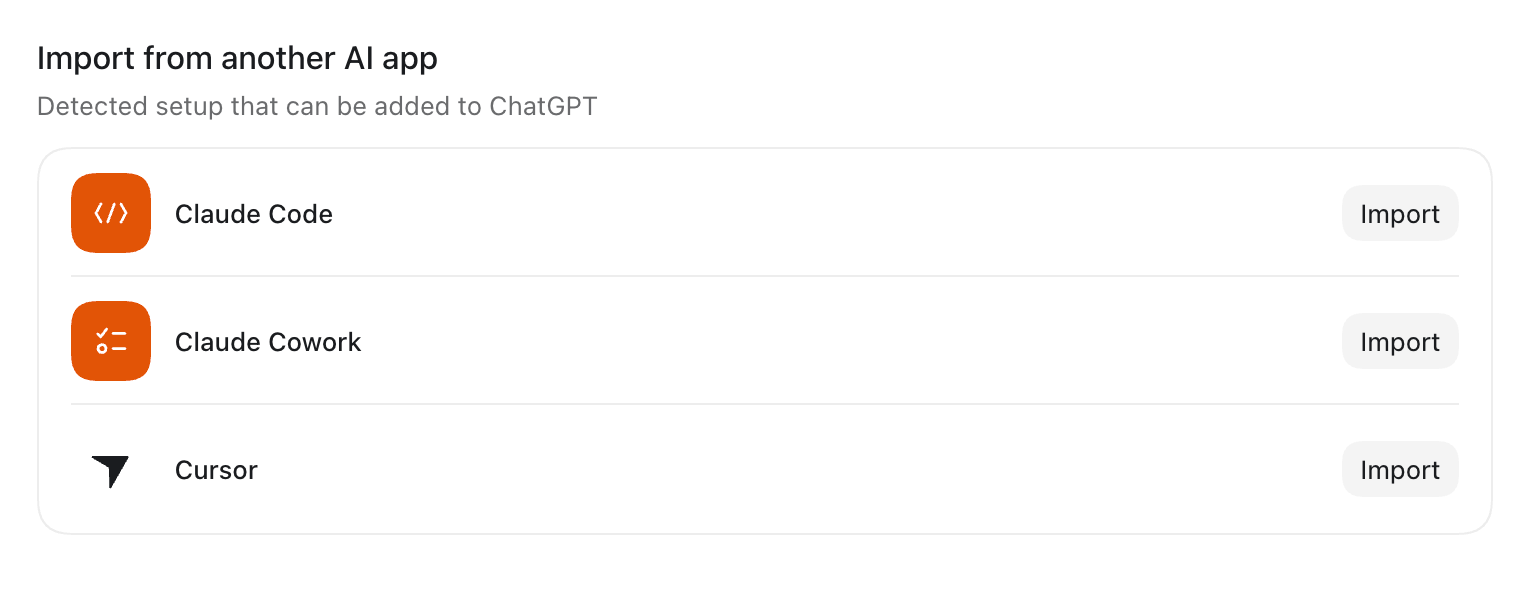
What it is: ChatGPT's built-in import copies instructions, settings, skills, plugins, project folders, and recent work from Claude Code, Claude Cowork, or Cursor into ChatGPT. You run it from Settings > Import in the desktop app, which reads all three sources, or with /import in the Codex command-line interface (CLI), which reads Claude Code and Cursor.
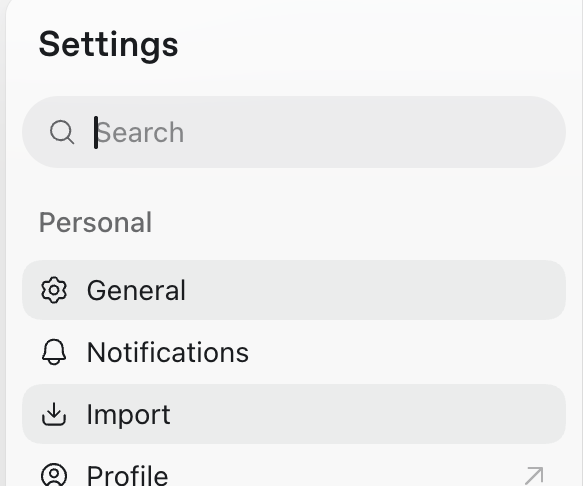
How it works: The import checks your user-level setup (files on your machine) plus the project folders you select. It copies what you pick and leaves your Claude setup untouched.
What else the import carries:
- The flow also carries hooks, slash commands, and subagents, plus project memories from Claude Code.
- Your instruction files land as AGENTS.md, a Markdown file of standing instructions.
- The desktop app takes the chats from the last 30 days, and the Codex CLI takes up to 50 chats from that same window.
From October 6, 2026, new Cowork tasks on Pro and Max plans run in the cloud. Check where your recent work still lives before you import.
When to use it: Reach for it when your work lives in Claude Code, Cowork, or Cursor. It gets your project folders and your last 30 days of work in place quickly.
Where the import screen lives
The Import screen doesn’t sit in the same place on every build. Start with Settings > Import. If it's not there, check Settings > General for Import other agent setup.
Real example: On day one, I opened the ChatGPT desktop app on my laptop and went looking for Import. It wasn’t at Settings > Import yet, so I found it under Settings > General as Import other agent setup.
The Apps found screen listed only Claude Cowork. My regular Claude chats, Projects, and memory never showed up as something to import, even though my sidebar held plenty of them.
The next screen, Select items to import, offered Tools & setup, five Projects, and 14 chat sessions. I selected all of it.
What transferred
The import brought over 14 of my 38 Cowork sessions. My Cowork history reached back past the import's 30-day window, so the 24 older sessions stayed behind in Claude.
The five local folders I'd selected arrived as five ChatGPT Projects pointing at the same folders on my laptop.
The last step, and how long it took
When the import finished, a status card flagged two connections (my docs app and my calendar app) that needed a fresh sign-in. I selected Finish and signed in twice.
One imported session kept its original date, so it didn't sit where I expected in the list, and I needed a second pass to find it by name.
The import took 11 minutes from selecting Import to opening my first imported Project, sign-ins included. On day three, all 38 Cowork sessions were still in Claude.
My take: Run this first and decide what to rebuild afterward. If you mostly chat in regular Claude, skip it, because it won't find your chats.
How to import your Claude setup into ChatGPT
- Open the import screen: On the computer where you used Claude Code, Cowork, or Cursor, open the ChatGPT desktop app. Go to Settings > Import and select Import, or look under General for Import other agent setup if the section isn't there yet.
- Pick your sources: Choose the agents you want to import from (Claude Code, Claude Cowork, or Cursor), then select Continue.
- Pick your items: On Select items to import, choose what to bring over, or take everything, then select Continue.
- Finish setup: When the import ends, a status card appears in the lower-left corner. If it flags a plugin or connection, select Finish and follow the prompts.
- Check the result: Open an imported project or chat and confirm it has what you expect.
- Keep it in sync (optional): In Settings > Import, turn on automatic updates to keep imported work in sync with the original agent. You can also review your import history there.
{{templates}}
Import in Codex CLI
In the Codex CLI, start a local session and type /import. Choose Claude Code or Cursor, then pick the setup, project files, and recent chats to bring over.
The command isn't available during a running task, in a remote session, or while connected to a local app-server daemon.
Pro tip: Chats older than 30 days stay behind, so write a short note on any older session you still need before you import.
Review these five things in the imported setup:
- Skills and agents: Tool restrictions or permissions can come along with them.
- Hooks: They can behave differently after the import.
- MCP servers: The import copies MCP server settings into Codex, though servers with custom authentication may need a fresh sign-in.
- Plugins: They can need manual follow-up.
- Command-style prompts: Those that depend on arguments or file-path placeholders may not behave the same.
Method 2: Manual route
What it is: This route moves a regular Claude setup by hand. You copy the instructions and memory, request the account export, and re-upload your own files into ChatGPT Projects.
Step by step:
- Get your memory out of Claude: Open Settings > Capabilities and select View and edit your memory (the newer layout puts it under Settings > Memory). Or ask Claude to write out its memories of you word for word. Save the result as a local file.
- Trim it to fit: Keep it under 5,000 characters for Plus, Pro, Business, Enterprise, and Edu, or under 1,500 for Free and Go. Keep what applies everywhere in Custom Instructions, and move project-specific details into each Project's notes.
- Paste it into Custom Instructions: Open Settings > Personalization > Custom Instructions, turn customization on, and paste the block. Or tell ChatGPT in a chat to remember the key points, then check Settings > Personalization > Memory to review what it remembers.
- Request your account export: On the web app or Claude Desktop, open Settings > Privacy > Export data for your records. The link expires 24 hours after delivery.
- Create a ChatGPT Project for each Claude Project: Select New project in the sidebar. Then open Project settings (under more options) and pick Default memory or Project-only memory on purpose.
- Copy the instructions and upload the files: In Claude, open each Project's instructions and copy the text. Paste it into the new Project's instructions, upload your original files 10 at a time, and add a one-page handoff note.
- Test the result: Inside each Project, ask ChatGPT to restate its rules and open items, then compare its answer with the Claude original.
Project instructions, memory, and knowledge files each have a home in ChatGPT. Old chats don’t, since ChatGPT’s import tool doesn’t cover them.
Where each one lands in ChatGPT:
- Project instructions: They go into a ChatGPT Project's own instructions (open the Project, select more options, then Project settings). They apply only inside that Project and override your global Custom Instructions.
- Memory: It goes into Custom Instructions under Settings > Personalization. Custom Instructions hold up to 5,000 characters on Plus, Pro, Business, Enterprise, and Edu, and 1,500 on Free and Go. You can also tell ChatGPT in a chat to remember something.
- Knowledge files: They go into the Project's files. Caps run five on Free, 25 on Go and Plus, and 40 on Pro, Business, Enterprise, and Edu. Only 10 files can be uploaded at once, and my Claude export didn’t include them, so keep your originals. Files can also go straight into a single chat within your plan's usage limits.
- Old chats: They don’t move because ChatGPT’s import only reads Claude Code, Cowork, and Cursor. Ask Claude to boil what you still need down to one short note per Project, then upload the note with that Project's files.
OpenAI has closed new Custom GPT creation to personal accounts, Plus included, so a Claude Project's working equivalent is a ChatGPT Project (files plus project instructions).
When to use it: Lean on it when you mostly chat in Claude on the web or desktop, work inside Projects, or have memory you want to keep. It's also the route for anything the import tool doesn't list, like artifacts.
Cut the memory block down
Claude’s memory has no direct home in ChatGPT, so it has to be copied over by hand and pasted into Custom Instructions, the field where you write standing guidance for ChatGPT to follow.
Real example: Day two began with memory. I asked Claude to write out its memories of me word for word. The list ran 6,200 characters, and ChatGPT Plus Custom Instructions hold 5,000, so something had to go.
Reading your own memory dump back is humbling (mine still treated a project I'd already dropped as current).
I trimmed it to 4,700 characters by cutting those stale project entries, since project decisions belong in each Project's own notes anyway. On Free or Go, where the cap is 1,500 characters, only about a quarter of the original would have fit.
I pasted the block into Custom Instructions. ChatGPT’s own Memory is different: it builds up automatically across your conversations, so I left that to fill in on its own.
Rebuild the Projects by hand
I requested the account export. The export held my conversations, project instructions, and memory, but none of my 19 knowledge files.
So I rebuilt the three Projects by hand. I pasted each Project’s instructions into a new ChatGPT Project and re-uploaded the originals from my own folders.
For each one, I had Claude draft a one-page handoff note. I read it, trimmed it, and uploaded it as the last file.
The first Project ended up at 12 files, 11 originals plus the note. I uploaded them in two batches (10, then two). The second and third came to six and four files.
All three fit Plus’s 25-file cap. Under Free’s five-file cap, only the four-file Project would have fit.
Results after the rebuild
Old chats stayed in Claude, and I kept that account around as a reference for the rest of the test.
The manual route took 74 minutes from the memory export to the first useful answer inside a rebuilt Project. All three Projects, their files, and the notes were in place by then. Inside each one, ChatGPT restated the rules and open items without my pasting them again.
By day three, I noticed ChatGPT kept steering its replies back to the same couple of details from my pasted memory block. I tightened the block in Personalization settings, and that fixed it.
My take: Skip the transcripts. A one-page handoff note per Project beats months of chat history, and it costs one file slot (my biggest Project sat at 12 of Plus's 25).
Which migration method should you choose?
If your account holds both Cowork sessions and regular Claude chats or Projects, budget time for both routes if you want to move from Claude to ChatGPT and keep as much as possible.
I'd run the import tool first, since it shows you what's left for the manual route. If you're still deciding where to land, compare a few Claude alternatives before you commit to either route.
Choose the import tool if:
- Your work lives in Claude Code, Cowork, or Cursor.
- You're comfortable with a Finish step for sign-ins.
Choose the manual route if:
- You mostly chat in regular Claude or live in Projects.
- You want to control exactly what moves.
If you keep using both apps, put your decisions in one notes folder you can open or upload from either tool.
An uploaded copy goes stale when you edit the original, so treat the folder as the master and re-upload after changes.
Best practices for migrating from Claude to ChatGPT
These four steps would make the next move safer:
- Move decisions and open questions: Use the handoff-note prompt from Method 2 to write a one-page note for each Project. Ask Claude to draft each note before you stop using it, then read and trim it yourself. If a note runs past a page, it has turned back into a transcript.
- Mind your Custom Instructions character cap: Trim your memory block to fit before pasting it, under 5,000 characters on Plus, Pro, Business, Enterprise, and Edu, or under 1,500 on Free and Go, then watch how ChatGPT uses it for a few days. Leave out anything you wouldn't want stored in a new account. To keep new conversations out of OpenAI's model training, turn off Improve the model for everyone in Settings > Data controls.
- Pick the Project memory setting on purpose: Project-only memory keeps that Project's chats from pulling in your other saved memories. That's the closest match to Claude's separate memory per Project. You can switch it later in Project settings, though changes can take a few hours. Shared Projects can't switch back to default, so decide before you invite anyone.
- Run one of your own tasks before you cancel Claude: Do a full piece of work in ChatGPT first, then request the Claude export while you still have access. If you also want to see what each ChatGPT plan costs, a full ChatGPT review covers Free, Plus, and Pro.
Why switch from Claude to ChatGPT now? What OpenAI shipped in September 2026
September began with the GPT-6 models. OpenAI announced GPT-6 Astra first and calls it the world's most intelligent and aligned model. GPT-6 Sol and GPT-6 Luna joined it on September 22.
The bigger batch landed at DevDay on September 29, when OpenAI announced four launches a switcher should know about:
- GPT-6.1 Sol: It’s available in ChatGPT Work and Codex for Plus, Pro, Business, Enterprise, and Edu users. It's not yet in regular Chat.
- dots: These are OpenAI's always-on agents, rolling out to Pro and Business Premium users in eligible markets.
- Space: It's a shared space for pages and files on Pro, Business, and Enterprise plans, available in the desktop app and on the web. Plus doesn't include it.
- Pro 500: OpenAI's new top individual plan costs $500/month, billed monthly only.
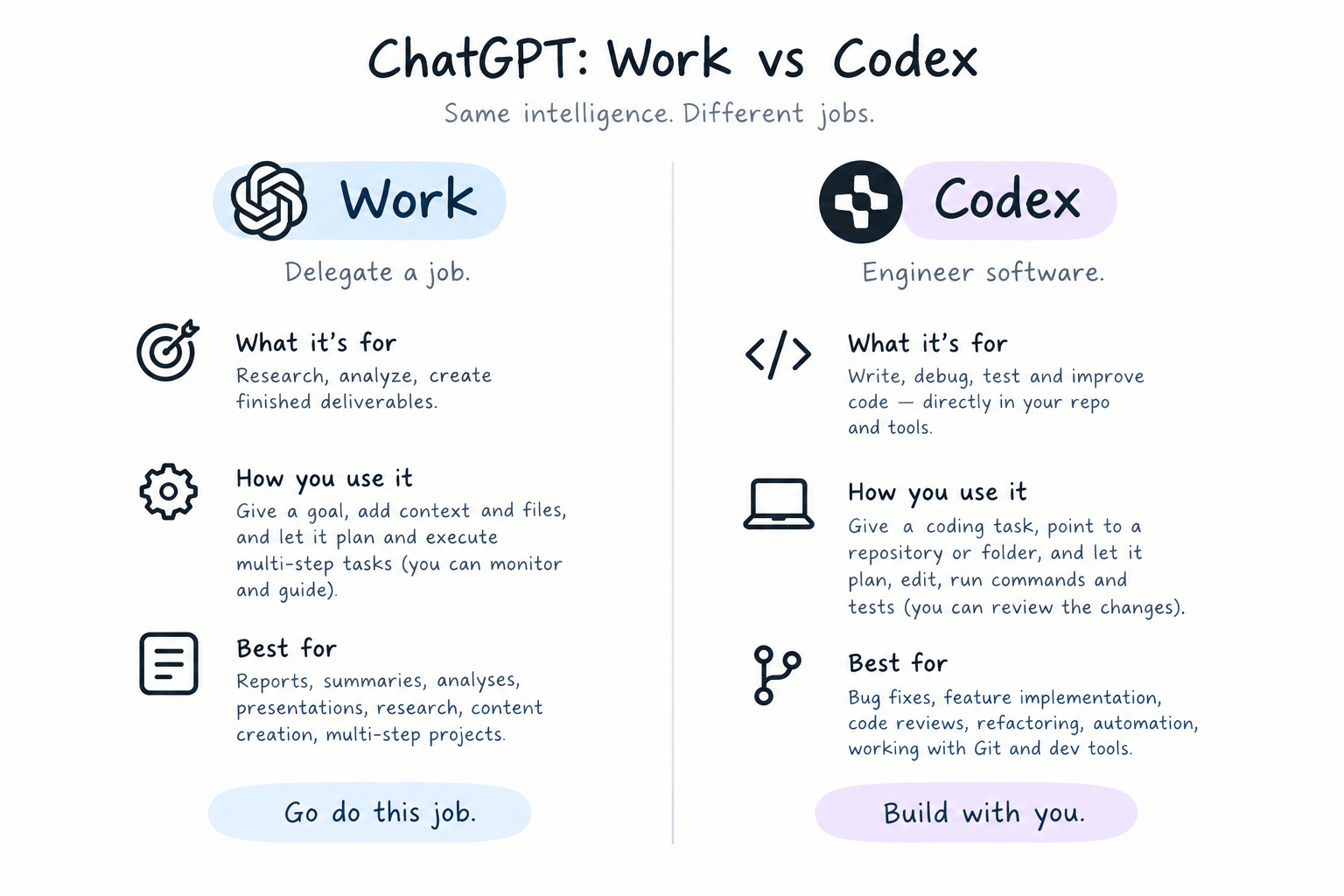
ChatGPT Work is where you hand ChatGPT a goal, and it builds a finished document, deck, or analysis from your apps and files.
Codex is OpenAI's coding agent.
These product changes don't affect the steps of a migration, though your plan sets your file and character caps.
Claude and ChatGPT pricing, plan by plan
Here’s how ChatGPT’s plans stack up against Claude’s.
Which plan gets September’s launches:
Free & Go
- GPT-6 Luna (desktop app)
- Limited ChatGPT Work (desktop)
- Limited Codex
Plus
- GPT-6 Astra, GPT-6.1 Sol, GPT-6 Sol, GPT-6 Luna (in Work and Codex)
Pro
- GPT-6 Pro in Chat (powered by GPT-6 Astra)
- GPT-6.1 Sol, GPT-6 Sol, GPT-6 Luna (in Work and Codex)
- Longer Work and Codex sessions
- Space
- dots (eligible markets)
- Pro 500 only: adds Astra Ultrafast
Business
- Matches Plus on GPT-6 models, plus GPT-6 Pro
- Space included
- dots rolling out to Business Premium (eligible markets)
Dots and Space need a bigger plan than Plus.
{{cta}}
Lindy: switch models, not your whole setup
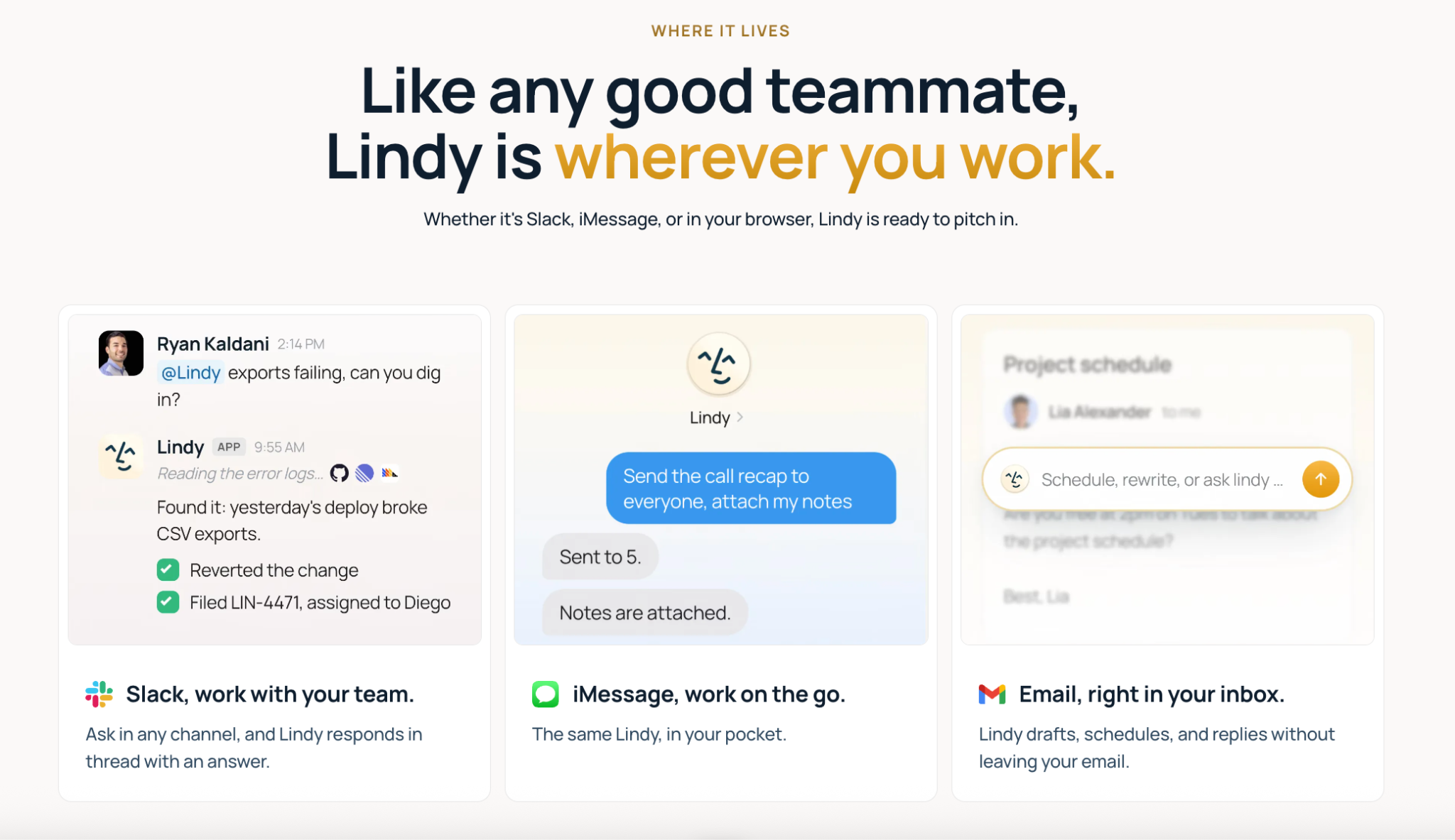
Lindy, an AI teammate, lets you choose which AI model powers each task on its Team plan ($49.99/user/month), whether that’s a Claude model, a GPT model, or another provider’s. Swapping providers inside Lindy doesn’t mean rebuilding your setup.
Everything I rebuilt by hand on day two lives inside one vendor's app. Memory, instructions, and Projects all have to be rebuilt again the next time you switch providers.
But with Lindy it can be a lot easier.
Frequently asked questions
Can you transfer chats from Claude to ChatGPT?
Yes, but for Claude, only from Claude Code and Cowork. ChatGPT's desktop import brings over the last 30 days of chats from those sessions. It doesn't read regular Claude chats, so carry a summary of anything you still need.
Will I lose my Claude Projects when I move to ChatGPT?
No, moving to ChatGPT doesn't delete your Claude Projects. To recreate the same setup in ChatGPT, copy the Project instructions and re-upload your original files into a ChatGPT Project.
How do I transfer Claude memory to ChatGPT?
Ask Claude to write out its memories, trim them to 5,000 characters on Plus (1,500 on Free and Go), and paste them into Custom Instructions. A paid plan isn't required, but Free's limits are tighter.
Can I use both Claude and ChatGPT?
Yes, and both have free plans. Claude Pro costs $20/month ($17/month, billed annually), and ChatGPT Plus costs $20/month.
Should I cancel Claude and move to ChatGPT?
Not yet. Wait until one of your own tasks has run in ChatGPT. Pick something you'd normally give Claude, run it, and compare the results. A side-by-side comparison of the two by task can help you choose what to test first.
How long does migrating from Claude to ChatGPT take?
11 minutes for the import tool, and 74 minutes for the manual rebuild, on my setup. Expect more time with more Projects or files, since only 10 files can be uploaded at once.









