I Tested 25+ Best Apps For Work: Here's 8 That Actually Helped ✅
Marvin tested 25-plus apps for work including Motion, Todoist, and Slack, scoring each on setup ease, time saved, and integrations to name eight winners.


I’ve worked with professionals who avoid work apps and still track leads or send notes to spreadsheets by hand. These repetitive tasks add up quickly and waste time that could go toward higher-value work. Their lives would be so much easier if they had used a work app.
But choosing the right app matters, so I tested 25 apps for work across scheduling, planning, and collaboration workflows. Here’s my list of the 8 best options in 2026 so you can find the right fit to rocket your workflows and save precious time.
Best work apps: At a glance
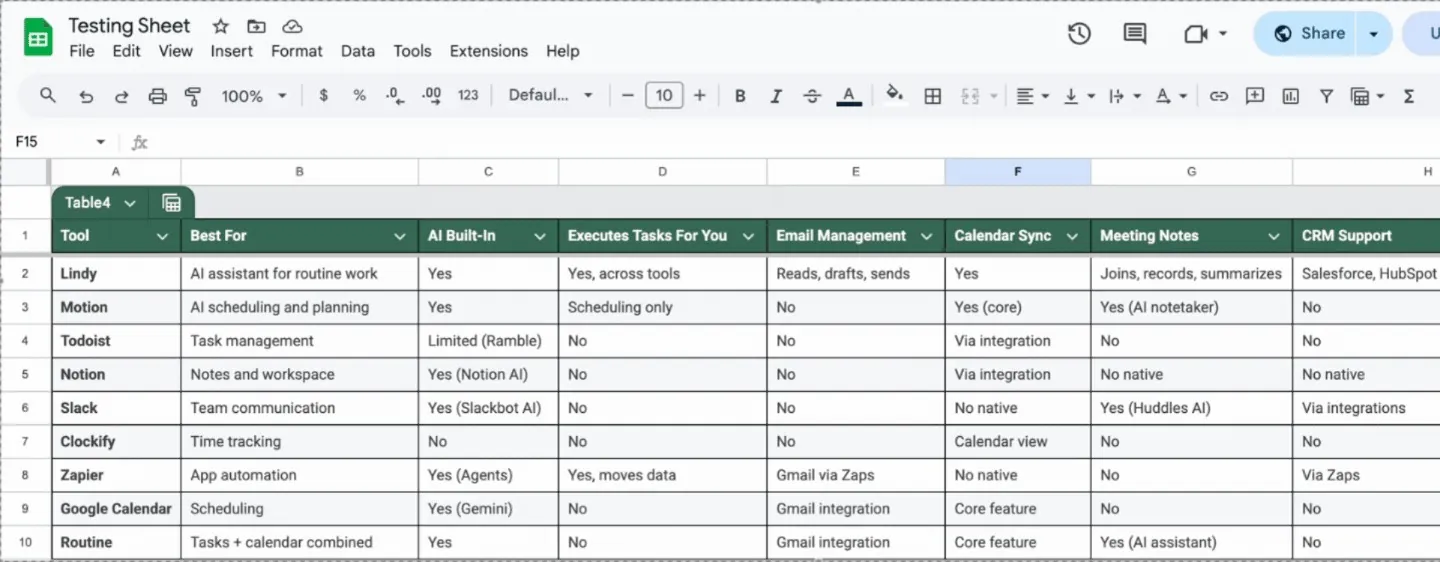
| Tool | Best for | Key strength |
|---|---|---|
| Motion | AI scheduling and planning | Builds a workday schedule around meetings, deadlines, and priorities |
| Todoist | Simple task management | Makes easy-to-manage task lists as projects grow |
| Notion | Notes and workspace organization | Flexible workspace for documents, planning systems, and team knowledge |
| Slack | Team communication | Real-time collaboration through channels, messages, and integrations |
| Clockify | Time tracking | Reports where work hours go |
| Zapier | Connecting apps and automating workflows | Links different tools and moves data between them automatically |
| Google Calendar | Shared team calendars and meeting coordination | Organizes events, tasks, and team availability across devices and time zones |
| Routine | Tasks and calendar in one view | Combines tasks with a calendar for simple planning and scheduling |
What are apps for work?
Apps for workare software tools that handle the operational side of your job. Scheduling, communication, task tracking, note-taking, follow-ups, and keeping your tools in sync. Establishing clear knowledge management governance helps teams keep all this shared documentation organized across systems.
Think of them as the digital version of everything you used to do with sticky notes, spreadsheets, and memory. Except now, the good ones do some of that work for you.
Most people already use at least two or three work apps without thinking about it.
Say you're an HR manager who spends every Monday morning pulling interview notes from three different tools, updating the candidate tracker, and sending follow-up emails to hiring managers. That's two hours gone before you even start your actual work.
With the right work app, most of that disappears.
Pro tip: Track one week of work. The task you repeat most, whether it's follow-up emails, meeting scheduling, or CRM updates, tells you exactly which app to buy first.
How I tested each app for work
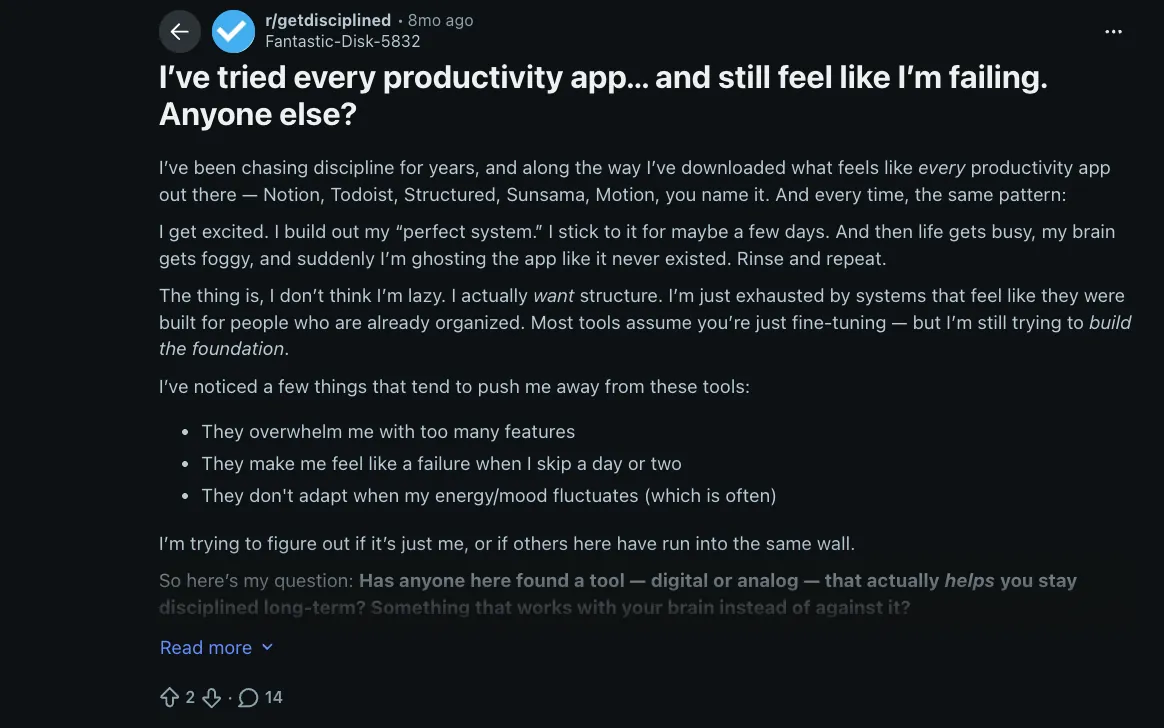
I started by looking at what people were struggling with at work. Reddit threads and G2 reviews illustrated the same complaints, such as: Too many tools competing for attention, features that looked good in demos but caused bottlenecks in practice, and automations that broke when something changed.
That framed how I approached this. Each tool had to earn its place through real work, not just an impressive onboarding screen.
I put each one through the kind of work that fills up a real week, including:
- Handling a full inbox and staying on top of follow-ups
- Running meetings, capturing notes, and acting on action items
- Collaborating across time zones without losing track of decisions
- Managing projects with shifting deadlines and multiple stakeholders
- Keeping records and tasks updated without doing everything by hand
I ran each tool alone first, then brought in a second person. That's where most of them started to crack. The eight that survived both rounds earned their spot. The rest either added complexity, lacked depth, or couldn't handle collaboration reliably.
Here’s how the ratings looked when I tested these tools on three common metrics:
| Tool | Overall (/5) | Ease of setup (/5) | Time saved (/5) | Integrations (/5) |
|---|---|---|---|---|
| Motion | 3.8 | 4 | 4 | 3.5 |
| Todoist | 3.7 | 5 | 2.5 | 3.5 |
| Notion | 2.8 | 3 | 2 | 3.5 |
| Slack | 3.3 | 4 | 2 | 4 |
| Clockify | 3.2 | 4.5 | 2 | 3 |
| Zapier | 4 | 3 | 4 | 5 |
| Google Calendar | 3.5 | 5 | 2 | 3.5 |
| Routine | 3.5 | 4 | 3 | 3.5 |
Best work app for AI scheduling and planning
Motion
Motion is an AI planning tool that schedules tasks, deadlines, and meetings into your calendar, so your day stays organized without manual planning.
When a meeting runs long or a new task lands in your schedule, you're the one who has to open the calendar, move things around, and figure it out. Motion takes that job off your plate. It reschedules automatically based on your priorities and deadlines, without you having to brainstorm a thing. To handle client inquiries automatically alongside your schedule, exploring ai agents customer service email solutions can save additional time.
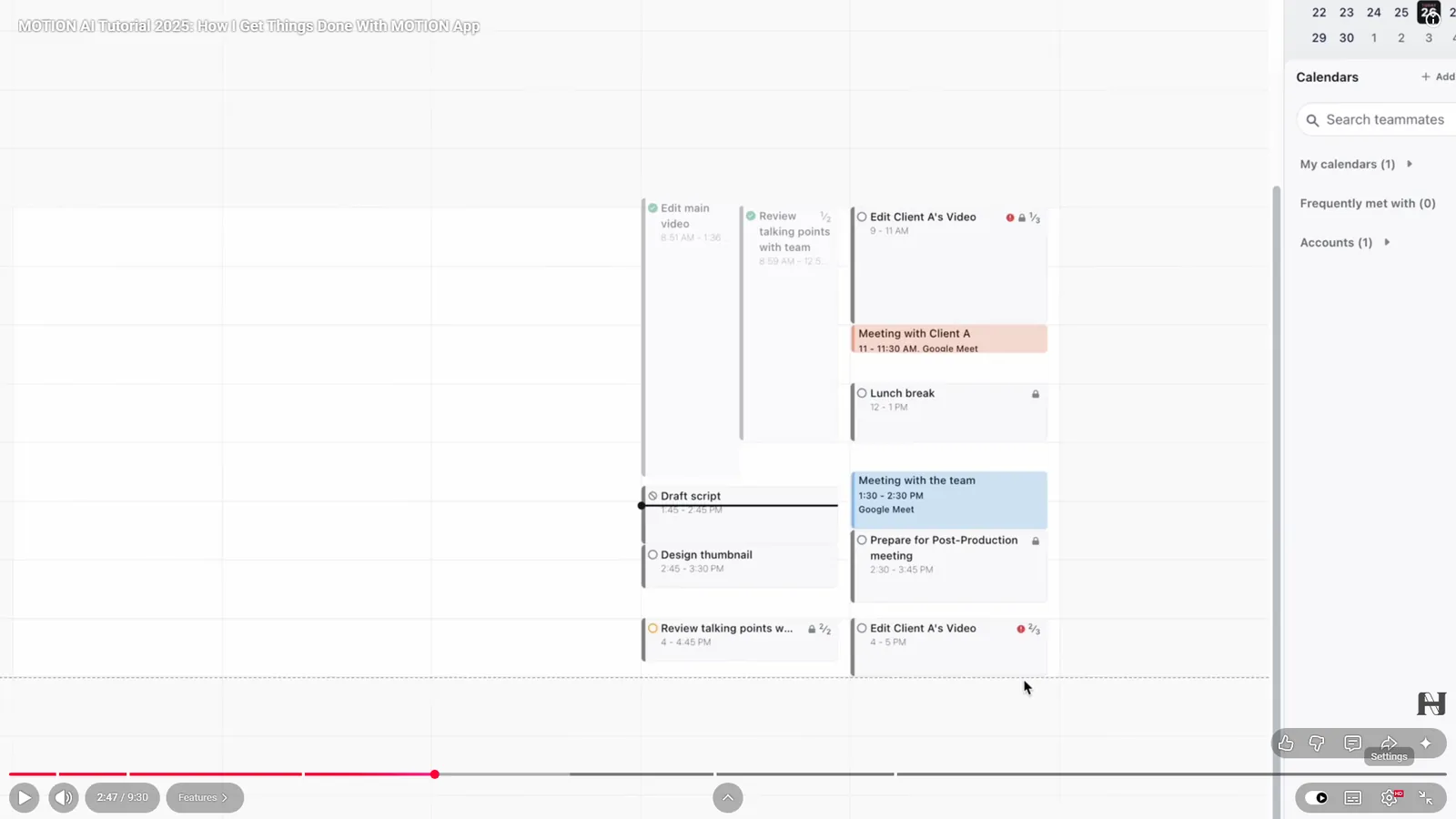
One afternoon, I dropped a last-minute high-priority task into Motion and closed my laptop. That task was going to take a few hours, and I was in no mood to reorganize my calendar manually, so I just left it there. But when I checked back later, Motion had already reshuffled my day to fit the task.
Motion also expanded a time block I had set aside for deep work by pushing some low-priority tasks back to the next day and stretching my schedule to make everything fit. It just rebuilt the current day around new input, which is the main point of having AI scheduling.
The same logic carries into project planning. Paste in a checklist and Motion turns it into a full plan with tasks broken out, deadlines assigned, priority levels set, and everything placed on your calendar. If you want to compare automated options, read our guide on ai planner software.
If you’re someone with multiple calendars, you’d like Motion’s integration stack as well. Everything syncs in real time, with booking links and team scheduling built in. For a detailed breakdown of how these features compare to another top tool, see our motion vs reclaim ai analysis.
Motion keeps adding AI features, so it gets more useful the more your work relies on AI. But know that it's built for scheduling and planning and not things like payment collection or lead routing. If you need software that manages broader daily administrative tasks, evaluating the best ai personal assistant can expand your options. To explore autonomous software that handles complex workflows beyond scheduling, check out our roundup of the best ai agents.
Key features
- Task prioritization: Motion looks at your deadlines and workload to decide what gets scheduled first, so high-priority work always lands earlier in your day.
- Team scheduling: Shared booking links and team calendars sync in real time, so coordinating across people doesn't mean a back-and-forth thread.
- AI Docs Assistant: Drafts and proofreads documents directly inside Motion without switching to another tool.
- AI Meeting Notetaker: Joins calls, captures key points, and turns action items into tasks automatically after the meeting ends.
- AI Search Assistant: Finds anything across your docs, notes, tasks, and conversations in seconds, without remembering exactly where you saved it.
Pricing
Motion offers a free trial. For teams, the Pro AI plan starts at $19 per seat/month billed annually ($29 billed monthly), and the Business AI plan costs $29 per seat/month billed annually ($49 billed monthly) for more advanced collaboration. Individual plans cost more: $29 and $39/month billed annually, or $49 and $69 billed monthly.
Best work app for simple task management
Todoist
Todoist is a task manager that helps you organize and track work in a clean, flexible system, so you can capture tasks quickly and stay focused.
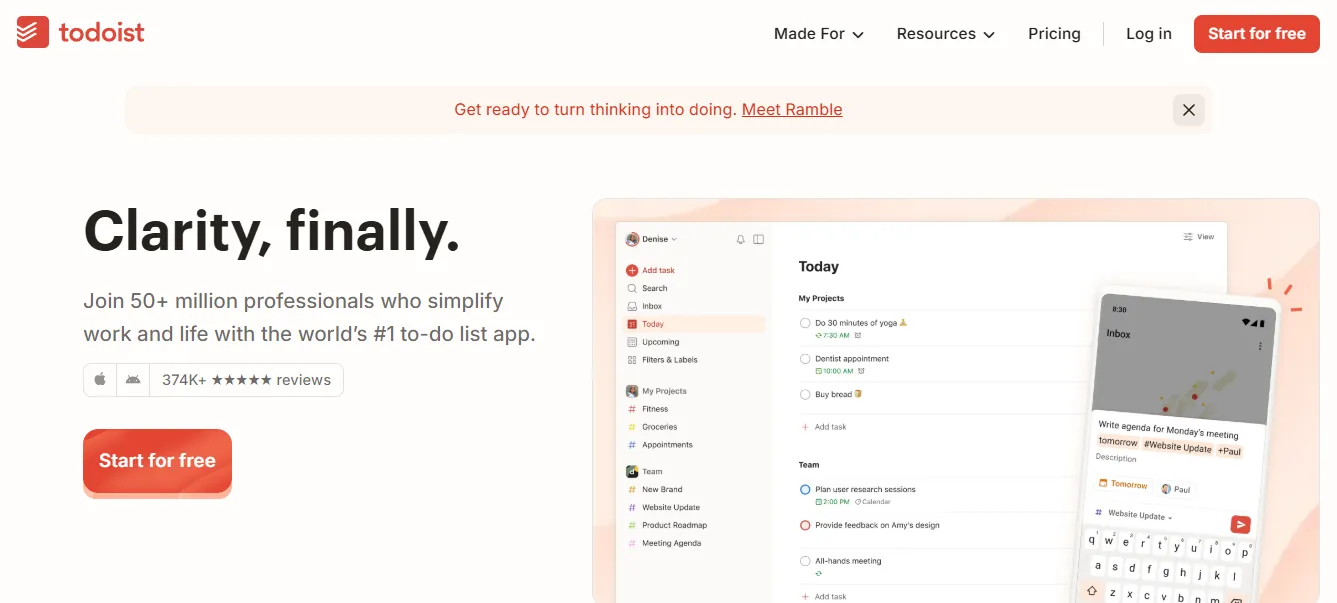
Todoist gives you a fast, clean place to capture tasks the moment they come up, organize them by project, and track them without a complicated setup.
The fastest part is adding tasks. I typed "Call Sarah about the budget every Friday at 2 pm," and Todoist parsed it instantly, setting the recurrence, time, priority, and project all from that one line. I didn’t click through menus or fill out fields, but Todoist still handled everything from one command.
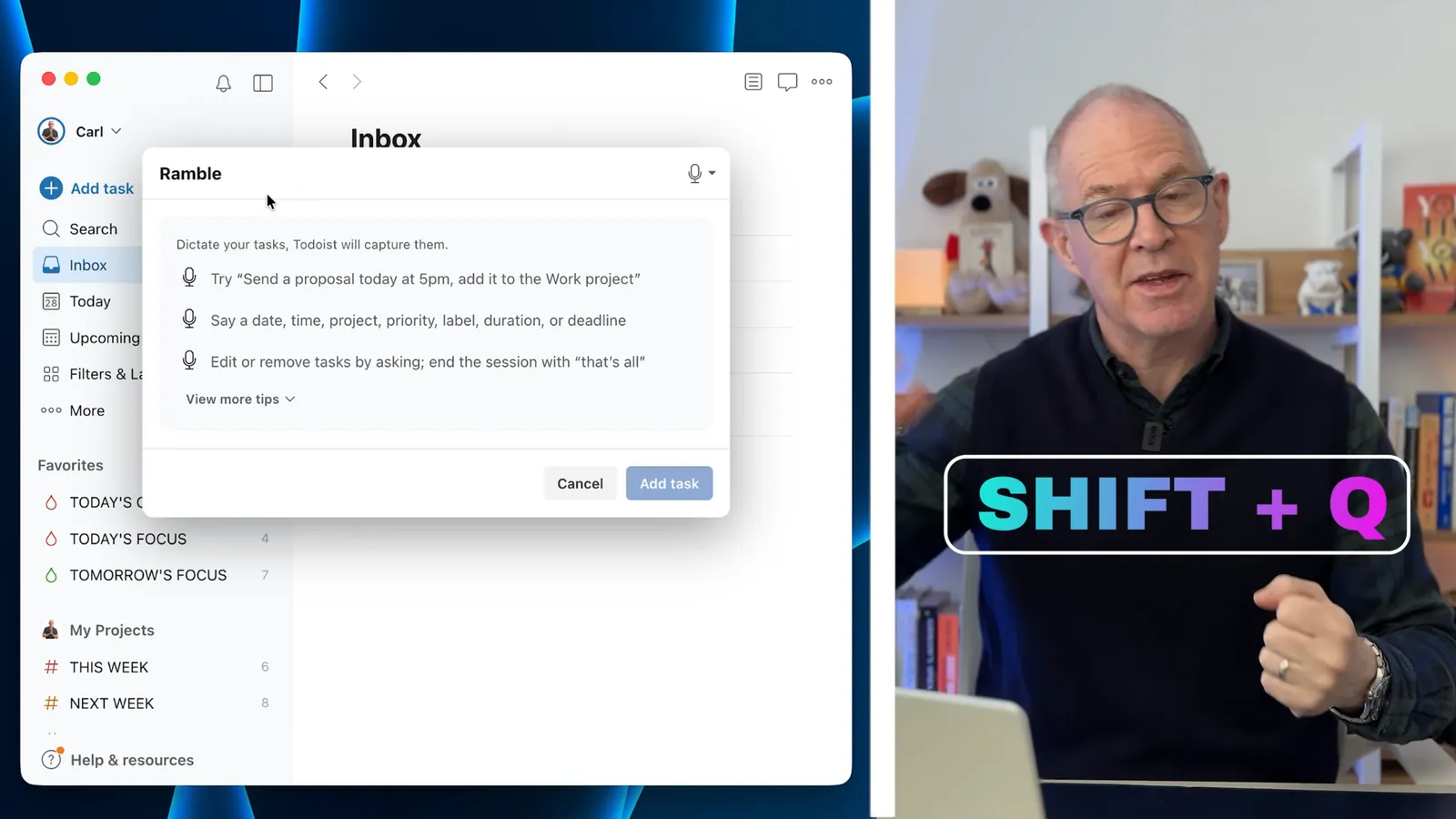
Todoist recently added Ramble, an AI-powered voice-to-task feature. I tried it when I was walking down the street one evening. I simply tapped the waveform icon and said, "Remind me to send that proposal tonight and follow up on the invoice Friday". By the time I checked back, Ramble had turned that into two tasks with the correct dates already set.
But then, at its core, Todoist is strictly a task manager. Todoist doesn't auto-schedule tasks into open time slots, so you pick every date and time yourself. If you need to write documents, automate steps, or get AI help inside the same tool, you'll need something else. For teams needing to automate multi-step processes across platforms, dedicated workflow management software provides a far more complete option.
Key features
- Ramble voice input: Speak a task out loud, and Ramble captures it with the right date, priority, and project attached. Works across 40 languages and picks up context from however you naturally describe the work.
- Productivity visualizations: Todoist tracks your completed tasks over time and shows your output in clear visual reports, useful for spotting patterns in how you work.
- Labels and filters: Tag tasks across projects and build custom filters to pull up exactly what you need, by context, priority, or deadline, without scrolling through everything.
- Habit tracking: Set recurring tasks for daily or weekly habits and track your streak over time. Useful for routines that need to stay consistent without relying on memory.
- 90+ integrations: Connects with tools like Google Calendar, Slack, and Zapier so tasks created in Todoist stay in sync with the rest of your work.
Pricing
Todoist offers a free plan for personal use. The Pro plan starts at $7 per user/month, and the Business plan starts at $10 per user/month for teams (both billed monthly, or $5 and $8 per user/month billed yearly).
Best work app for notes and workspace organization
Notion
Notion is a workspace app for notes, documents, databases, and project plans, often used as a central hub to organize work and information.
Notion is one of those tools that makes you question how you managed your work before. Most teams keep notes in one app, tasks in another, and company docs somewhere locked in. Notion pulls all of that into one place where everything connects.
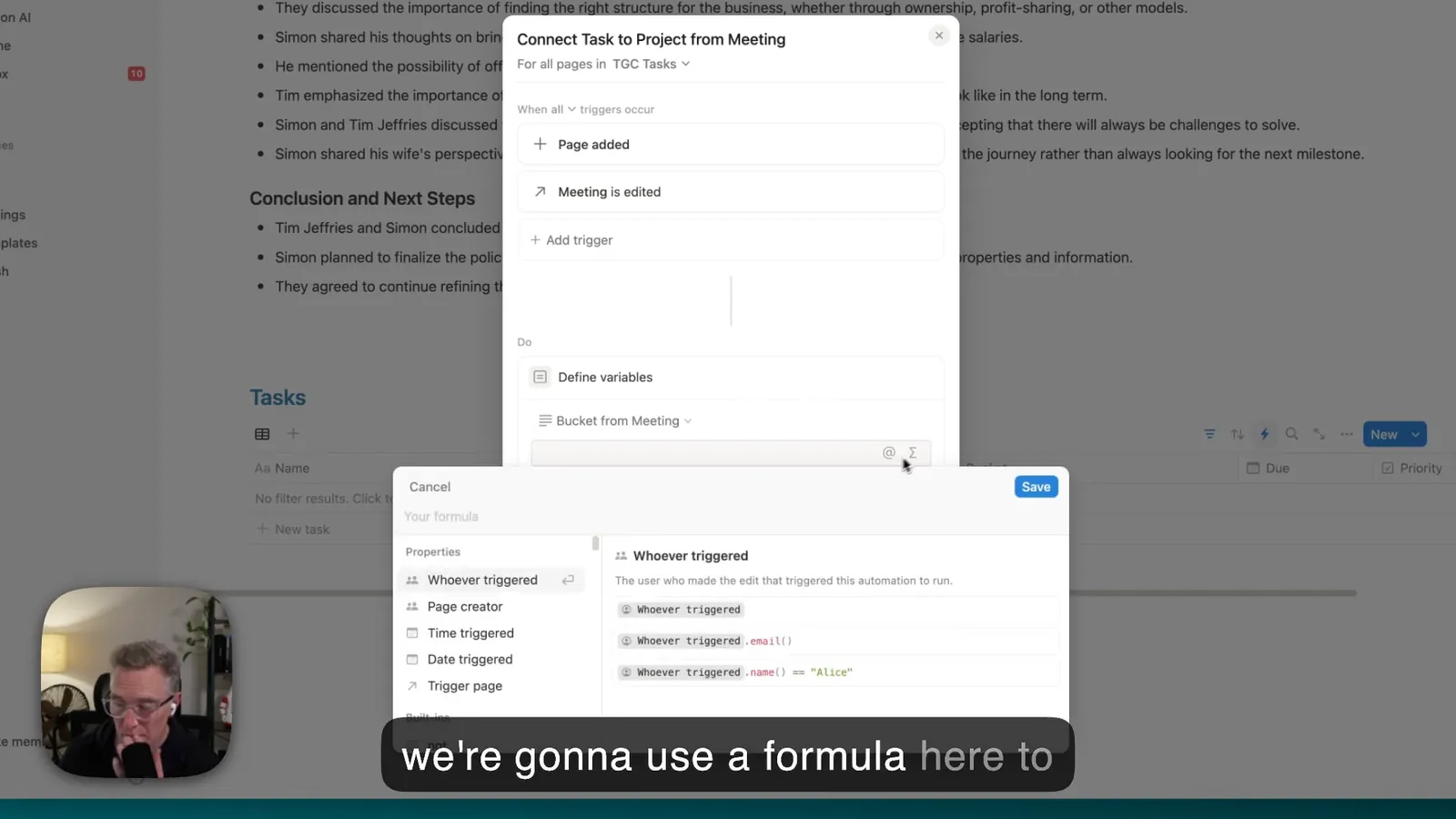
Your meeting notes can link directly to the project they belong to, that project links to the client, and the client page holds every related document, email thread, and update. It takes some upfront work to structure, but after that, it mostly manages itself.
Change a project status in one place, and Notion updates it everywhere it appears. If you're managing five projects that share the same client, team, or deadline, you're not hunting down every page to keep things current.
Notion's template gallery has over 30,000 community-built setups covering everything from project tracking to personal finance. Instead of building your workspace from scratch, you can pick a template that fits your use case and start from a structure that's already working for someone else.
Notion's flexibility can also work against you. It's easy to spend more time designing the perfect workspace than using it. But if you go in knowing what you need, it holds everything together better than most tools at this price point.
Key features
- Docs and note-taking: Notion works well for creating detailed notes, meeting summaries, and docs with rich formatting, media, and links for better clarity.
- Presentation Mode Chrome extension: Third-party Chrome extensions like Presentation Mode for Notion turn any Notion page into a full-screen slide deck directly in your browser without switching tools or exporting.
- Project planning: Notion includes boards, tables, and calendar views for managing projects and tracking tasks, deadlines, and progress in one shared workspace.
- Internal knowledge organization: Notion lets you centralize company knowledge, like onboarding docs, policies, and project info in a searchable workspace.
- Cross-platform access: Notion works across iOS, Android, Mac, and Windows, so your workspace stays consistent whether you're at your desk or on your phone.
Pricing
Notion offers a free plan for individuals. The Plus plan starts at $12 per member/month for small teams, while the Business plan goes up to $24 per member/month (both billed monthly, or $10 and $20 per member/month billed annually). Enterprise pricing is custom-based on scale and security needs.
Best work app for team communication
Slack
Slack is a messaging and collaboration platform for fast workplace communication, helping teams share updates and coordinate work in real time.
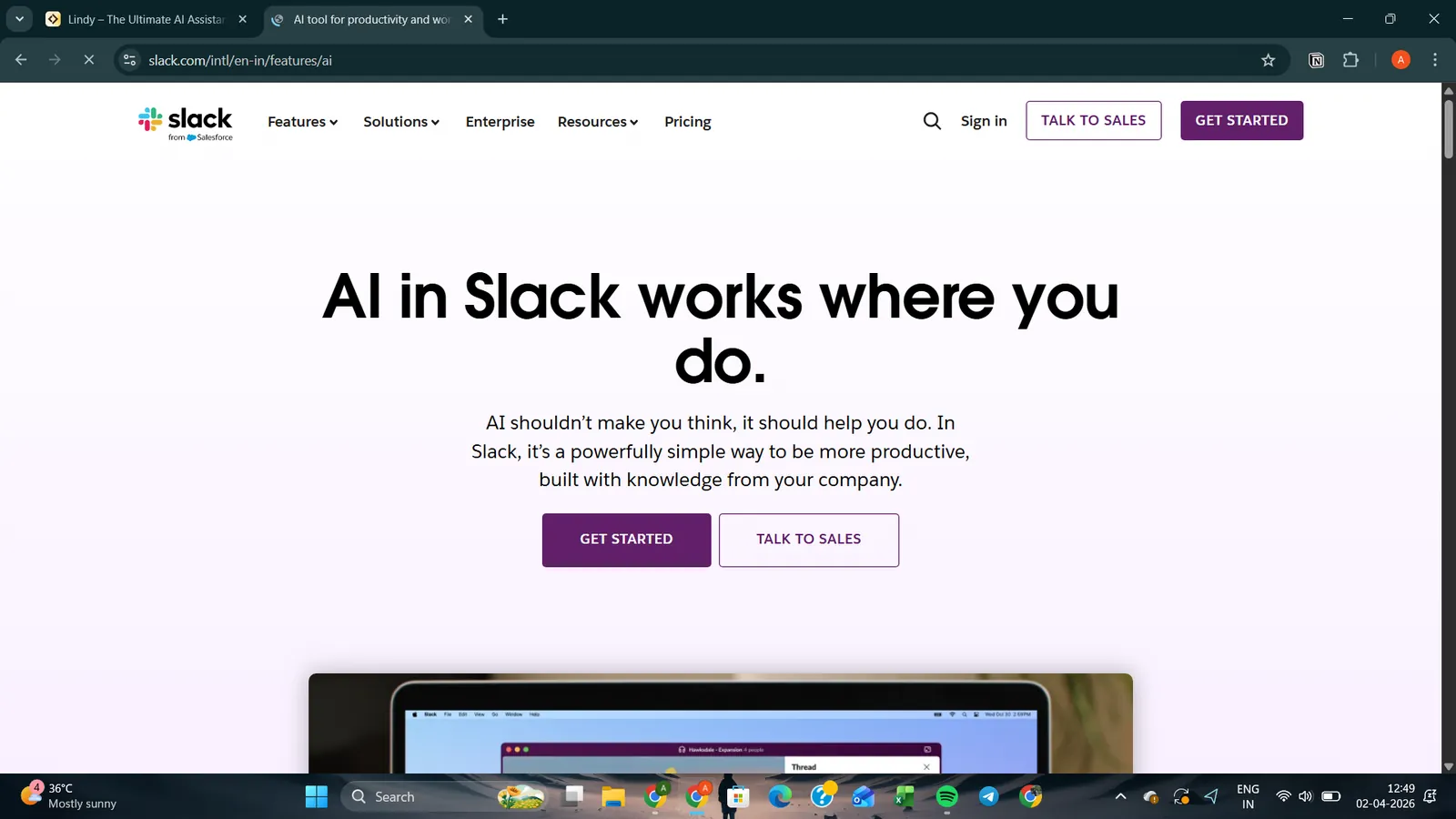
Slack works the same way whether your team has ten people or ten thousand. Every project, department, or topic gets its own channel, so conversations stay organized and nothing gets buried in a shared inbox. You can send messages, share files, and make decisions without switching tools or scheduling calls.
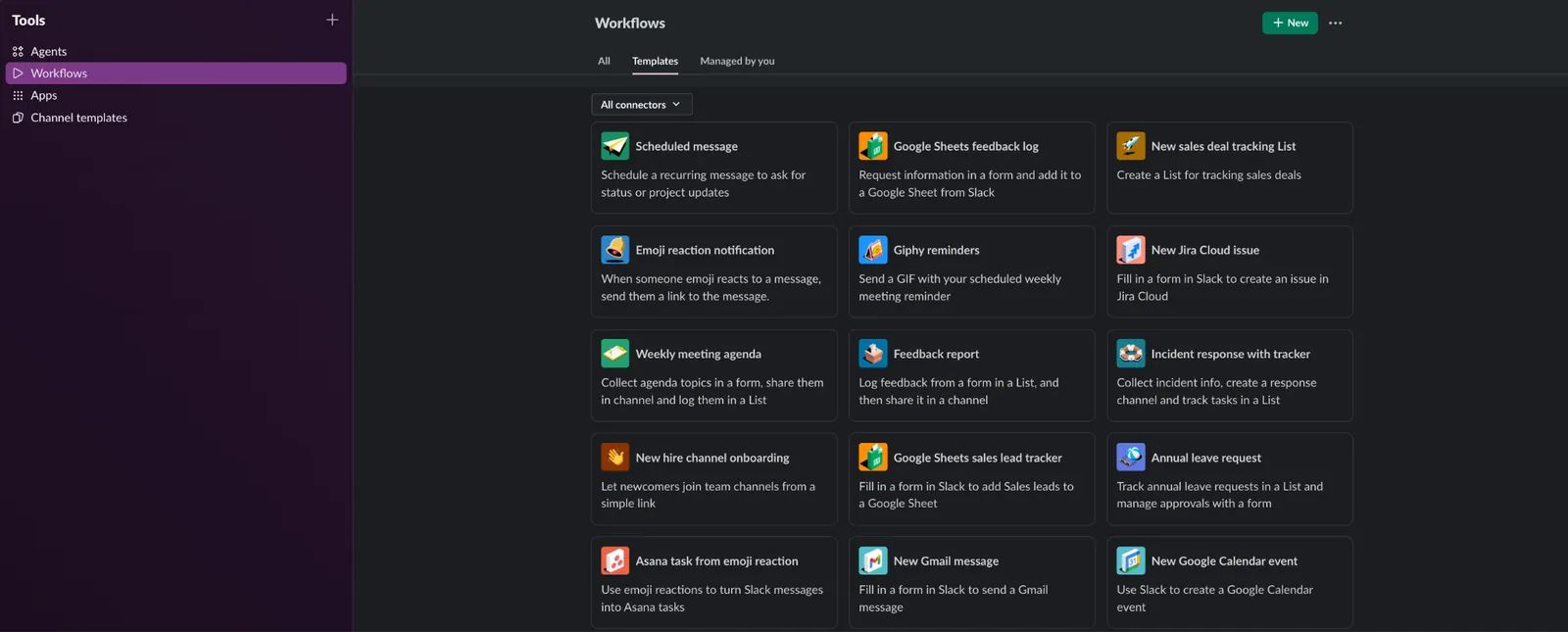
I like how Slack's app directory connects directly to your channels. This means you get quick updates from tools like Google Drive, Salesforce, or Asana right inside the channel where your team is already talking. You get notified when a deal moves, a file gets shared, or a task is completed without switching tabs to check.
Huddles work the same way. You start a quick call inside Slack, turn on the AI notetaker, and when the call ends, a summary of key points and next steps gets posted in the channel automatically. No notes to write up, no follow-up message to send.
With Slack's AI Workflow builder, you can describe a process or choose from pre-written prompts, and it builds the workflow for you.
Once, I typed "Welcome new members to #onboarding and ask them to introduce themselves" as the prompt, and it was ready. The message went out whenever somebody new joined the channel. I didn't have to connect a single tool or tap on the settings page.
But Slack can get overwhelming quickly. With notifications across every channel, the important messages don't always stand out from the rest.
Also know that Slack pauses notifications outside your notification schedule (or a default schedule your workspace admin sets), so time-sensitive messages can sit unread until the next morning. For teams working across time zones or on tight deadlines, that setting is worth adjusting early.
Key features
- Team channels: Organized spaces where teams can discuss work by project, department, or topic, making conversations easier to follow.
- AI search: Find anything across your channels, files, and conversations instantly, even if you can't remember exactly where it was posted.
- Integrations with work tools: Connects with tools like Google Drive, Salesforce, Asana, and Zoom, so updates and files appear directly in conversations.
- AI conversation summaries: Slack summarizes channel activity so you can catch up on what happened without reading every message in the thread.
- Slackbot personal AI agent: A personal AI assistant built into Slack that answers questions, finds information, and helps you get things done without leaving the app.
Pricing
Slack offers a free plan with 90 days of message history. The Pro plan starts at $8.75 per user/month, and the Business+ plan at $18 per user/month (both billed monthly, or $7.25 and $15 per user/month billed annually). Enterprise+ pricing is custom.
Best work app for time tracking
Clockify
Clockify is a time-tracking app that shows how much time you spend on tasks, projects, and clients, with clear reports instead of estimates.
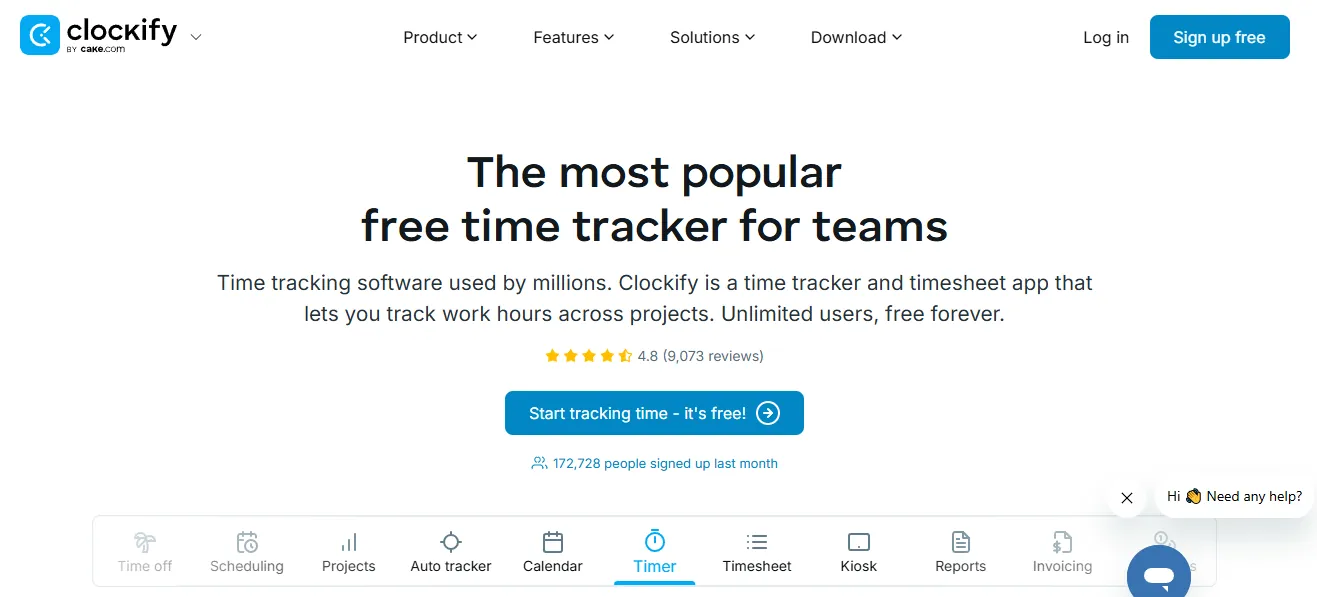
If you charge clients by the hour, missing even a few minutes means you don’t get paid for that time. Clockify helps you track every minute of work so nothing billable gets missed.
You can start a timer when you begin a task, stop it when you’re done, and later see exactly how much time you spent on each project or client. It also creates reports you can share with clients to show the hours worked.
Clockify also handles time-off tracking. If an employee needs to take leave before they've built up enough days, you can allow it, and Clockify logs the deficit automatically. As they earn more days, the balance adjusts on its own.
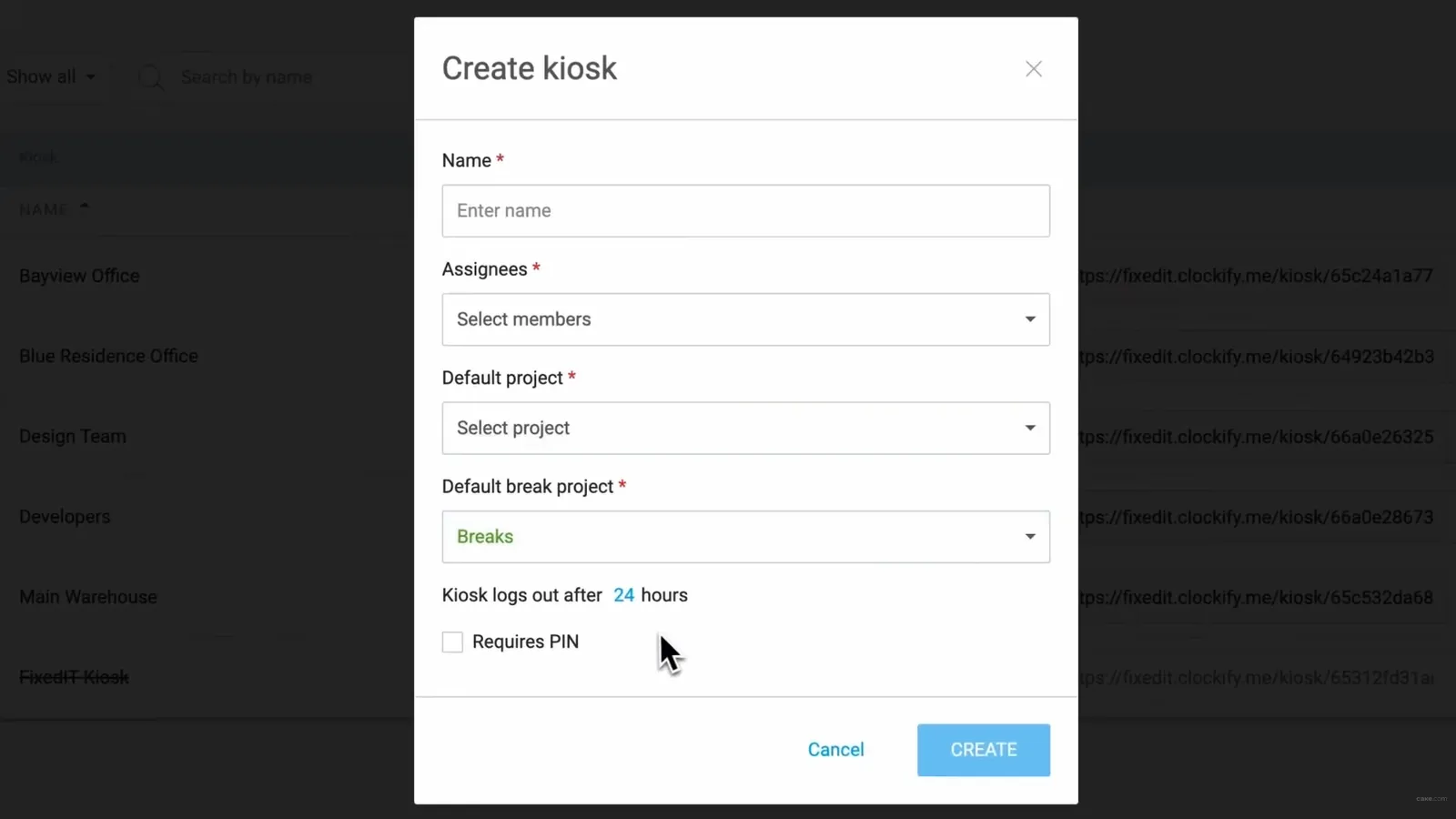
Clockify's Kiosk is a shared clock-in station you can set up on any device for teams working in a fixed location, like a warehouse, retail floor, or office. You give it a name, assign the people who'll use it, and set a default project. Anyone on the team can clock in with a QR code or PIN. That's the whole setup.
But here’s the catch: Simple reports are easy to get, like daily or weekly hours. But more detailed ones, like profit per client, will take extra effort. You’ll need multiple filters, and it’s not very intuitive at first, though it works once you figure it out.
Key features
- Manual and timer-based tracking: Clockify lets you start a timer when you begin a task or add time entries later. This flexibility makes it easy to track work, whether you prefer real-time timers or manual logging.
- Reporting dashboards: Clockify turns tracked hours into visual reports and summaries. These dashboards help individuals and teams understand how time is distributed during the workweek.
- Idle detection and reminders: Clockify notices when you've stopped working and asks if you want to keep the timer running or discard the idle time, so your logs stay accurate without you babysitting the clock.
- Pomodoro timer: Work in timed focus sessions with built-in breaks. Useful for staying on track during long tasks without burning out.
- GPS tracking: For field teams or remote staff, Clockify logs the location when someone clocks in, giving managers a clear record of where work is happening.
Pricing
Clockify has a free plan that covers basic time tracking for up to 5 users. The Basic plan starts at $4.99 per seat/month, while the Standard and Pro plans start at around $6.99 per seat/month and $9.99 per seat/month. Enterprise starts at $14.99 per seat/month for better security and control. Those are monthly-billing prices, and annual billing drops them to $3.99, $5.49, $7.99, and $11.99.
Best work app for connecting apps and automating workflows
Zapier
Zapier is an automation tool that connects apps and automatically moves data between them, keeping your tools in sync without manual effort.
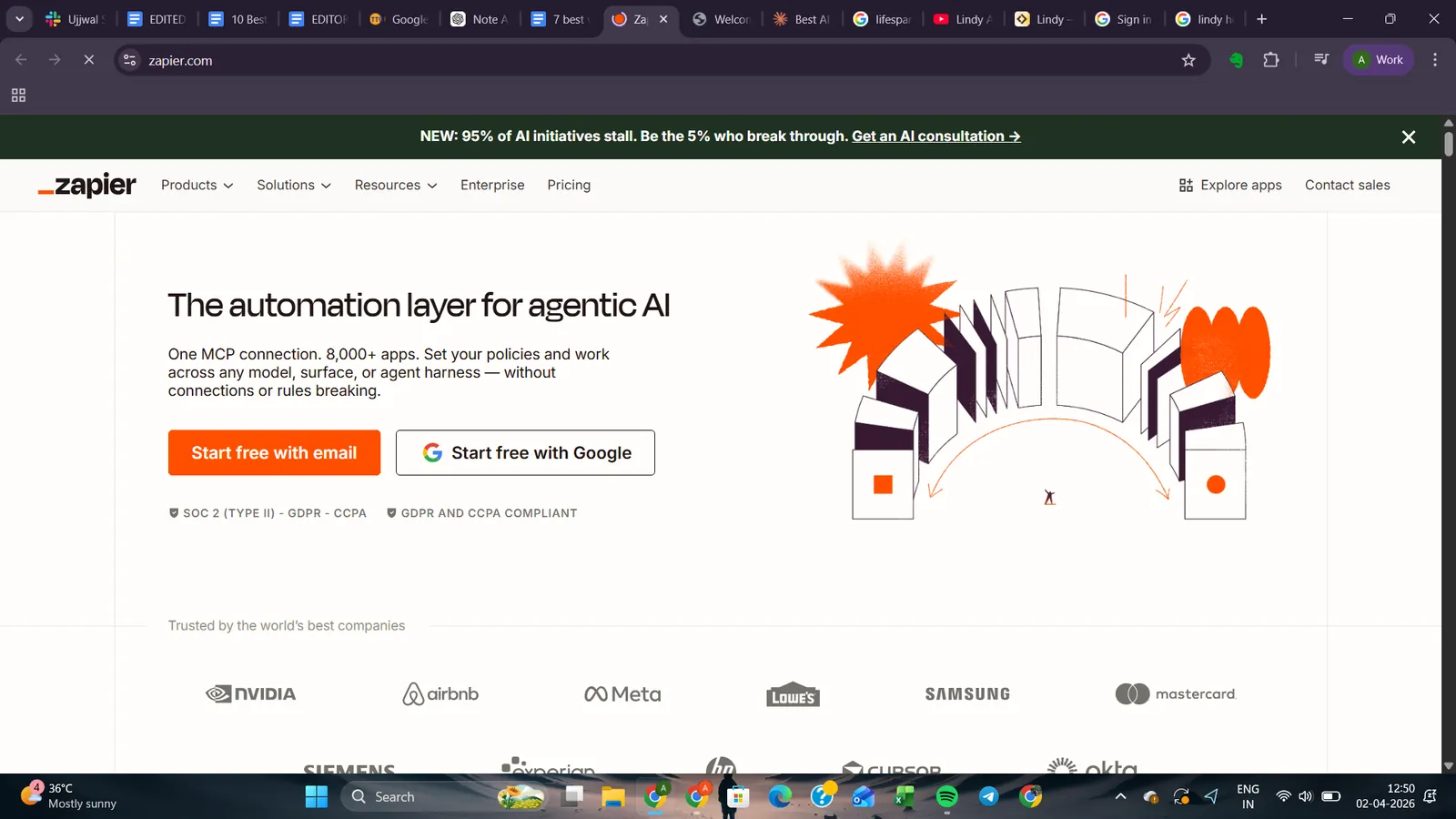
If your team uses separate tools for forms, CRM, invoicing, and chat, you're probably moving data between them manually. Zapier handles that automatically, so information flows between your apps without anyone having to push it along.
For testing, I set Zapier to watch my Gmail for new invoice emails. When a new invoice came in, Zapier read the amount and sent it to my accounting software. The setup took about ten minutes, sparing me loads of manual effort.
Then there are Zapier's Agents, which take automation a step further. Instead of setting up triggers for every step, you build an AI assistant that handles tasks like qualifying leads, responding to support tickets, or ranking candidates across your connected apps on its own.
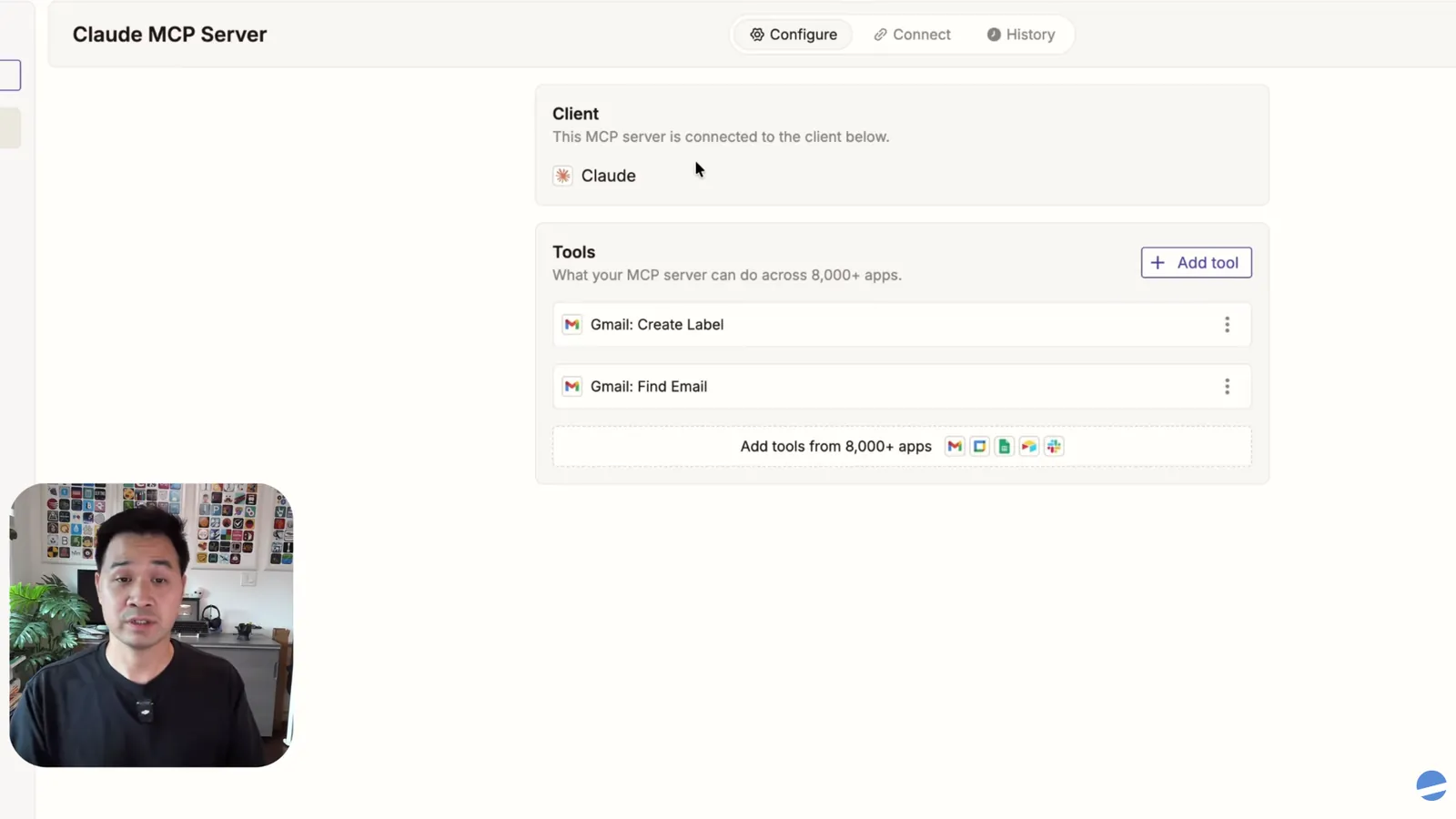
Zapier also supports MCP integration, which connects your automations directly to AI tools like ChatGPT or Claude. That means you can do things like pull all your Slack messages into a private AI database and search past conversations just by asking questions in chat.
But Zapier charges based on how many tasks it runs, so costs climb with your usage.
And if a connected app changes how it works, your automation can break. The failure alerts aren't always obvious, so things can stop running without you noticing right away.
Key features
- Cross-app automation: Zapier connects different work tools and automates actions between them. When something happens in one app, it can trigger tasks in another automatically.
- Triggers and actions: Automations run based on simple rules. A trigger starts the workflow, and Zapier performs the next action without manual input.
- Workflow templates: Zapier provides pre-built automation templates for common workflows. This helps teams set up useful automations quickly without building them from scratch.
- Broad integration ecosystem: Zapier connects with thousands of business tools used for marketing, sales, support, and operations. This makes it easier to automate processes across an entire work stack.
- Canvas: A visual planning tool that lets you map out and design your automations with AI before building them, useful for spotting gaps before anything goes live.
Pricing
Zapier has a free plan for basic use. The Professional plan starts at $19.99/month billed annually ($29.99 billed monthly), and the Team plan at $69/month billed annually ($103.50 billed monthly). Enterprise has custom pricing.
Best work app for shared team calendars and meeting coordination
Google Calendar
Google Calendar is a scheduling and time management tool that keeps your events, tasks, and availability organized across devices, teams, and time zones.
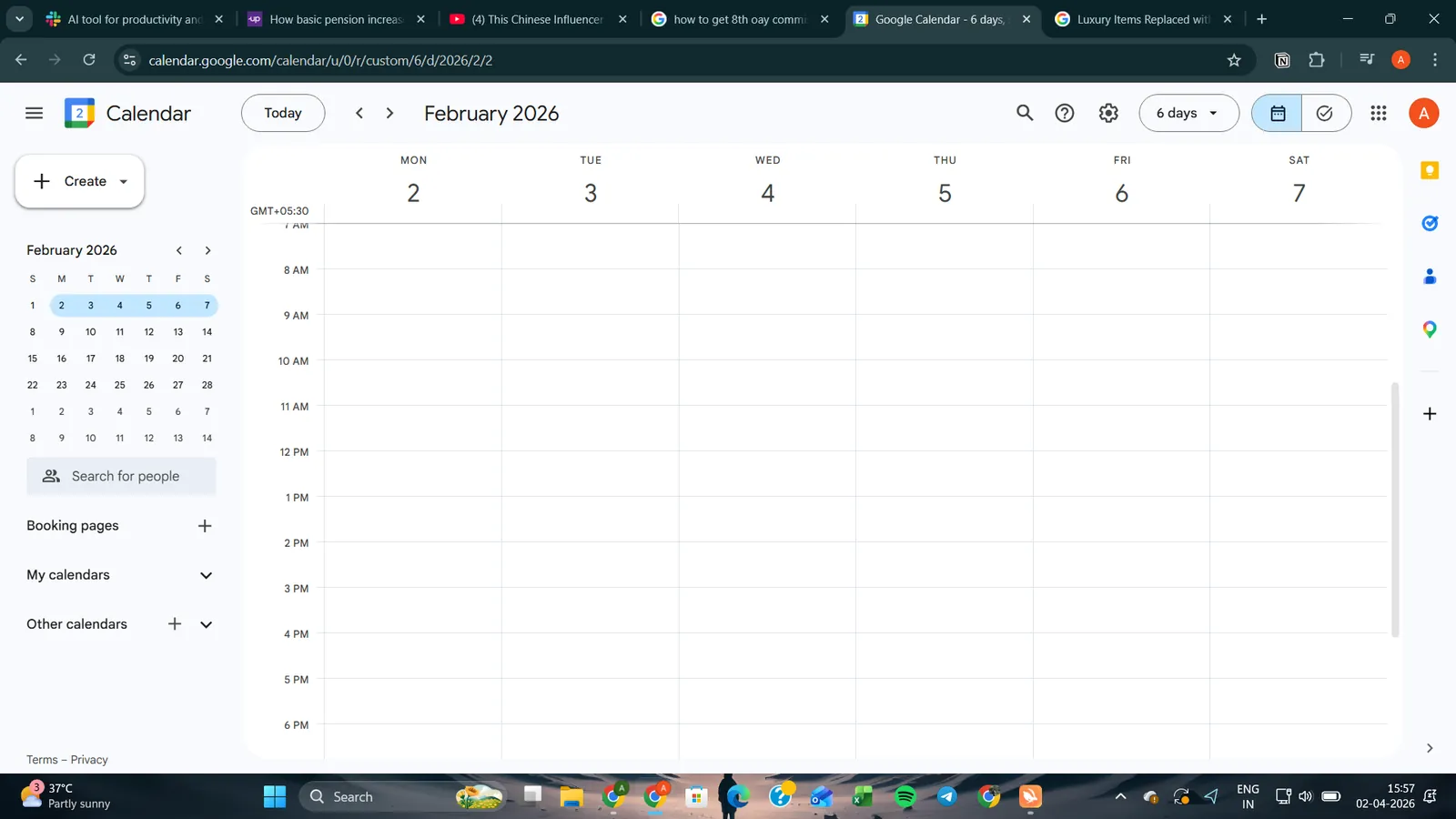
Google Calendar has been the default scheduling tool for most teams for years. It handles shared calendars, meeting coordination, and time zone management well, and if your team already runs on Google Workspace, there's almost no setup needed.
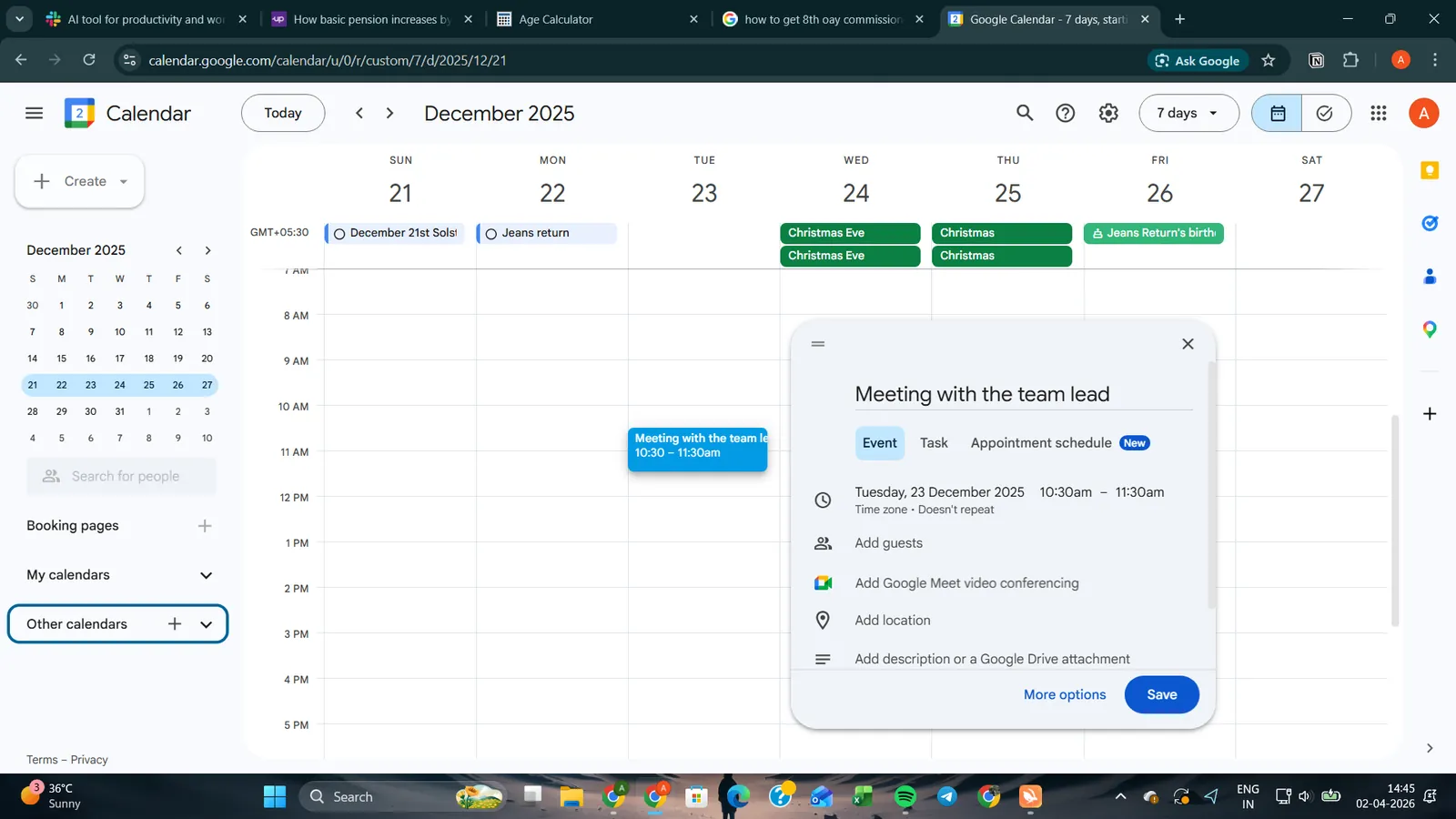
The first week I used shared calendars with a team, we cut our "when are you free?" messages down to almost nothing. Google Calendar handled that pretty smoothly. Video conferencing links get added automatically when you create an event.
Focus Time (on Business Standard and higher Workspace plans) blocks off time on your calendar and auto-declines meetings during those hours, which is the kind of feature that sounds small until you use it.
On the integration side, Google Calendar connects with platforms like ClickUp and booking systems to avoid double-scheduling. You can sync it across iOS, Android, Wear OS, and Apple Watch.
Google Calendar now connects with Gemini, so you can create, find, and edit events just by asking. Instead of clicking through the calendar to set something up, you describe what you need, and Gemini handles it directly inside the app.
Key features
- Speedy Meetings: Turn it on in your event settings, and Calendar shortens your default meeting length by 5 or 10 minutes so you're not jumping straight from one call to the next.
- Working Hours and Location: Set your working hours and whether you're at home or in the office. Teammates see this before they try to book you.
- Time Insights: On work or school accounts, shows exactly how your hours are being spent and who you're spending them with. More honest than most people expect.
- Apps Script automation: Connect Calendar to Google Sheets or Forms to create and update events automatically, no heavy coding required.
- Event Attachments: Add Google Docs, Sheets, or agendas directly to an invite. Everything the meeting needs is in one place before it starts.
Pricing
Google Calendar is free for personal use. The Business Starter for Google Workspace plans start at $8.40 per user/month, with Standard at $16.80 per user/month and the Plus at $26.40 per user/month on month-to-month billing ($7, $14, and $22 per user/month with a one-year commitment). Enterprise pricing is custom.
Best work app for tasks and calendar in one view
Routine
Routine is a productivity app that combines tasks, calendar, notes, and contacts into one workspace, with an AI assistant built in to handle the repetitive work for you.
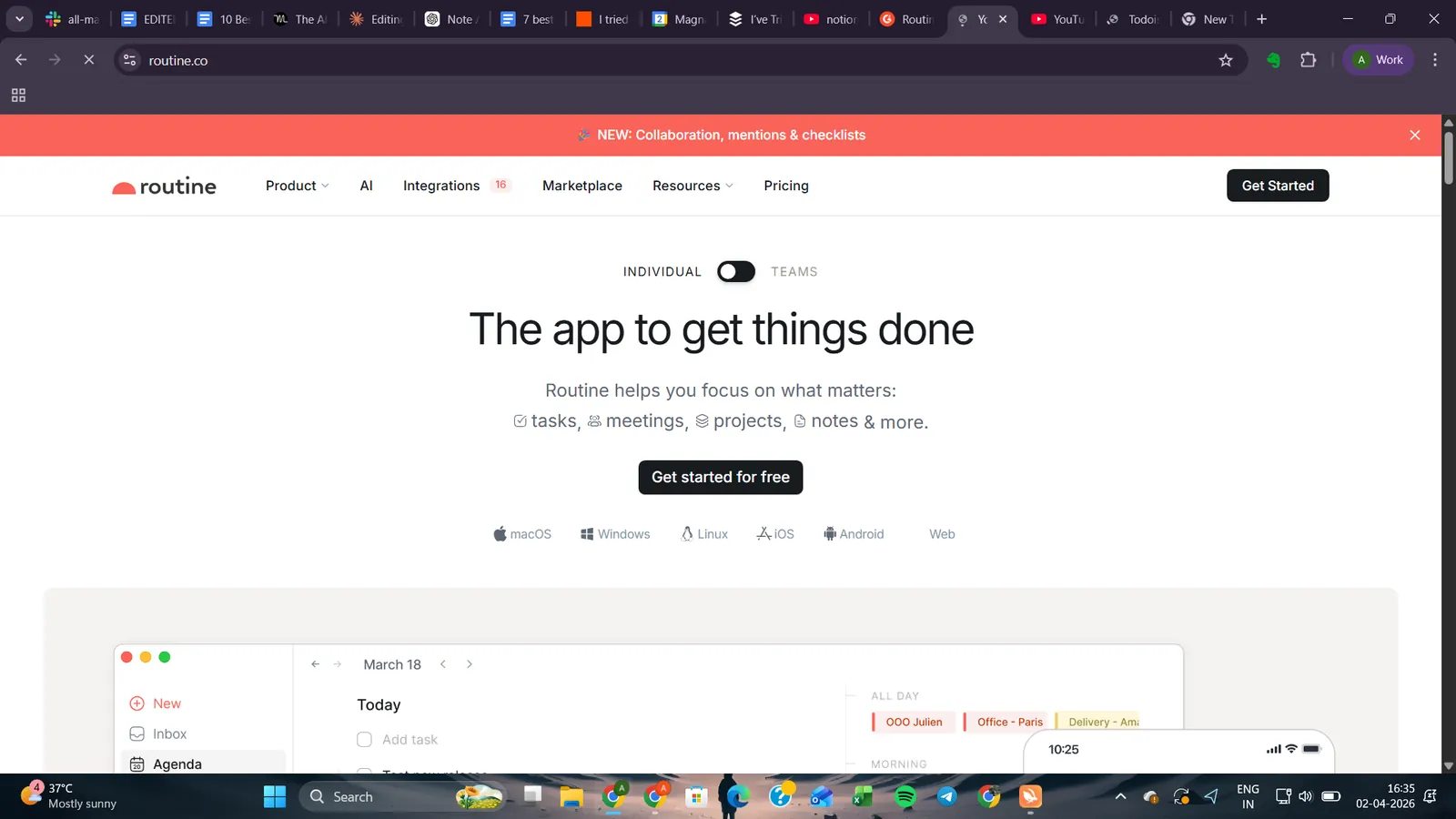
Most productivity setups split tasks and calendars across two different apps. Routine puts both in the same view. When I started planning my week inside it, tasks showed up right alongside calendar events, and I could drag and drop to schedule them without switching screens.
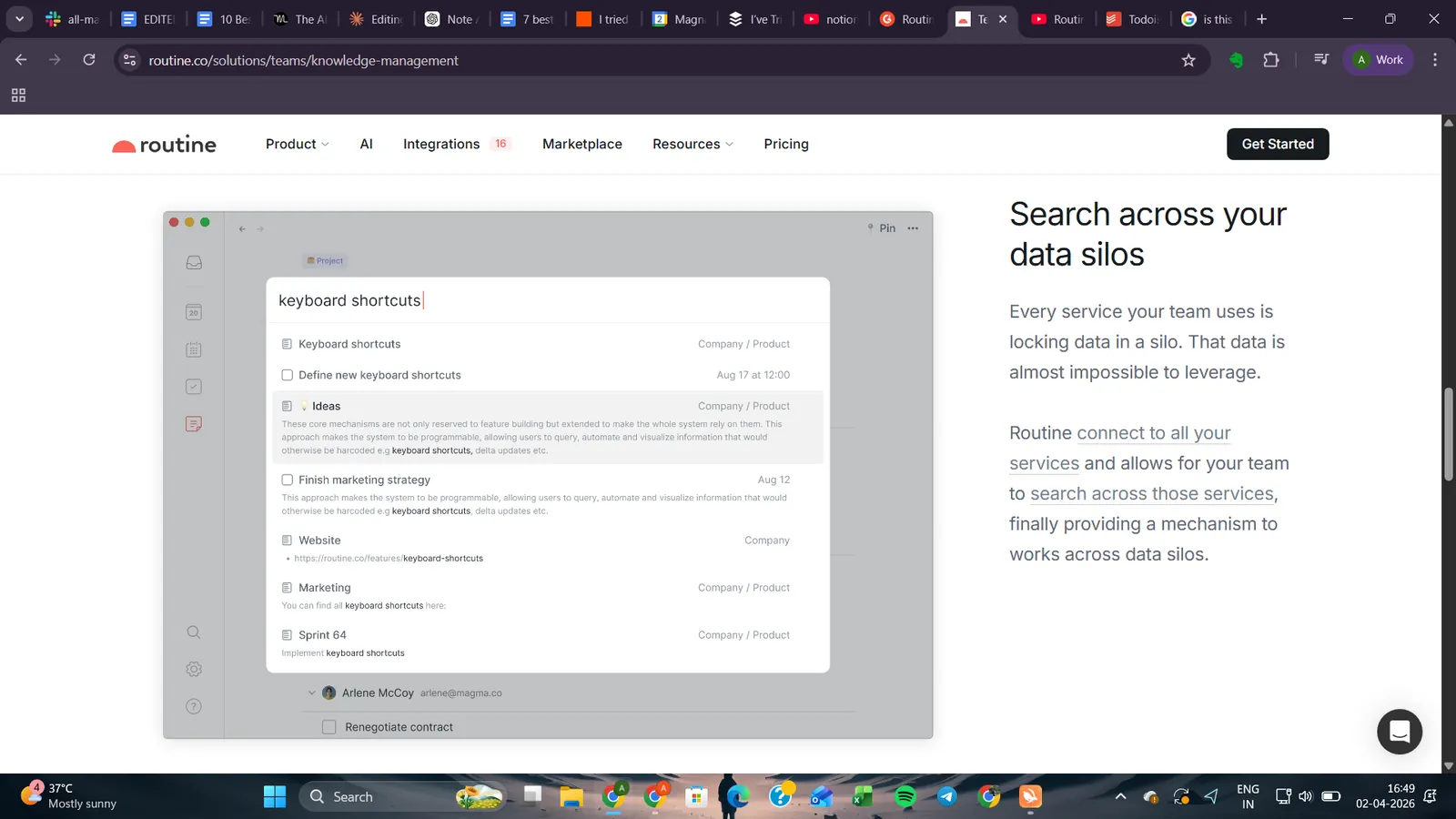
The search in Routine is useful when you can’t remember the exact file you need. It matches keywords and searches your workspace all at once. Type something half-remembered like "keyboard shortcuts", and it pulls up every note, task, and doc that mentions it.
And because Routine tracks the source of everything you save, whether it came from a browser tab, a desktop app, or a note, you can find what you need and know exactly where to go back to it.
Type something like "schedule a client review this week," and Routine finds an open slot on your calendar and places it there automatically. You don't set a time, you just describe when it needs to happen, and Routine figures out where it fits based on what's already there.
On the team side, Routine covers project management, shared knowledge bases, and customer tracking. It connects to tools like Gmail, Slack, Notion, GitHub, and ClickUp, and runs across macOS, Windows, Linux, iOS, Android, and the web.
Key features
- Apple Siri and iOS widget support: Control Routine by voice or glance at your day from your home screen without opening the app.
- Knowledge base for teams: Centralizes shared information across a team. Everyone accesses the same docs, notes, and project context in one place.
- Natural language input: Type tasks the way you'd say them out loud. Routine figures out dates, priorities, and recurrences without manual configuration.
- Menu bar widget: Access your tasks and calendar from the menu bar without opening the full app. Useful for quick captures and checking what's next.
- Multi-workspace collaboration: Organize your team's work across separate workspaces by project, client, or department, each with its own tasks, notes, and context.
Pricing
Routine offers a free forever plan for individuals, and a Personal plan at $5/month. The Professional plan starts at $10/month, and the Business plan at $15 per seat/month. Enterprise pricing is customized.
How to get more done with apps for working
Most people use work apps to organize tasks they still do manually. That's the wrong approach. The right work app removes a task from your plate completely, like auto-drafting follow-ups, logging CRM notes after calls, or booking meetings from a single text.
Here are the ways people get value from them:
- Let your calendar do the scheduling: Instead of going back and forth over email to find meeting times, use a tool that checks availability and books the slot. Google Calendar and Motion both handle this. If you want scheduling that works through a text message, ask Lindy to book the meeting, and it handles the rest.
- Stop writing the same emails twice: If you send similar follow-ups, check-ins, or status updates every week, that's time you can get back. Set up drafts that go out on their own.
- Keep your CRM updated without opening it: After every call, most people forget to log notes or update deal stages. That data just disappears. Some AI meeting tools update your CRM automatically after meetings, so records stay current without you touching them.
- Use meeting notes that do something: Taking notes during a call splits your attention. Recording the meeting and getting a summary with action items after is more useful. Motion and Slack both offer AI-powered meeting notes.
- Centralize your team's knowledge: When your team can't find a document or forgets where a decision was made, that's a knowledge problem. Notion and Slack both help here. Notion gives you a shared workspace where everything links together. Slack keeps conversations searchable across channels.
- Track your time before you try to save it: You can't fix what you can't measure. Clockify shows you exactly where your hours go so you can adjust your workflows to save time in the long run.
- Connect your tools so they stop working in silos: Most wasted time comes from copying information between apps. Zapier connects tools and moves data automatically.
The people who get the most from work apps aren't the ones with the most tools. They're the ones who picked the right tool for their biggest bottleneck and let it do the work.
Which app is best for your work?
The right work app depends on your workflow, automation needs, and how much setup complexity you’re comfortable with.
Motion is the strongest pick if your schedule constantly shifts and you need AI to rebuild your day around new priorities. Todoist works best if you just want a clean, fast place to capture and track tasks without any setup overhead.
So, pick the app that matches your biggest bottleneck and start there.
Frequently asked questions about work apps
1. What is the best work app for productivity?
Motion is one of the best productivity apps, rebuilding your daily schedule around deadlines and priorities without manual input. Todoist is a strong pick too, keeping task capture clean and fast without setup overhead. Both cut the busywork that eats into focused work time.
2. What is the best work app for task management?
The best work app for task management depends on how much you want the tool to do. Todoist keeps things simple and clean. Motion places tasks into your calendar automatically.
3. What is the best work app for scheduling?
The best work app for scheduling depends on how hands-on you want to be. Google Calendar works best for teams already in Google Workspace. Motion rebuilds your day automatically when priorities shift.
4. What is the best work app for automation?
Zapier is the best work app for automation if you want to connect apps and move data between them without manual steps.
5. What is the best free work app?
The best free work app to start with is Google Calendar. It’s free for personal use and covers scheduling well. Clockify and Todoist both have solid free tiers for time tracking and task management.
6. Which work apps help teams stay organized?
The work apps that help teams stay organized depend on where the disorganization lives. Notion handles shared docs and project plans. Slack keeps communication visible. Clockify tracks where time goes. Google Calendar coordinates schedules.