7 Best AI Automation Software Tools in 2026 (Tested & Compared)
Marvin tested seven-plus automation software tools across ops and sales, comparing pricing, integrations, and real-world use cases for each platform.


One of the first automations I built looked perfect in the editor. It moved a lead into the CRM, sent a Slack alert, and triggered a follow-up. Then one field changed, and the whole workflow stopped working.
That became my test for intelligent automation software. It had to do more than connect a few apps in a clean demo. I wanted to see how easy it was to build the workflow, handle more complicated logic, and keep everything running once several tools were involved.
I tested multiple automation platforms across no-code workflows, enterprise automation, AI-driven processes, and developer-controlled setups. Some are best for simple app-to-app automation. Others give you more control over RPA, self-hosting, governance, or workflows where AI can make decisions along the way.
These are the 7 intelligent automation software tools I’d recommend, depending on the kind of work you want to automate.
7 intelligent automation software tools: TL;DR
- UiPath: Enterprise-scale agentic automation
- Zapier: Simple no-code app automation To see how Zapier compares to emerging AI platforms, read our detailed guide on gumloop vs zapier.
- Lindy: AI teammate for getting work done across your tools It can easily handle your crm marketing automation tasks to keep lead data synchronized and nurture prospects automatically.
- Make: Visual, multi-step workflow automation This platform operates as robust workflow management software for teams building connected, multi-step processes.
- Workato: Cross-tool enterprise process automation
- n8n: Flexible automation with self-hosting and developer control
- Microsoft Power Automate: Automation for Microsoft-centric teams
If your bottleneck is pipeline rather than internal ops, start with the sales automation tools we tested on live outreach.
What is automation software, exactly?
Automation software automates repetitive tasks or processes with minimal human input, helping teams save time, reduce errors, and increase efficiency.
These automation tools can handle everything from sending emails and updating CRMs to managing inventory or syncing data across platforms. Some tools use simple rule-based logic, while others use AI to make decisions in real time.
Choosing a modern AI automation platform allows organizations to leverage these intelligent capabilities across all their daily operations. Choosing the right AI tool for business operations can significantly streamline these routine tasks.
You’ll find automation software in all kinds of roles, whether it's a chatbot qualifying leads, a robot handling invoice processing, or a workflow builder that assigns tasks and notifies your team. Depending on the tool, it might run behind the scenes (like Zapier or UiPath) or work alongside you like an AI co-pilot.
If your primary focus is streamlining accounts payable, check out our guide on the best invoice automation software.
The goal is always the same: get more done by letting machines handle the repetitive stuff.
Quick comparison of the top 7 automation software tools in 2026
| Tool | What it does | Learning curve | Integrations | Starting price (billed monthly) |
|---|---|---|---|---|
| UiPath | Enterprise agentic automation and RPA | Steep | Prebuilt and custom enterprise connectors | $25/month |
| Zapier | No-code app-to-app workflow automation | Low | 9,000+ apps | $29.99/month |
| Lindy | AI teammate for work across your tools | Low | 1,000+ apps and MCP servers | $29.99/user/month |
| Make | Visual multi-step workflow automation | Moderate | 3,000+ apps | $16/month |
| Workato | Enterprise integration and process orchestration | Moderate to steep | 1,200+ pre-built connectors | $75/month |
| n8n | Technical workflows with self-hosting control | Steep | 2,100+ integrations | $24/month |
| Microsoft Power Automate | Automation across Microsoft apps and services | Moderate | 1,000+ connectors | $15/user/month (billed yearly) |
Let’s explore these in detail.
1. UiPath: Best for enterprise-scale agentic automation
What does it do? UiPath lets enterprises build advanced automation using AI agents and RPA bots.
Who is it for? Best for IT, finance, and support teams in large organizations.
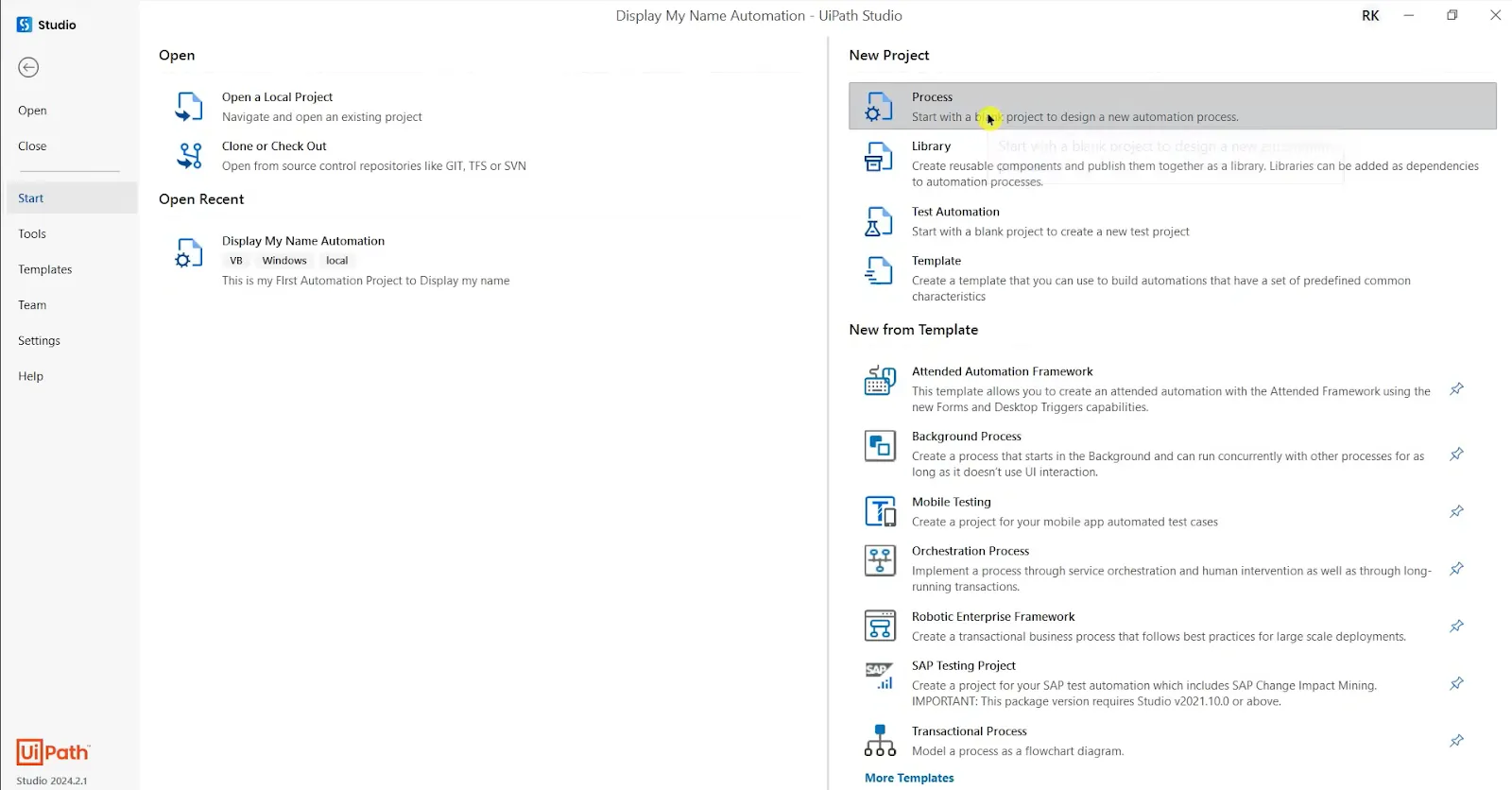
UiPath is built for scale. Its Automation Hub lets your entire team pitch and prioritize automation ideas in one place, making it easier to decide what’s worth building.
But what sets it apart is Agentic Automation, a feature that allows bots to work toward a goal without needing detailed step-by-step instructions.
When I tested it, I set up an agent to handle a multi-app support scenario. It pulled customer data from Salesforce, ticket status from ServiceNow, and order info from SAP, all without me manually linking each step.
That autonomy is powerful, but it comes with a learning curve. You’ll need time to write clear goals and test thoroughly, or you might run into execution errors.
On Standard and above, UiPath also integrates with models like OpenAI and Google Vertex. That means you can go beyond robotic tasks and trigger language-based actions like drafting emails or summarizing reports using simple prompts, all within your automation workflow.
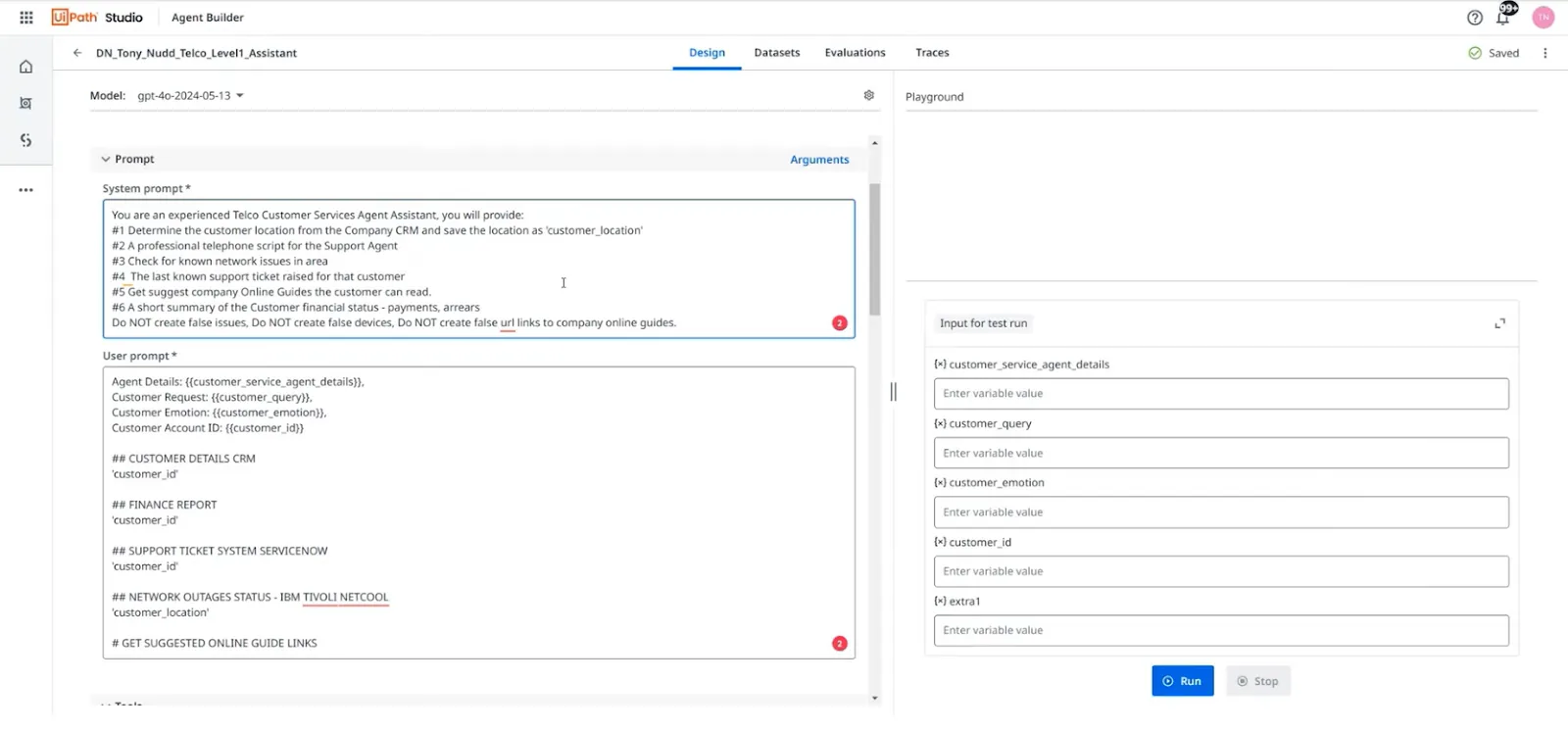
The platform’s strength lies in how well it fits into existing systems. You’re not bouncing between tabs or losing visibility. Its built-in privacy controls, available on Standard plan and above, also make it easier to keep sensitive workflows secure.
While the setup process takes time, especially for more advanced scenarios, the result is a highly scalable automation system that can span departments and handle real business logic.
Pros
- Built-in testing and version control for reliability
- Huge marketplace of plug-and-play components
- Supports AI prompt flows within enterprise automations
Cons
- Long setup time for agentic workflows
- Steep learning curve for non-technical users
Pricing
- Community plan is free and includes one unattended robot, plus a 60-day trial of Basic and Standard plans
- Basic plan starts from $25/month, UiPath’s entry plan
- Standard and Enterprise pricing is quote-based through sales
2. Zapier: Best for no-code app connectors
What does it do? Zapier connects apps and automates workflows with zero coding.
Who is it for? Perfect for solo operators, marketers, and non-technical teams.
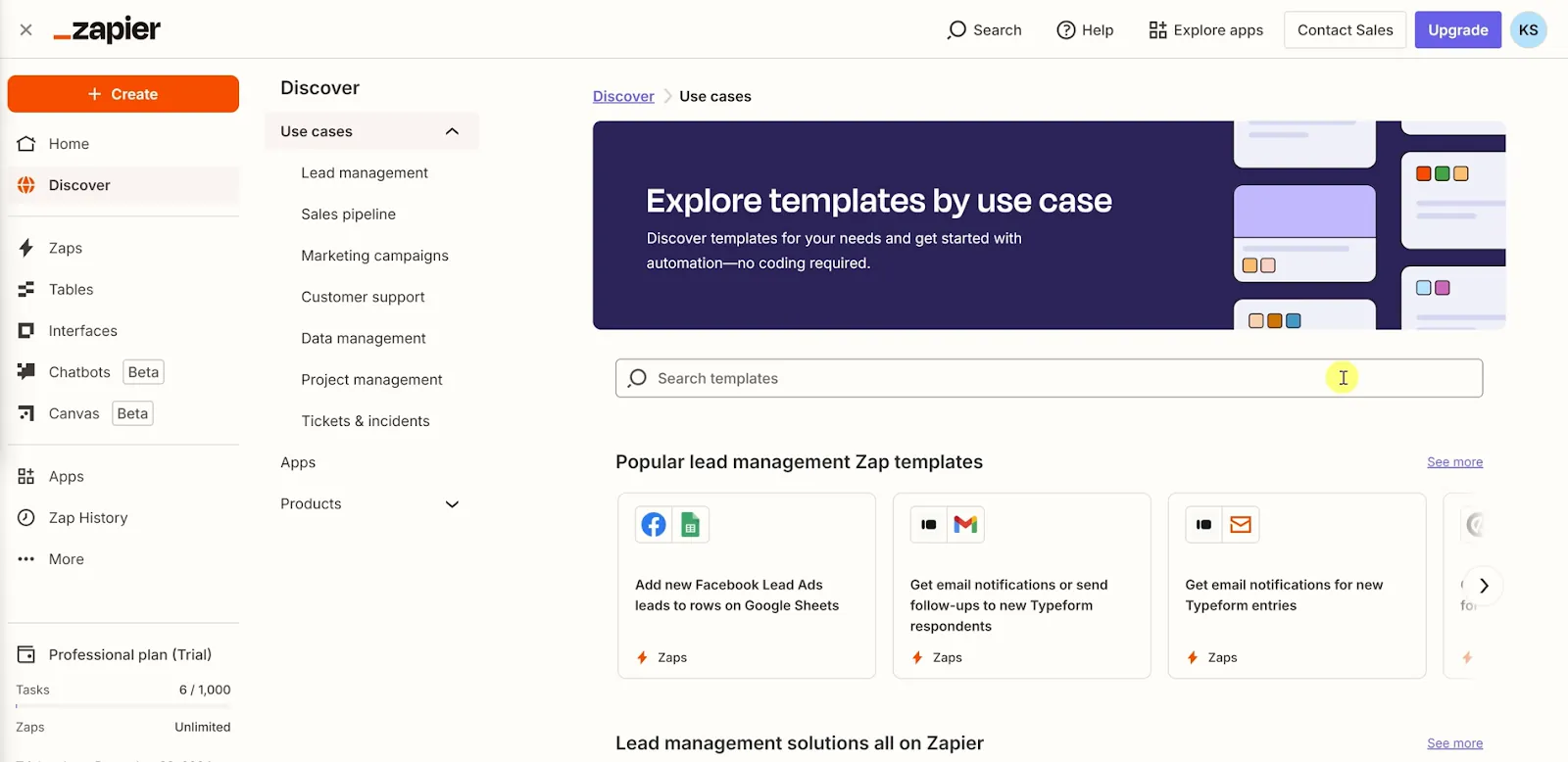
Zapier is my go-to for automating everyday tasks like syncing form submissions, copying data, or sending follow-ups. You don’t need to write code, just choose your apps, define the flow, and let Zapier do the rest. The AI assistant makes things even easier:
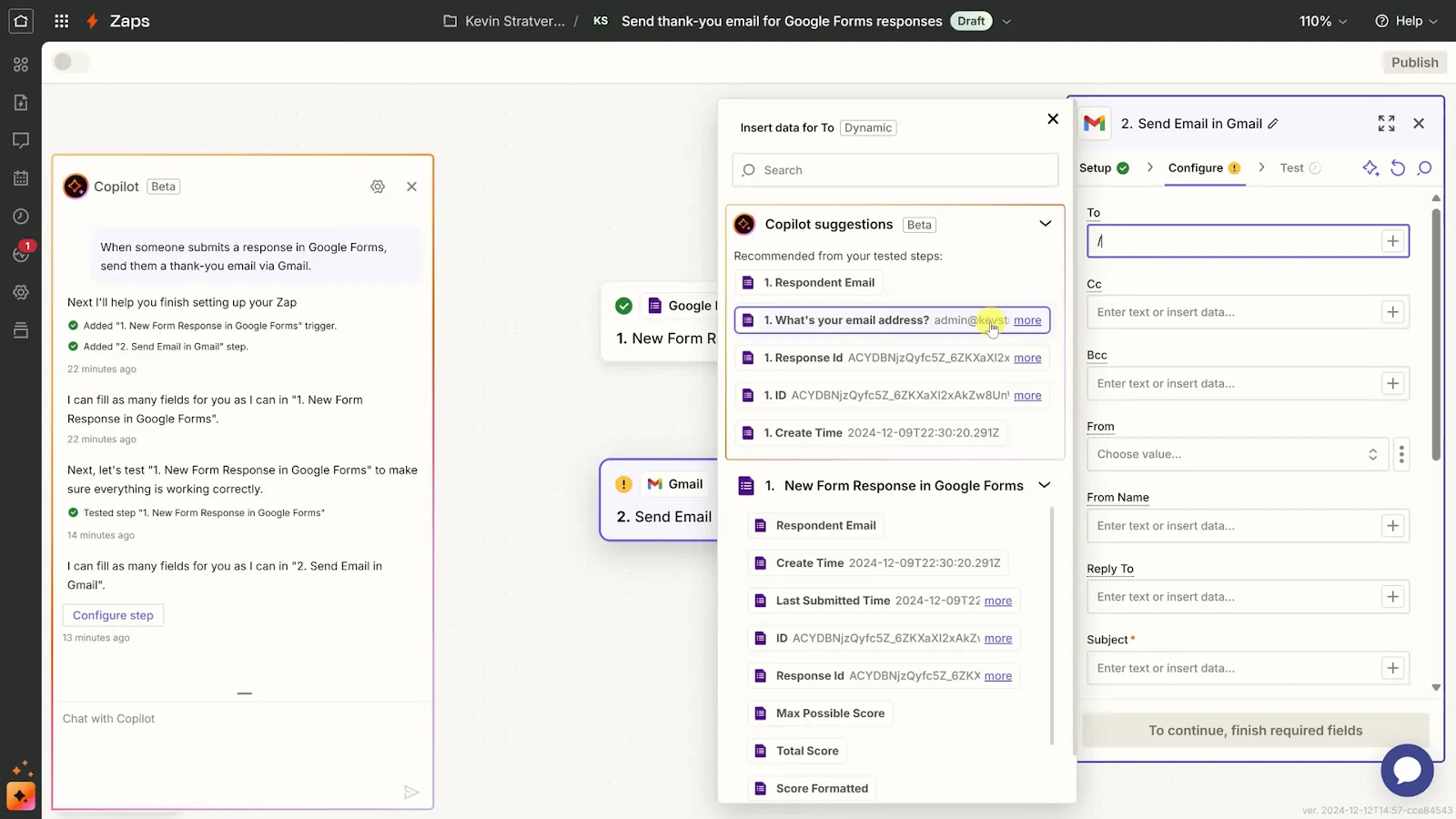
I described a basic flow in plain language, "when someone fills out a form, send a thank you email," and it instantly created a working Zap using Google Forms and Gmail. Setup took under 5 minutes.
Where Zapier wins is its ecosystem. It connects with more than 9,000 apps including Notion, Trello, Discord, HubSpot, and more. The Templates section is full of prebuilt automations that work out of the box. Just tweak the steps and you’re up and running. Integrating these workflows makes it easy to connect your essential work apps for smoother daily operations.
You can also save time with Zapier Tables, which lets you manage and manipulate structured data like a lightweight database.
I used it to track customer orders and run auto-calculations, like totals based on quantity and price. It worked seamlessly with other apps, creating a smooth handoff across platforms.
That said, pricing can spike quickly if you use multi-step Zaps or run high volumes. And if a connected app changes its API, some Zaps may break without warning. Still, Zapier’s documentation and support team make it easy to recover fast.
Pros
- Zapier Tables can handle structured data and auto-calculations
- Zapier adheres to privacy standards like GDPR and CCPA
- Quick to create Zaps with natural-language instructions
Cons
- Can get expensive with scale
- API changes may cause hidden errors
Pricing
- Free plan with 100 tasks/month, 2-step Zaps, AI features
- Paid plans start from $29.99/month, billed monthly
3. Lindy: Best AI teammate to automate work across your tools
What does it do? Lindy is an AI teammate that connects to your work apps and handles tasks you give it in natural language.
Who is it for? Teams that want AI to complete everyday work without building workflows or writing code.
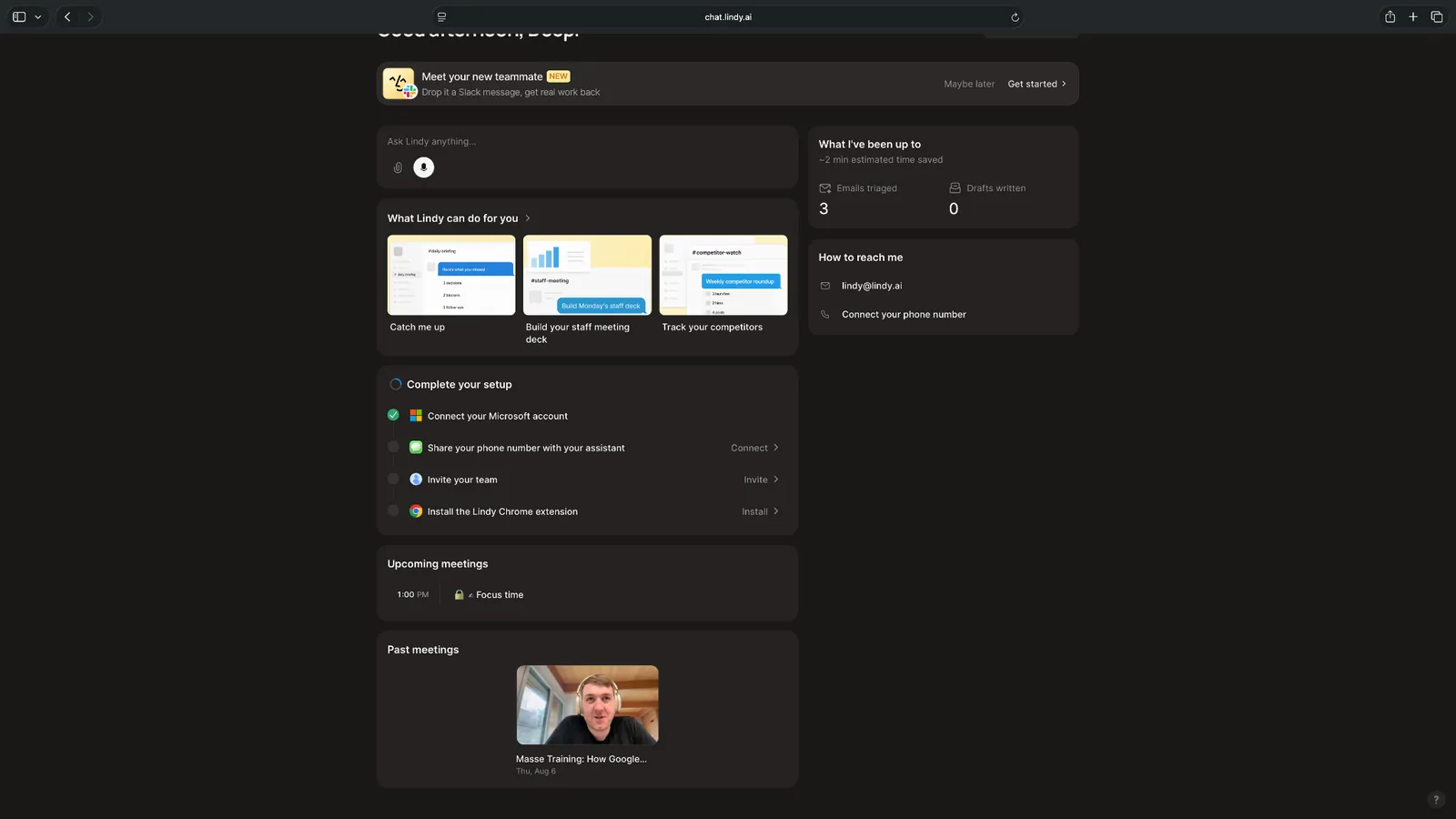
Lindy works inside your Slack as well as via the web app. You tell it what you need done, connect the apps it needs, and it works across those tools to complete the task.
That makes it quite different from platforms like Zapier or Make, where you usually build the automation step by step. Lindy can work from a natural-language request, use context from your connected tools, and ask for approval before taking actions that affect something outside your workspace. It currently connects with 1,000+ apps and supports MCP servers.
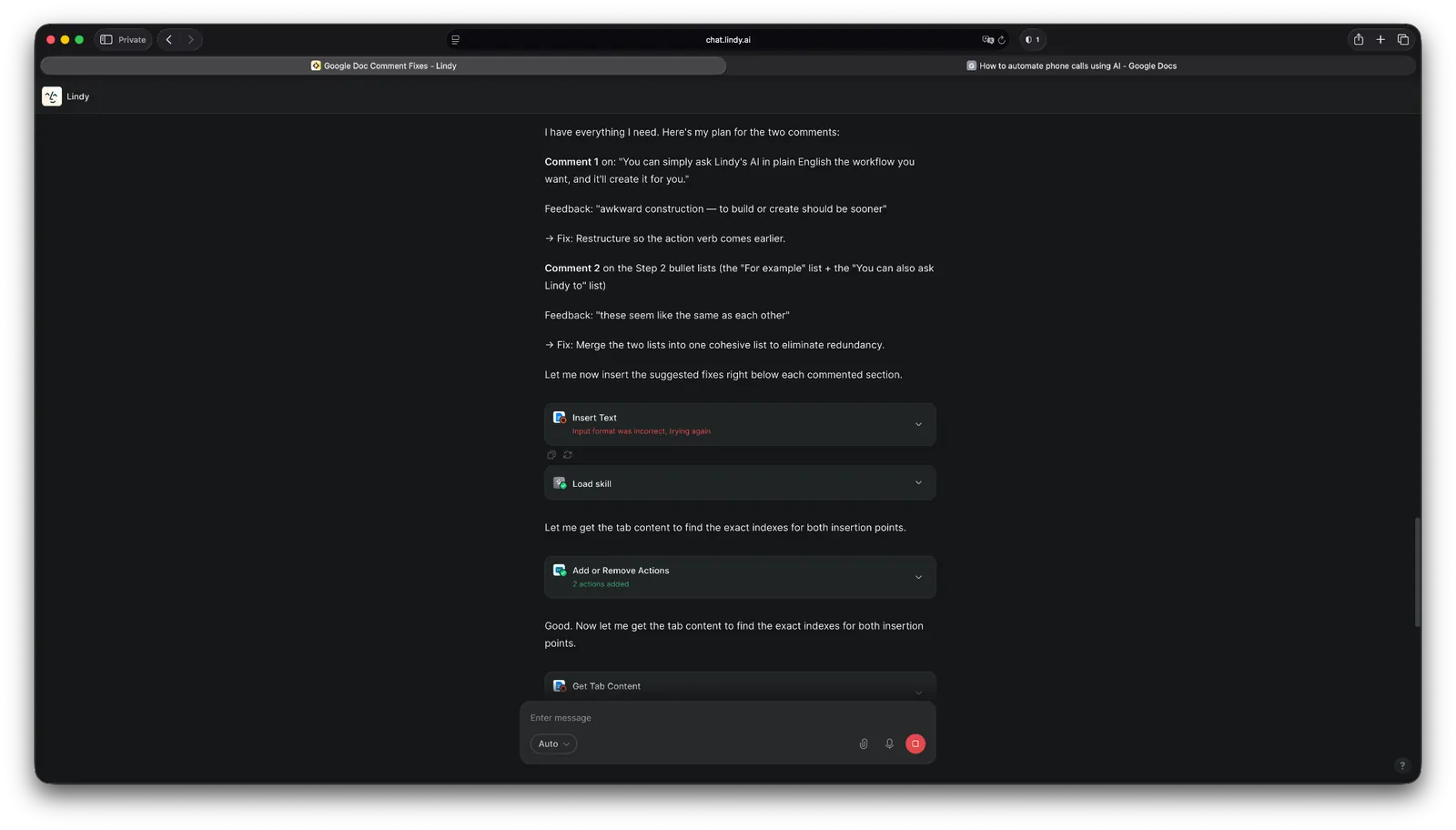
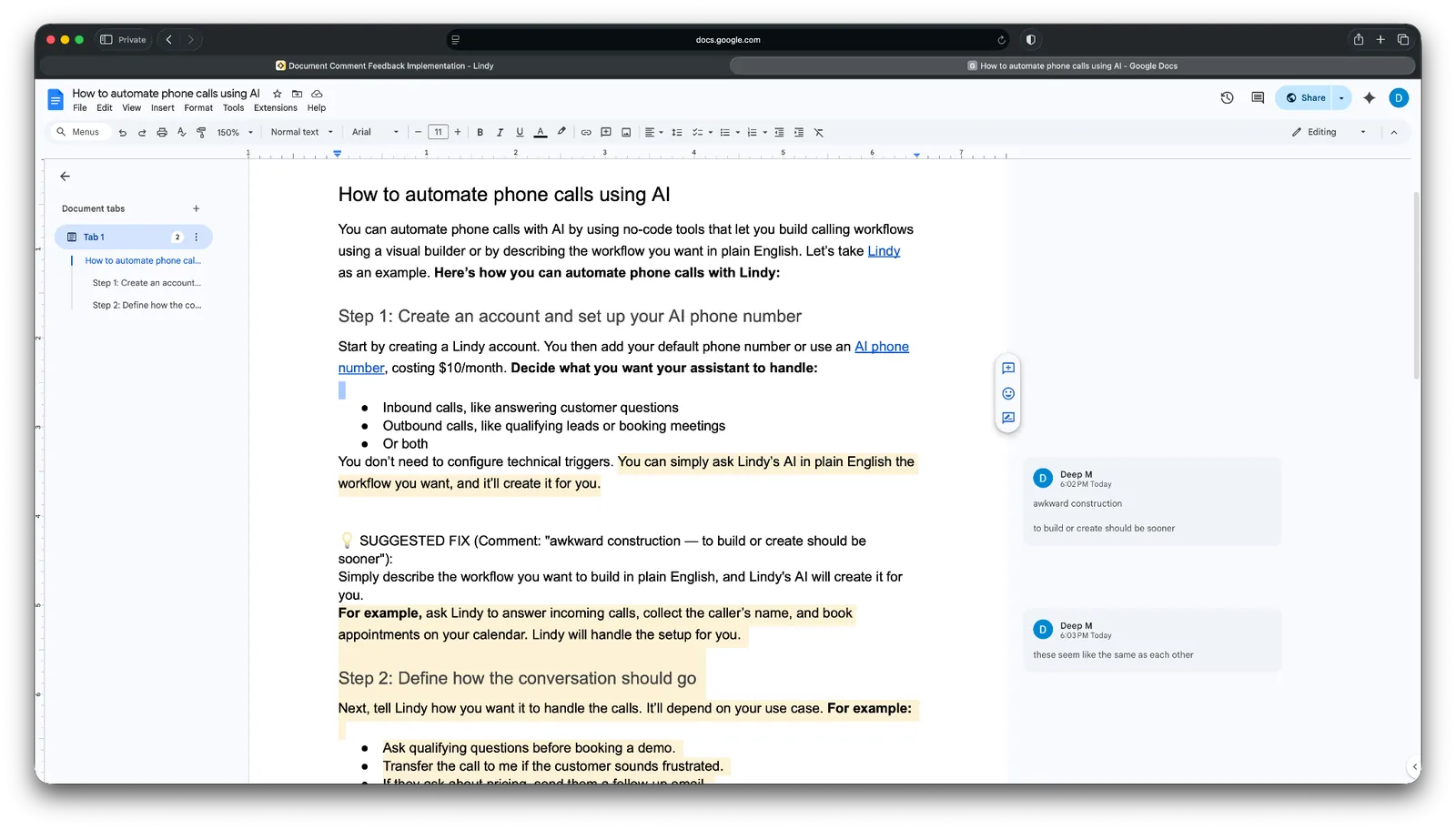
I tested this with a task I deal with often. I create internal documents and get comments from our technical team when terminology needs fixing. So, I asked Lindy to scan a Google Doc, find text with comments, and apply the suggested changes.
Lindy asked me for the document link. I had already connected Google Docs, so I pasted it in and let Lindy handle the rest.
It found the comments, understood the requested edits, and made the changes in the document. The task took around 10 minutes.
That test showed where Lindy fits into automation software. I didn’t need to create triggers, actions, branches, or map fields between steps. I described the outcome and gave Lindy access to the relevant app.
I tried something similar with Slack. I hadn’t connected it yet, so Lindy prompted me to do that first. After about a minute, it could access Slack, read messages, and help respond from there.
Lindy can now work in Slack, iMessage, Gmail, and the browser, join and reference meetings, run recurring tasks on a schedule, and use shared context across a team. It also comes with 40+ ready-to-use skills for tasks like research, data analysis, decks, and dashboards.
That makes Lindy useful when the work stretches across several apps. You could ask it to catch you up on Slack and email, prepare for a meeting, update a CRM, draft a reply, or run a recurring report without building each task as a traditional workflow.
There are still trade-offs. More involved work uses more credits, so tasks involving research, several apps, or large outputs can consume your allowance faster. And while natural-language requests remove much of the setup work, complex tasks can still take some iteration before Lindy handles them the way you want.
Pros
- Low learning curve for non-technical users
- SOC 2, GDPR, and PIPEDA compliance for regulated industries, with HIPAA and a signed BAA on the Enterprise plan
- Approval controls before external actions
Cons
- Complex work can consume credits quickly
- Some tasks need a few iterations
Pricing
- A 7-day free trial with all the capabilities of the Plus plan
- Paid plans from $29.99/user/month, billed monthly
{{templates}}
4. Make: Visual multi-step workflow automation
What does it do? Make lets you build workflows and AI automations by connecting apps on a visual canvas.
Who is it for? Teams that want more control over multi-step workflows without writing much code.
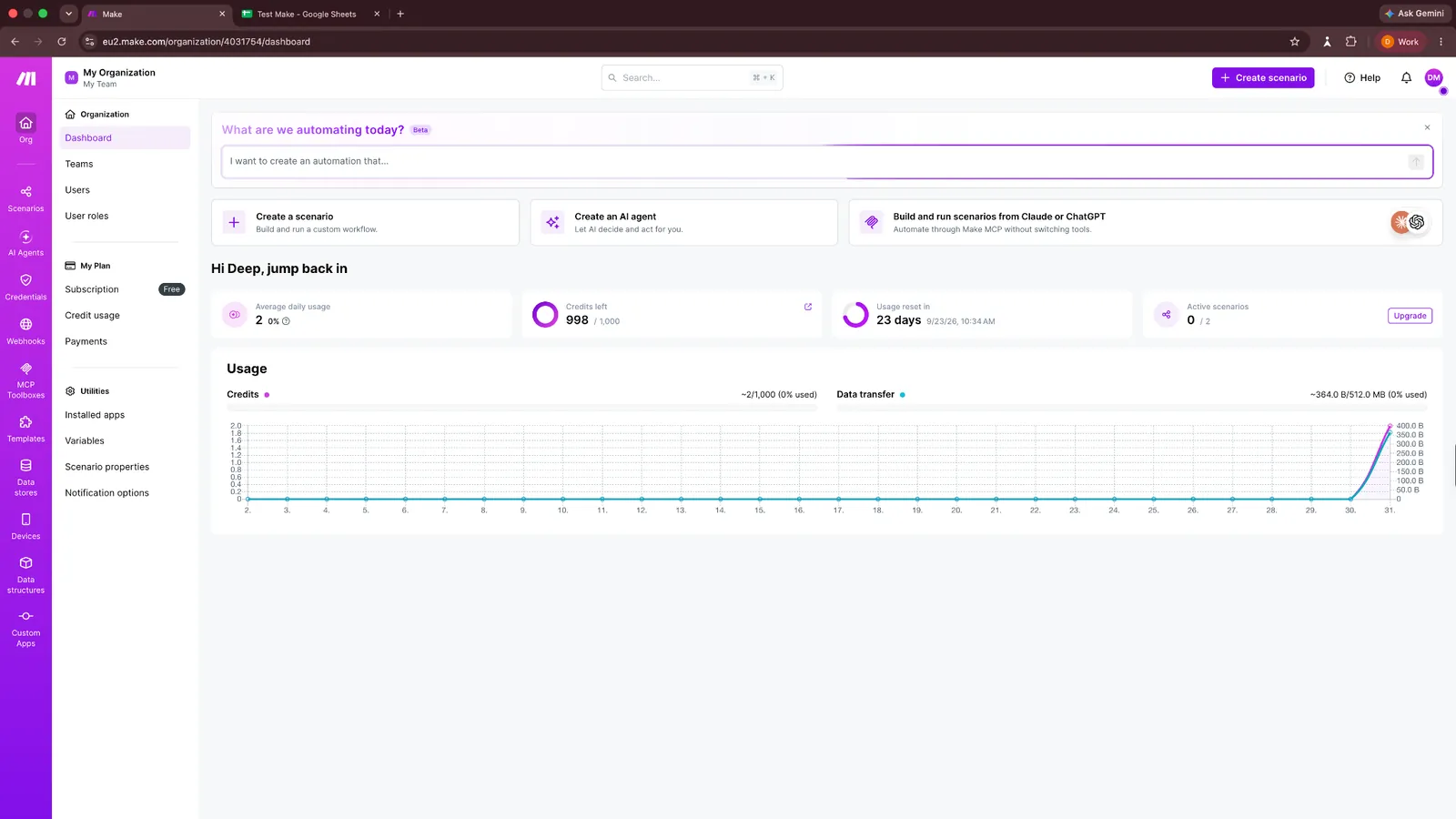
I tested it with a simple workflow that watched Google Sheets for new rows and then sent an email through Gmail.
Adding the apps was straightforward. I picked Google Sheets → Watch New Rows, connected my account, selected the spreadsheet, and then added Gmail as the next module.
The setup became less obvious when I got to mapping data between the apps. Make gives you a detailed mapping panel, but you need to understand what data the previous module has produced before fields such as an email address can be passed into Gmail.
I eventually got Google Sheets to pick up the new row, so the trigger itself worked. But Gmail returned a validation error for one of the configured parameters when I ran the full scenario.
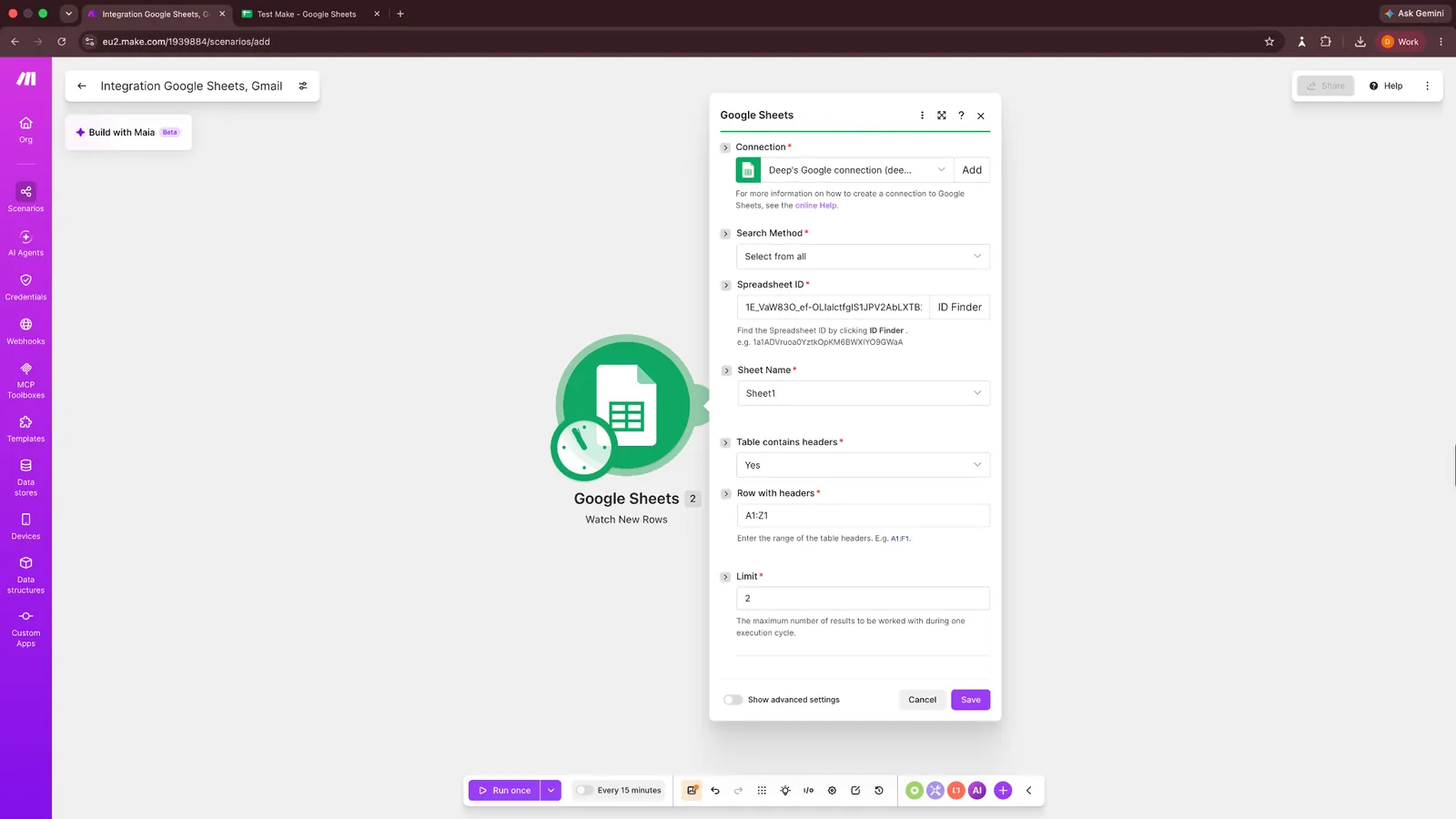
That sums up the Make experience pretty well for me. The visual builder makes complicated workflows easier to understand, but it doesn’t remove the need to understand how each step passes data to the next. When something breaks, you’ll probably spend some time inside individual modules figuring out which field or setting caused it.
Make has also expanded well beyond traditional workflow automation. Maia can build and troubleshoot automations from natural-language instructions, although the Maia access on my account had expired when I tried it. Make also now supports reusable AI Agents, an MCP Server and Client, AI-assisted data mapping, and Make Code for running custom JavaScript or Python inside workflows.
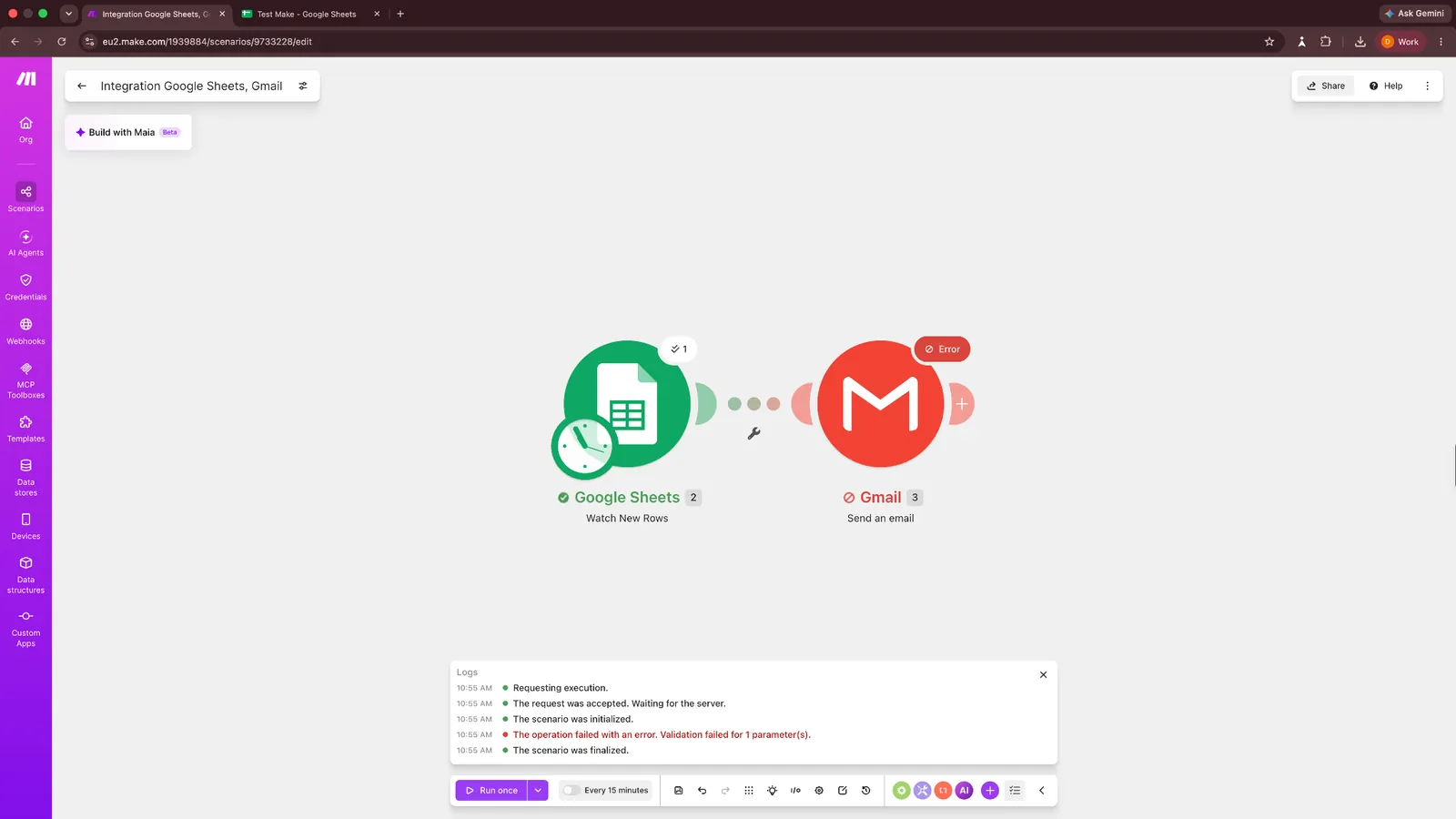
Make currently supports 3,000+ pre-built apps, including Google Sheets, Gmail, Slack, Salesforce, HubSpot, OpenAI, Claude, and other common business and AI tools. You can also connect apps without a native integration through APIs.
The trade-off is the learning curve. Make gives you plenty of control with filters, routers, data mapping, custom code, and branching logic. But that flexibility also means a beginner can get stuck on configuration details even when the workflow itself sounds simple.
Pros
- Visual canvas that supports complex branching, filters, and data mapping
- Includes AI Agents and MCP support
- Supports JavaScript and Python when needed
Cons
- Errors can require manual module troubleshooting
- Complex scenarios and field mapping have a noticeable learning curve
Pricing
- Free plan with 1,000 credits/month
- Paid plans from $16/month, billed monthly
5. Workato: Best for cross-tool process orchestration
What does it do? Workato orchestrates complex workflows across apps using role-based AI agents.
Who is it for? Best for cross-functional teams in IT, HR, finance, and operations.
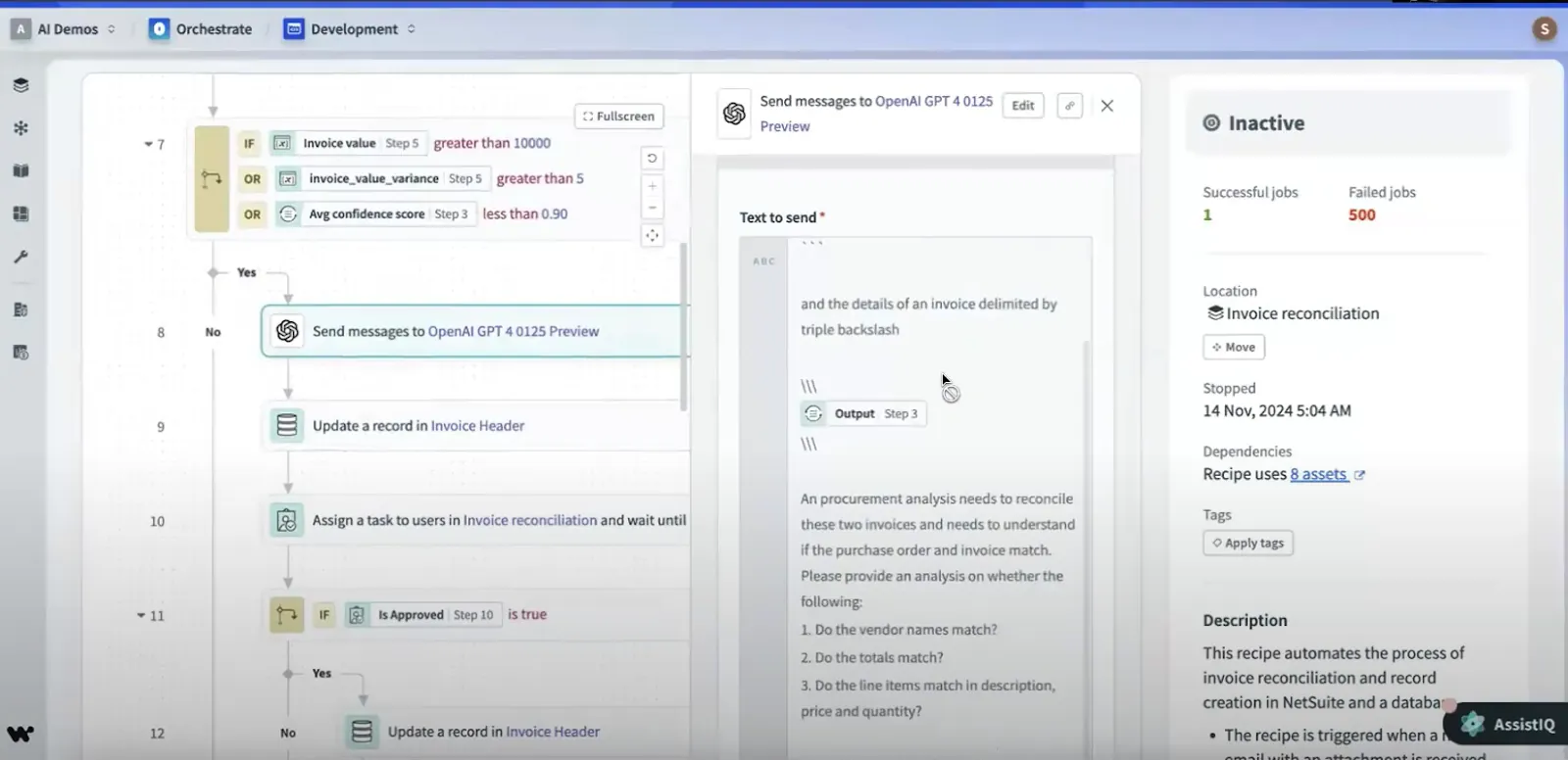
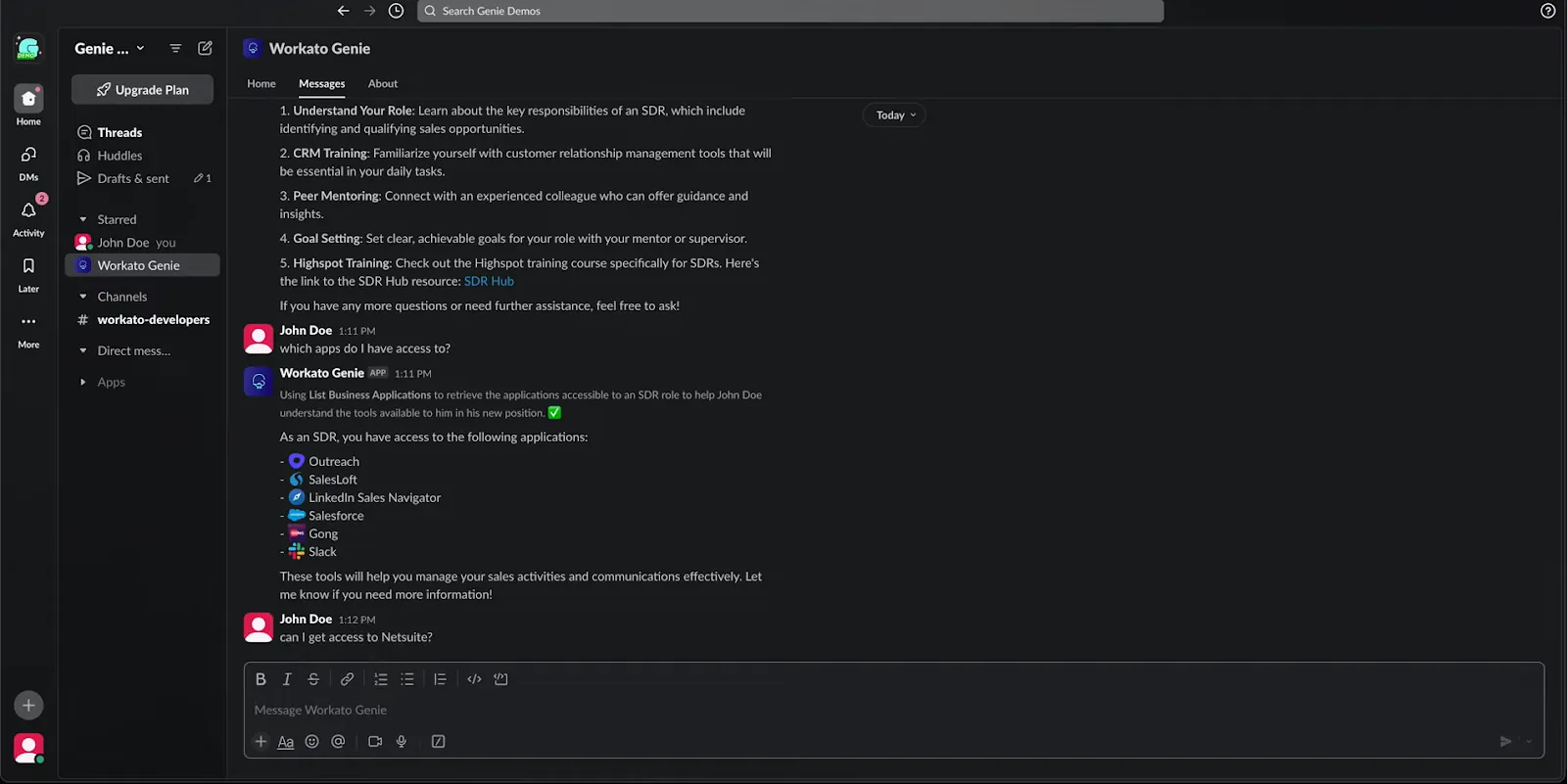
Workato can connect apps and orchestrate workflows that span across tools, departments, and roles. When I tested it, the standout was IT Support Genie, Workato’s AI assistant for internal ops.
I tried it inside Slack with vague questions like “What do I do next?” and it delivered personalized onboarding steps by pulling from HR, role metadata, and team resources. No forms, no pinging managers.
The real power shows when agents collaborate. I requested NetSuite access as a new hire, and instead of rejecting me outright, IT Support Genie routed the request, checked policy, offered alternatives, and spun up a Jira ticket, without me typing the same thing twice. Everything ran in the background, including approval workflows and task assignments.
Workato’s Agent Studio is where all of this gets built. It lets you build a chatbot and design AI agents that act on data, escalate decisions, and trigger actions based on business rules. I liked how much control I had over logic, access rights, and escalation paths.
However, support was slower than I expected. Some advanced features weren’t documented well, so it took trial and error to get things right.
Still, once set up, Workato handled multi-app logic like a champ, especially for companies dealing with complex internal processes.
Pros
- GenAI agents handle real actions, not just chat
- Flexible design for human approval and escalations
- Built-in role recognition streamlines onboarding and access
Cons
- Support response time can be slow
- Documentation lacks depth for advanced features
Pricing
- Free plan with 50k one-time credits
- Paid plans start from $75/month (2.5k credits), billed monthly
6. n8n: Best for developer-grade control without the enterprise bloat
What does it do? n8n offers full workflow customization using API calls, logic, and webhooks.
Who is it for? Best for technical teams who want flexible, self-hosted automation.
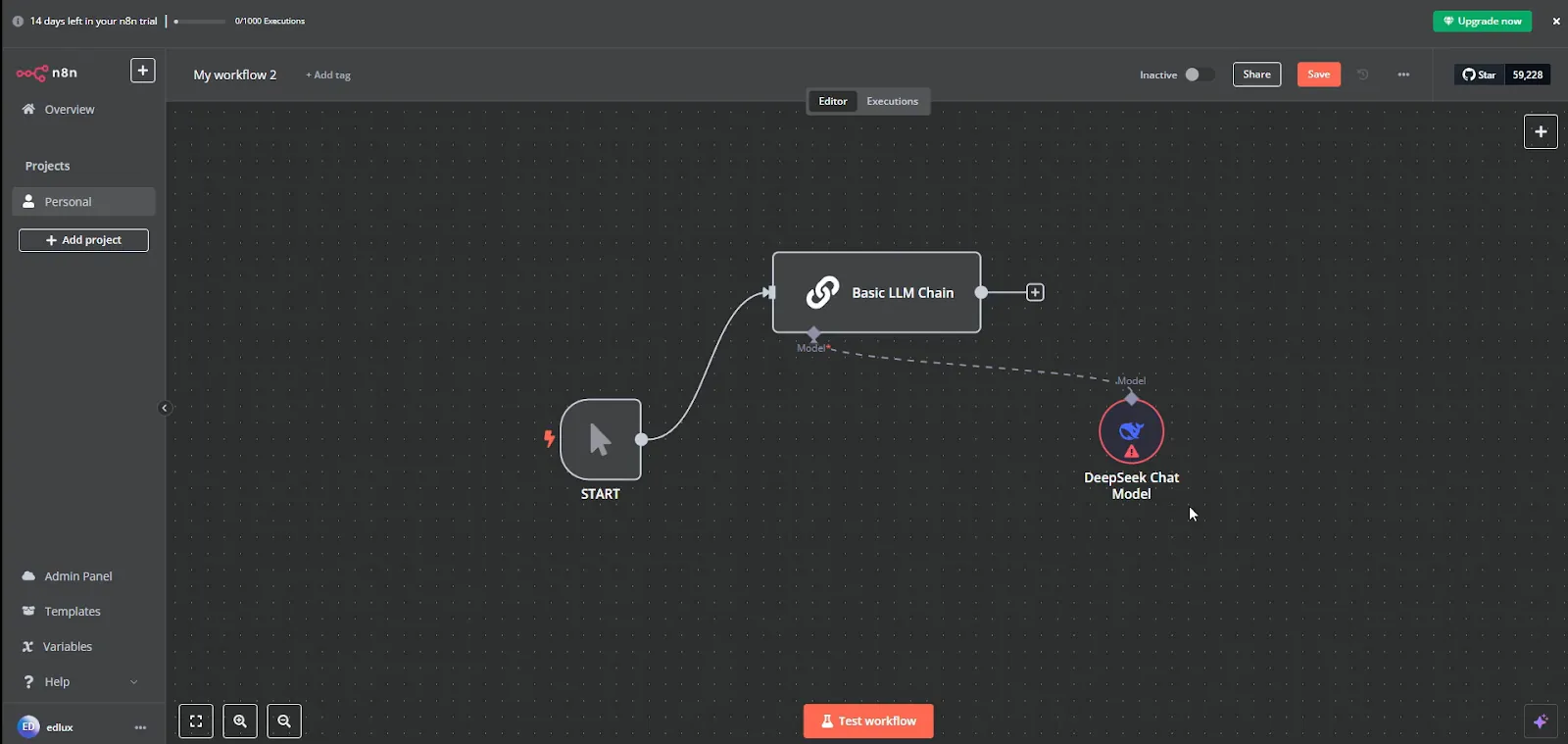
If you prefer building workflows from scratch rather than relying on no-code templates, n8n gives you the tools and freedom to do just that. It’s a developer-first platform that lets you connect APIs, use conditional logic, manage webhooks, and run advanced workflows without needing to rely on proprietary limitations.
I started with a simple Google Sheets to Slack workflow and quickly moved into more complex flows with HTTP requests, header configurations, and JSON parsing, all from the same drag-and-drop UI. You don’t need to write code, but the logic flexibility is unmatched for a tool this lightweight.
What sets n8n apart is that you can read its source code and self-host for free. You can also use their hosted version, or tap into a large library of community workflow templates, including workflows with OpenAI, WhatsApp, Stripe, and Airtable.
You can also trigger workflows programmatically or enable them based on usage spikes, making it ideal for high-frequency automations.
Security and team access are also well thought-out. I liked how easily I could share workflows while keeping sensitive API credentials protected via role-based access control.
It’s not the friendliest UI for beginners, especially with large workflows, and some nodes lack detailed documentation. But if you know your way around APIs and want complete control without platform bloat, n8n is a powerful tool.
Pros
- Fair-code and source-available under n8n’s Sustainable Use License, with strong self-hosting options
- Execution logs in every plan, with searchable ones on Pro plan and above
- Community support on Starter and Pro plan, email and SLA-based priority support on Enterprise plans
Cons
- UI performance dips on large workflows
- Sparse documentation on newer integrations
Pricing
- Free to self-host
- Paid plans start from $24/month, billed monthly
7. Microsoft Power Automate: Best for Microsoft-centric enterprises
What does it do? Microsoft Power Automate automates workflows across Microsoft 365 apps and enterprise tools.
Who is it for? Best for IT teams and ops leads working inside the Microsoft ecosystem.
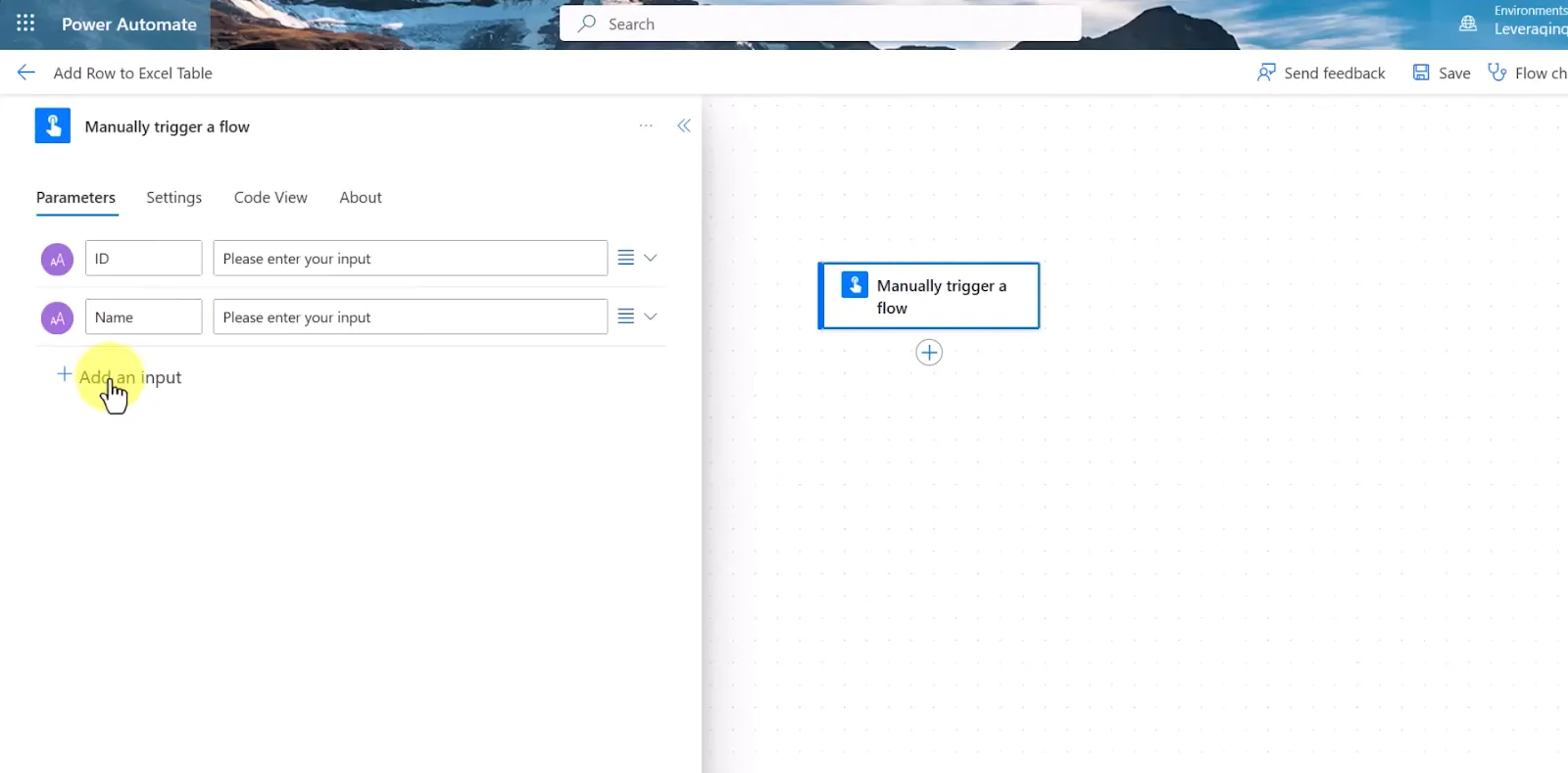
If your organization is already deep into Microsoft 365, Power Automate feels like the obvious choice. It connects natively with apps like Outlook, Excel, SharePoint, and Teams, so most triggers and actions are already built in and ready to use. No need for an elaborate setup.
The visual builder feels intuitive once you settle in. I used it to scrape website data, loop through Excel rows, and send customized emails, all without writing a line of code.
Power Automate Desktop runs attended flows on the $15/user/month plan and unattended flows on the Process plan at $150/bot/month. The Copilot support helps guide you through RPA workflows using natural language.
It also handles digital process automation (DPA) well, blending on-prem and cloud systems. You can create subflows to organize large automations, monitor them in real time, and control everything from a centralized admin center.
That said, the learning curve is real when you move beyond Microsoft-native tools. Working with third-party APIs means crafting your own HTTP requests and dealing with tricky authentication steps.
And Power Automate’s expression syntax is far from beginner-friendly; it’s like Excel formulas on hard mode, and debugging can be frustrating.
Still, for teams that already work inside Microsoft’s stack, it’s hard to beat the native convenience and security Power Automate offers.
Pros
- Enterprise-grade governance and compliance tools
- Deep integration with Power Platform and Azure services
- Strong role-based access controls for flow management
Cons
- Third-party integrations can feel clunky
- Steep syntax learning curve for custom logic
Pricing
- Free trial with 30 days of access to standard connectors
- Paid plans start from $15/user/month, billed yearly
Types of automation software
Early on, I used to lump everything under “workflow automation.” If a tool could send a Slack message after a form submission or auto-update my CRM, I would call it automation and move on.
But once I started testing tools across marketing ops, product, sales, customer support, and finance, I realized not all automation is built for the same kind of work.
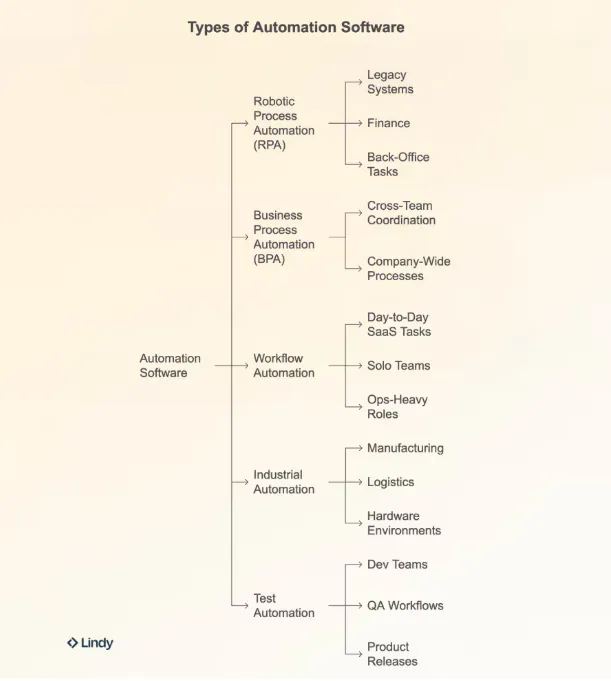
There are five main types of automation software, each designed to solve a different kind of problem. Understanding these makes it much easier to choose the right tool for your needs. Here’s a breakdown of the major categories I’ve worked with (or encountered) in real workflows:
1. Robotic Process Automation (RPA)
Best for legacy systems, finance teams, and back office tasks
RPA tools mimic human actions, clicking, copying, pasting, and filling out forms, especially in systems that don’t have APIs. They’re great for automating repetitive tasks in older enterprise environments.
I’ve seen finance teams use RPA to automate invoice entry, reconcile reports, and pull data from outdated desktop software. One team used it to transfer thousands of customer records into Salesforce without hiring data entry staff.
But RPA bots can be fragile. If a button or field changes in the UI, the automation can break. They’re powerful but require ongoing maintenance.
2. Business Process Automation (BPA)
Best for cross-team coordination and full company workflows
BPA takes a bigger-picture approach. Instead of automating individual tasks, it connects departments and systems to streamline entire business processes. For example, automating the full lead-to-invoice journey across sales, legal, and finance.
I’ve used tools like Kissflow and Pipefy to build automated hiring pipelines, onboarding flows, and procurement chains. They handle approvals, forms, internal routing, and audits in one place.
The catch is that BPA systems can be overwhelming if you don’t have a clear internal structure. They’re great for long-term efficiency but not ideal for one-off tasks.
3. Workflow automation
Best for SaaS tasks, small teams, and operations roles
This is where most people start. Tools like Zapier and Make help you connect your favorite apps to automate everyday tasks. For example, someone fills out a Typeform, and a Slack message is sent, an email goes out, and the contact is logged in Notion.
These tools are simple to set up and great for lightweight automation. I’ve used them to automate social media posts, internal alerts, CRM updates, and customer feedback routing.
The downside is that they rely on clean data and predictable rules. If things change or get messy, the workflows break. And once your team has dozens of them running, documentation becomes essential.
4. Industrial automation
Best for manufacturing, logistics, and hardware-based operations
I haven’t worked with these systems myself, but they’re huge in sectors like automotive, shipping, and warehousing. Industrial automation involves physical systems, like robot arms, conveyor belts, and sensors, and runs on platforms like PLCs (programmable logic controllers).
Think of this as automation for the real world rather than digital workflows. It helps reduce production errors, increase speed, and improve workplace safety.
If you’re in tech or SaaS, you likely won’t touch these tools, but they’re an important part of the broader automation landscape.
5. Test automation
Best for developer teams, QA pipelines, and product testing
Test automation helps engineering teams run tests on new features without doing it manually. Tools like Selenium, Cypress, and Playwright can run through login flows, payment systems, and onboarding steps every time code is pushed.
I’ve worked with QA engineers who set up automated test suites that catch bugs before they ever reach production. It’s technical, but for fast-moving teams, it’s essential.
{{cta}}
How I chose the best intelligent automation software
I didn’t just look for tools that “automate stuff.” I wanted platforms that were practical, scalable, and helpful in real-world scenarios, whether you're running solo workflows or managing operations across departments. After weeks of hands-on testing, these are the key factors I prioritized:
Good automation starts with a clean, intuitive builder. I looked for tools that offered visual, drag-and-drop interfaces or low-code editors that made it easy to map out complex flows. Whether you’re setting up basic triggers or nested logic trees, the builder should be easy to follow and easy to debug when something breaks.
The best tools play well with others. I prioritized platforms that connect with popular apps like Slack, Google Workspace, Microsoft 365, Salesforce, and Notion. Bonus points if they support custom APIs, webhooks, or developer-level access for unique integrations.
Automation failures happen. What matters is how the tool helps you recover. I looked for platforms with clear debugging tools, like real-time logs, error messaging, and retry steps. Some even let you build conditional branches to handle edge cases without breaking your flow.
From templates and starter flows to in-app guidance, I preferred tools that helped users get started fast. I also tested how well each platform scaled, from solo use to full-blown team automation. Features like shared folders, permission management, and desktop vs cloud flexibility all mattered here.
Modern automation is more than rule-based triggers. I gave bonus points to platforms that included built-in AI helpers or GPT-powered suggestions to improve workflows. A strong user community (especially active Reddit threads) also played a big role in helping troubleshoot weird edge cases or discover clever use cases.
Which intelligent automation software should you choose?
The right intelligent automation software depends on how much control you want, how technical your team is, and whether you’re automating cloud apps, desktop work, or broader business processes.
Use these scenarios to narrow your options:
Choose UiPath if you:
- Need to automate high-volume, repetitive enterprise processes
- Work with legacy software, desktop apps, or virtual environments
- Want RPA and agentic automation with enterprise controls
- Have IT or automation teams that can handle a steeper setup process
Choose Zapier if you:
- Want to automate work across a large app library
- Need trigger-and-action workflows without writing code
- Have sales, marketing, ops, or support teams building their own automations
- Prefer a lower learning curve for straightforward workflows
Choose Lindy if you:
- Want an AI teammate you can message instead of building every workflow step
- Need help across Slack, Gmail, meetings, reports, follow-ups, and other daily work
- Want AI to work across your everyday apps
- Prefer Lindy to ask before changing something in your connected tools
Choose Make if you:
- Want to build workflows visually on a canvas
- Need filters, branching, data mapping, and multi-step logic
- Want more control than basic trigger-action automation provides
- Plan to combine traditional workflows, AI agents, APIs, or custom code
Choose Workato if you:
- Run a larger organization with complex cross-department processes
- Need to connect cloud, on-premise, data, and enterprise systems
- Care about governance, security, observability, and centralized control
- Want one platform for integration, automation, APIs, and AI orchestration
Choose n8n if you:
- Have a technical team that wants more control
- Need to mix a visual builder with custom code
- Want the option to self-host your automation environment
- Build AI workflows where logic, approvals, and execution need tighter control
Choose Microsoft Power Automate if you:
- Already use Microsoft 365 and Power Platform
- Want workflows around Outlook, Teams, Excel, SharePoint, and related tools
- Need to automate desktop or legacy applications with RPA
- Want cloud and desktop automation under the same Microsoft ecosystem
Skip automation software entirely if you:
- Only have a few occasional manual tasks
- Don’t yet have a repeatable process worth automating
- Would spend more time maintaining the automation than doing the task
- Need AI mainly for writing, research, or one-off questions
My final verdict
These seven platforms approach automation differently, so I wouldn’t pick one based on the longest feature list.
I’d say Lindy is the ideal AI automation tool for small and medium businesses that want to hand everyday work to an AI teammate instead of constructing each automation step manually. It fits work that moves across Slack, email, meetings, reports, and connected business apps.
Zapier makes more sense when you want approachable no-code workflows across a huge app library. Make gives you more visual control over branching, mapping, and multi-step scenarios.
Pick n8n if your technical team wants code access, self-hosting, and more control over AI workflows. Microsoft Power Automate fits companies already invested in Microsoft 365, especially when desktop RPA matters.
For larger enterprises, the decision is more likely between UiPath and Workato. UiPath is a stronger fit for RPA-heavy automation across desktop and legacy systems, while Workato focuses more broadly on connecting and orchestrating apps, data, APIs, processes, and AI across the enterprise.
The scenarios above should get you closer to the right tool than treating all seven as interchangeable automation platforms.
Here’s why you should try Lindy for automation
For many small and medium teams, the hard part is getting routine work off your plate without spending hours building and maintaining automations.
Lindy takes a different approach. You can message your AI teammate in plain English, @mention it in Slack, connect the apps your team already uses, and hand it work across those tools. It can also run recurring tasks on a schedule and ask for approval before making changes.
That makes it worth considering if your automation needs look more like “catch me up, update this, send that, prepare this report, and follow up tomorrow” than a fixed series of triggers and actions.
Try the Lindy free trial and see whether an AI teammate fits the work you want to hand off.
Frequently asked questions
1. Can small businesses benefit from automation software?
Absolutely. Small businesses often run lean, and automation can help them punch above their weight. Whether it's auto-sending invoices, tagging CRM leads, managing email campaigns, or tracking customer support requests, automation reduces manual workload without adding headcount.
Tools like Zapier offer free plans and easy templates that let small teams get started quickly, even without IT support. You save time, cut down errors, and keep your operations consistent and scalable from day one.
2. Is coding knowledge necessary to implement automation software?
No, most modern automation platforms are designed with non-technical users in mind. You’ll find drag-and-drop workflow builders, prebuilt templates, and AI assistance baked into tools like Power Automate, Lindy, and Zapier.
Even advanced features like conditional logic or multi-step flows are handled visually. That said, if you are technical, platforms like n8n allow deeper control. But for most use cases, no coding is needed, just a clear idea of what task you want to automate.
3. How does automation software impact employment?
Automation software impacts employment by both creating and eliminating jobs. While some routine tasks are automated, leading to potential job displacement in certain sectors, new job opportunities emerge in areas like automation development, maintenance, and related fields.
Additionally, automation can lead to increased productivity and efficiency, potentially driving economic growth and creating new market demand.
4. What are the risks associated with automation software?
Like any system, automation has risks if not handled thoughtfully. Poorly set up workflows can send wrong emails, update the wrong database fields, or expose sensitive info.
That’s why most business automation software offer role-based permissions, audit logs, and testing environments to reduce mistakes. You should always test workflows, apply access controls, and monitor outputs, especially when automating tasks tied to external users or business-critical systems.
5. What is the return on investment (ROI) for automation software?
ROI for automation can show up surprisingly fast, often within the first quarter. Instead of spending hours on admin work, your team gets back time for decision-making and innovation. Errors go down, task completion speeds up, and you eliminate bottlenecks like manual data syncing.
For teams dealing with high-volume tasks (think customer onboarding, scheduling, or reporting), tools like Zapier or Lindy can save dozens of hours each month, which quickly adds up in both time and money.
6. Can automation software integrate with existing business systems?
Yes, automation software can and often does integrate with existing business systems. This integration typically involves using APIs, connectors, or pre-built integrations to facilitate communication and data exchange between different platforms. By connecting existing systems, automation software can streamline workflows, reduce errors, and improve overall efficiency.
Zapier and Lindy, for example, connect with thousands of apps, and platforms like n8n can call almost any API directly. You don’t have to change your tools because automation works with what you already use.